
Introduction
This page explains how users can share LabMaestro components. After reading this page, you should:
-
Understand what the shared component library is and how to access it within LabMaestro.
-
Understand how to download components from the scientist portal.
-
Understand how to upload your own components to the shared component library.
Prerequisites
-
Have LabMaestro installed and activated.
-
Have an account on the VPixx Scientist Portal.
The Shared Component Library
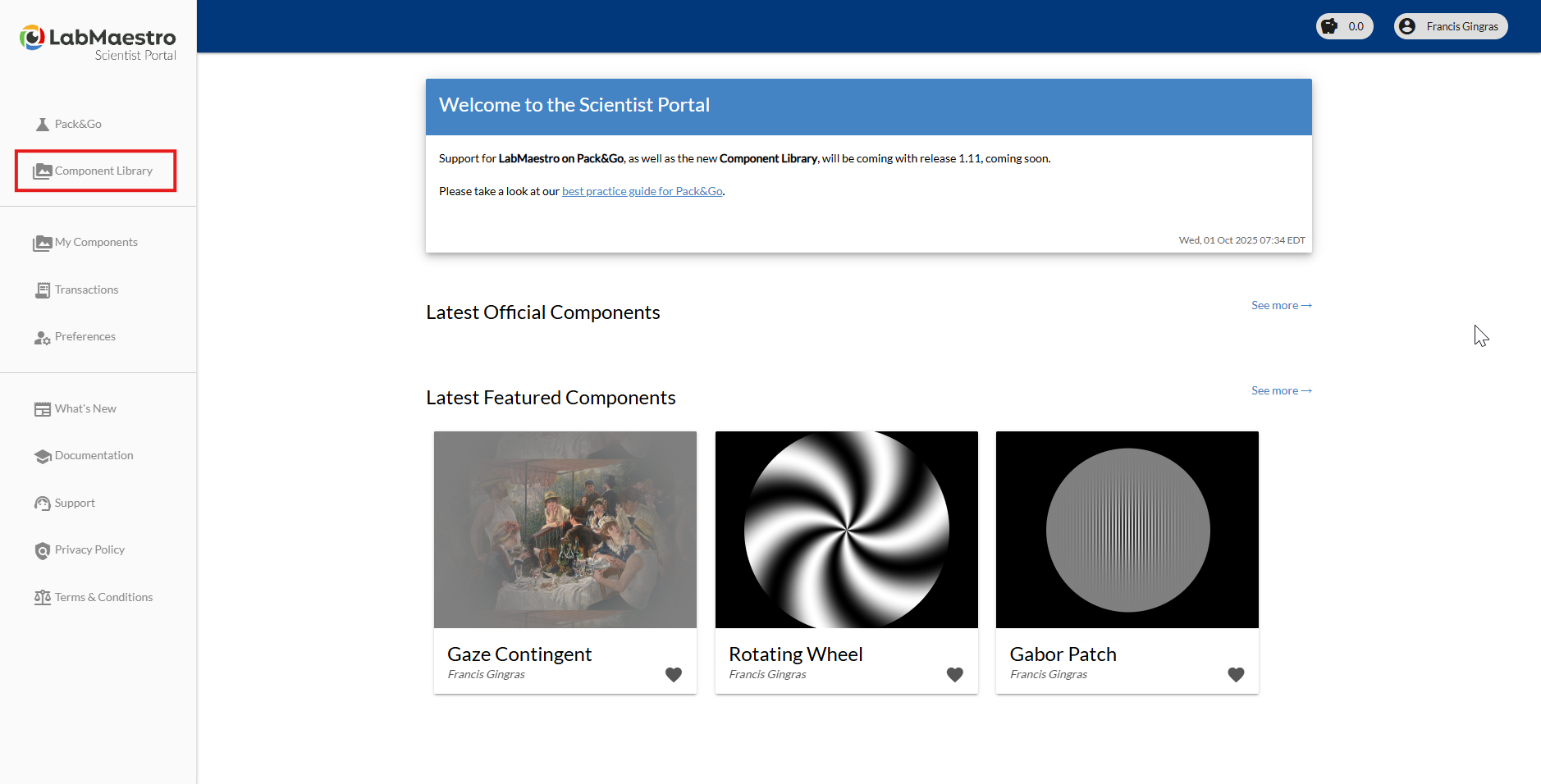
From LabMaestro version 1.11 onwards, and from Pack&Go version 13.0 onwards, a shared LabMaestro Component library is now hosted on the VPixx Scientist portal. It can be accessed from the landing page of the Scientist Portal after logging in, or directly from the LabMaestro application through the Add components button of the Shared Library panel. The landing page also shows a preview of the latest Official Components (created by staff at VPixx Technologies) and Featured Components (created and submitted by users).
Downloading Components from the Component Library
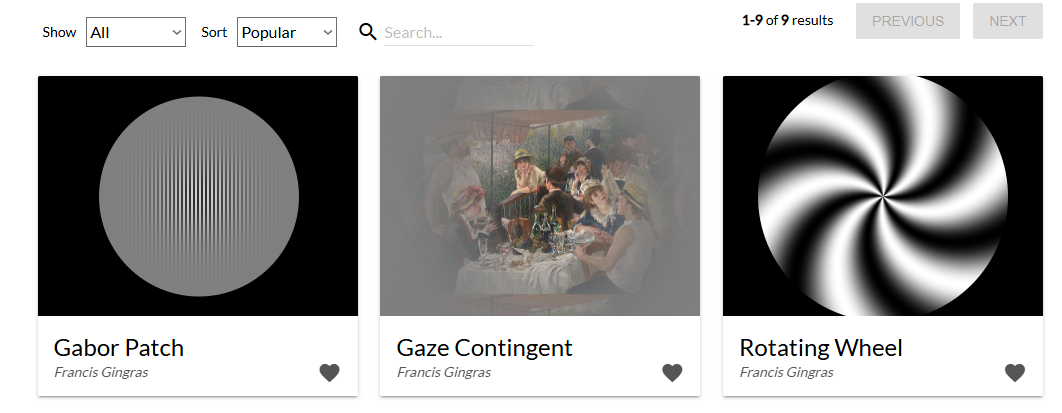
Upon accessing the component library, you will see a list of all included components. You can sort these by popularity or recency, and also use a search bar to find more specific components. You can also filter components to include only featured or official components.
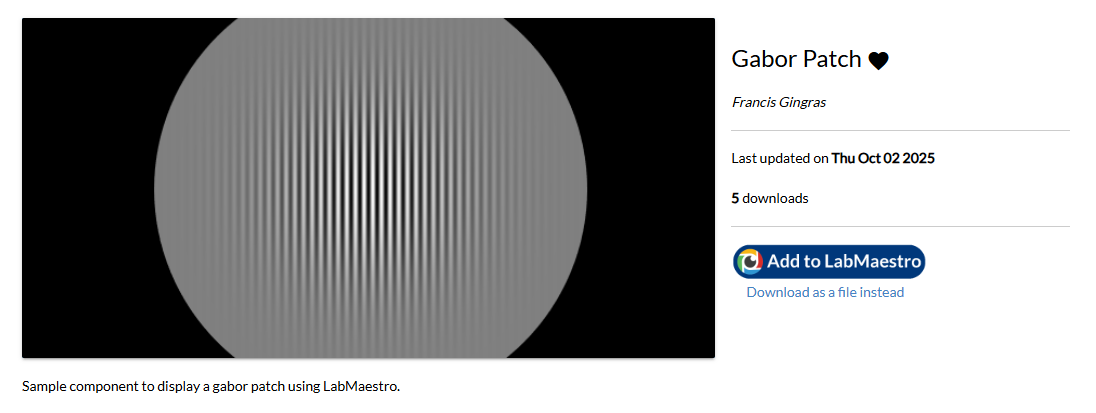
If you are interested in a component, you can click on it to access its information page. This page generally includes a brief description of the component's functionality, along with a prompt to download it to your LabMaestro application.
Uploading components to the component library
All LabMaestro users can develop and submit their own custom components to the component library, either privately or publicly, enabling all users to share innovative approaches to experimental methods, regions, or patterns, facilitating easier access for the scientific community.
Here are guidelines regarding what you can or cannot upload as components:
-
Methods
-
Timelines
-
Epochs
-
Regions (and their underlying patterns)
-
Patterns
-
Commands
-
Resources
-
Displays
-
VPixx devices
-
Recordings
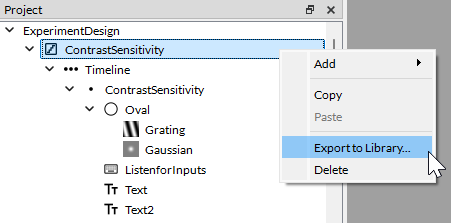
To upload a component, you must connect to your VPixx account. You can do so from the Log in button in the upper right of the LabMaestro UI. Once this is done, right-click the component you wish to submit from the Project panel and select Export to Library.
When submitting a component, all underlying elements will be included. For example, taking the screenshot above, uploading the ContrastSensitivity method will include the underlying timeline and all its elements. Please ensure you select only what you wish to submit to the library.
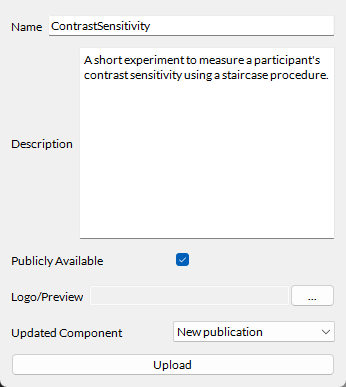
Selecting Export to Library will open a contextual window in which you must enter the following information:
-
Name: The name of the component. If you intend to make this component public, please ensure the name is informative about what your component does.
-
Description: A description of what your component does. If you intend to make this component public, please ensure the description is clear and complete to avoid issues for your component users.
-
Publicly Available: Toggle this option on to make your component accessible to the public. The team at VPixx Technologies will review components to ensure they meet a certain standard. Please refer to the guidelines below if you intend to submit a public component. A privately uploaded component will not be subject to validation.
-
Logo/Preview: Add an image that previews your component. For optimal results, your image should be either 320x240px or 640x480px. If you intend to make your component public, please ensure the preview image is as informative as possible.
-
Updated Component: Select whether you wish to upload your component as an update to a previous component or as a new component.
Guidelines for Public Component Submission
If you intend to submit a public component, please follow the guidelines below to ensure a smooth revision process as well as ease of use for potential users:
You should:
-
Give your component an informative name.
-
Give a complete description.
-
Thoroughly test your component to identify and remove potential errors before submission.
-
Be ready to update your component after LabMaestro software updates to ensure smooth integration in future versions.
-
Ensure a similar or identical component has not already been submitted.
You should not:
-
Give a generic (e.g., test), non-meaningful, or offensive name to your component.
-
Leave the description empty or filled with non-helpful or personal information.
-
Submit a component that is prone to cause bugs or errors when dragged into an experiment.
-
Upload an exact copy of an existing component submitted by another user.