
Overview
This page covers how to configure and use the DATAPixx3 I/O Hub in LabMaestro, as well as how to simulate a DATAPixx3 in the device simulator.
Before you begin, you should:
-
Have LabMaestro installed and running
-
Have the DATAPixx3 powered on and connected to your PC via USB
-
Be familiar with the Environment and Devices Overview
Configure the device in your environment
Your DATAPixx3 is automatically detected as a device by LabMaestro. You can see it under the Environment section of the Project panel. Double-click on the device under the Environment to open the Device Settings menu. You can add the device to your project by right-clicking or from the properties window.
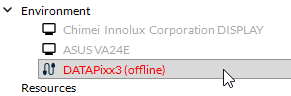
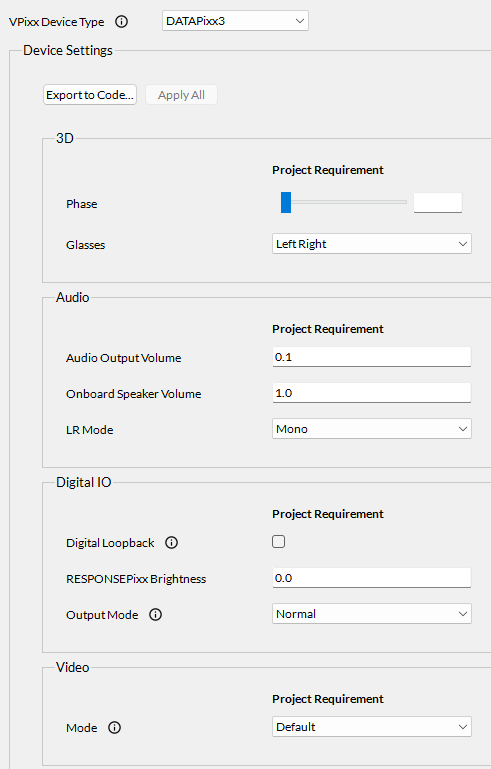
If your device is not automatically detected by the LabMaestro software, please ensure it is powered on and connected to your computer. Also, please ensure your DATAPixx firmware is up to date.
DATAPixx3 Properties
|
Setting |
Description |
Options |
|---|---|---|
|
3D |
||
|
Glasses |
Select the type of 3D glasses to use when VIEWPixx /3D is set to one of its 3D video modes. See the following guide to familiarize yourself with 3D Stimulus Presentation with the VIEWPixx /3D |
|
|
Phase |
Select the phase of the VESA 3D waveform that drives the 3D glasses; adjust this value to minimize cross-talk. |
0-255 (default = 100) |
|
Audio |
||
|
Audio Output Volume |
Define the volume of audio signals sent from the DATAPixx3. |
0-1 (default = 0.1) |
|
Onboard Speaker Volume |
Define the speaker volume. |
0-1 (default = 1.0) |
|
LR Mode |
Define how the audio signal is output from the speaker. |
|
|
Digital IO |
||
|
Digital Loopback |
Enable/disable the internal digital loopback between the digital inputs and outputs (each digital output channel sends its output to the corresponding digital input channel, e.g., DOUT 0 → DIN 0, DOUT 1 → DIN 1, etc.). |
Enable or Disable (default = disabled) |
|
RESPONSEPixx Brightness |
Set the LED brightness on the buttons of a standard RESPONSEPixx button box connected to the digital input. |
0.0-1.0 (default = 0.0) |
|
Output Mode |
Select the digital output mode. The “Normal” mode is the standard setting for Digital Output; the user may set digital output values “manually” or use schedules to output digital waveforms. Pixel Mode enables automated 24-bit digital output triggers based on the RGB channel values of the top-left pixel. Pixel Mode GB enables automated 16-bit digital output triggers based on the GB channel values of the top-left pixel. |
|
|
Video |
||
|
Mode |
Set the device’s rendering mode. See the following guide on the different 3D modes available: 3D Stimulus Presentation with the VIEWPixx /3D
|
|
Simulating a DATAPixx3 with the LabMaestro Hardware Simulator
To simulate a DataPixx3, you will first need to launch the LabMaestro Hardware Simulator by clicking the “Simulator” button.

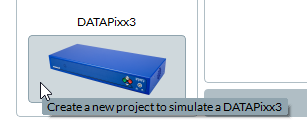
After the simulator has launched, under “New Project”, select the DATAPixx3 to create a new project simulating a DATAPixx3.
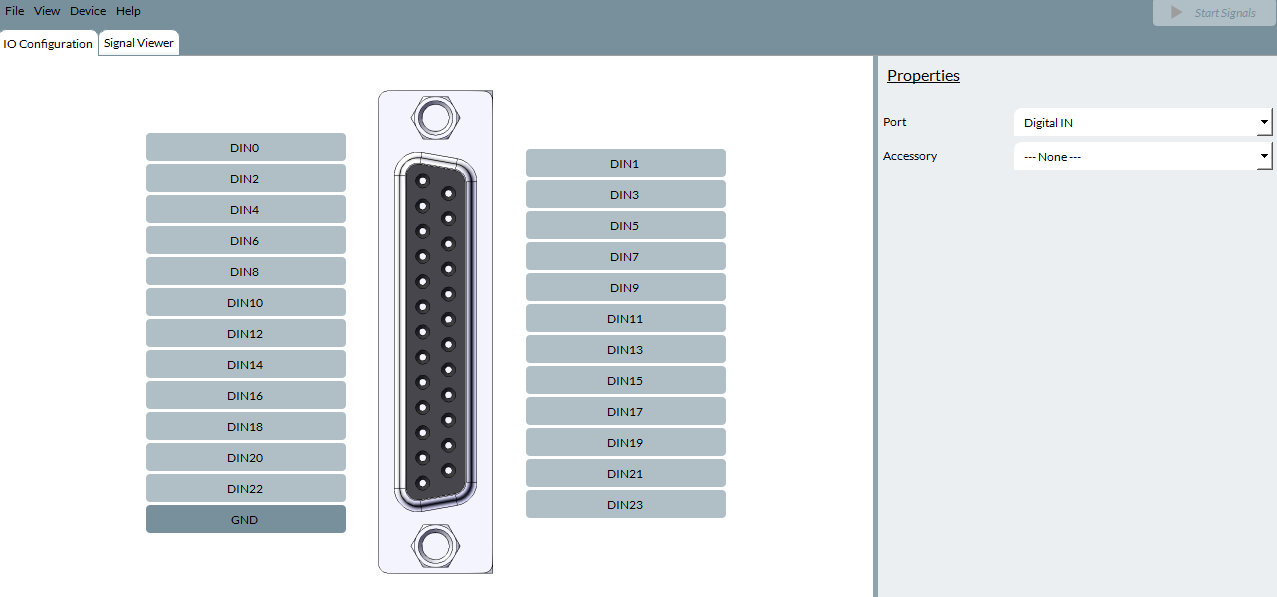
The simulated DATAPixx3 device can emulate the I/O capabilities of a physical device, including Digital Input, Digital Output, and Analog I/O. The VideoBahn port can also be used to simulate a TRACKPixx3 Eye Tracker or a PROPixx Projector. The properties of these simulated features can be configured in the “IO Configuration” tab:
For general information on simulating devices and I/O signals, see Simulator Device Types and Coverage