
Overview
This page covers how to configure all VIEWPixx series research-grade displays in LabMaestro. This includes:
-
VIEWPixx /EEG
-
VIEWPixx /3D
-
VIEWPixx 12-bit
-
VIEWPixx3 /OLED
After reading this guide, you will be able to configure your VIEWPixx device with LabMaestro and simulate the device using the Hardware Simulator.
Before you begin, you should:
-
Have LabMaestro installed and running
-
Have the VIEWPixx display powered on and connected to your PC via USB and video cable
-
Be familiar with the Environment and Devices Overview
Configure the device in your environment
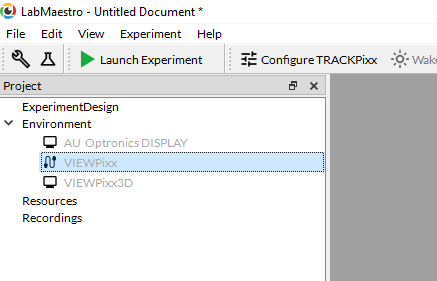
LabMaestro automatically detects your display. Double-click on the device under the Environment to open the Device Settings menu:
VIEWPixx displays have several custom configuration options. The options for each VIEWPixx display type are described below. For general diagnostic tests and display options, see [link coming soon].
VIEWPixx /EEG
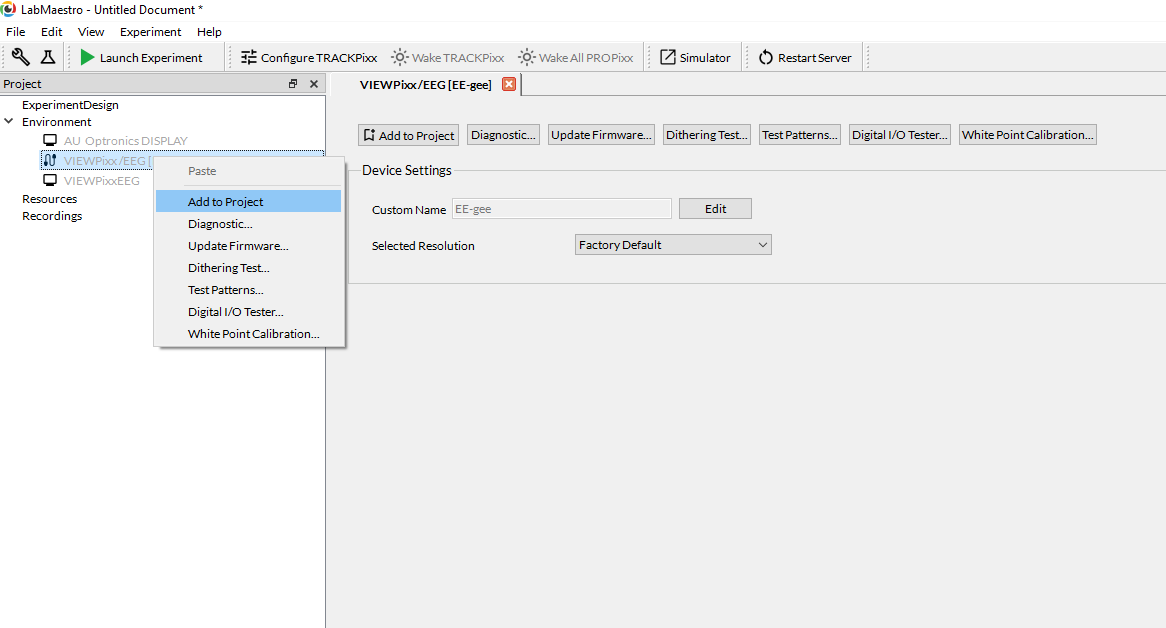
The VIEWPixx /EEG is a standalone display and is treated as a simple monitor in your Device. All diagnostic features (e.g., self-tests, test patterns, etc.) standard across all VPixx devices are available in LabMaestro.
VIEWPixx /3D & VIEWPixx 12-bit
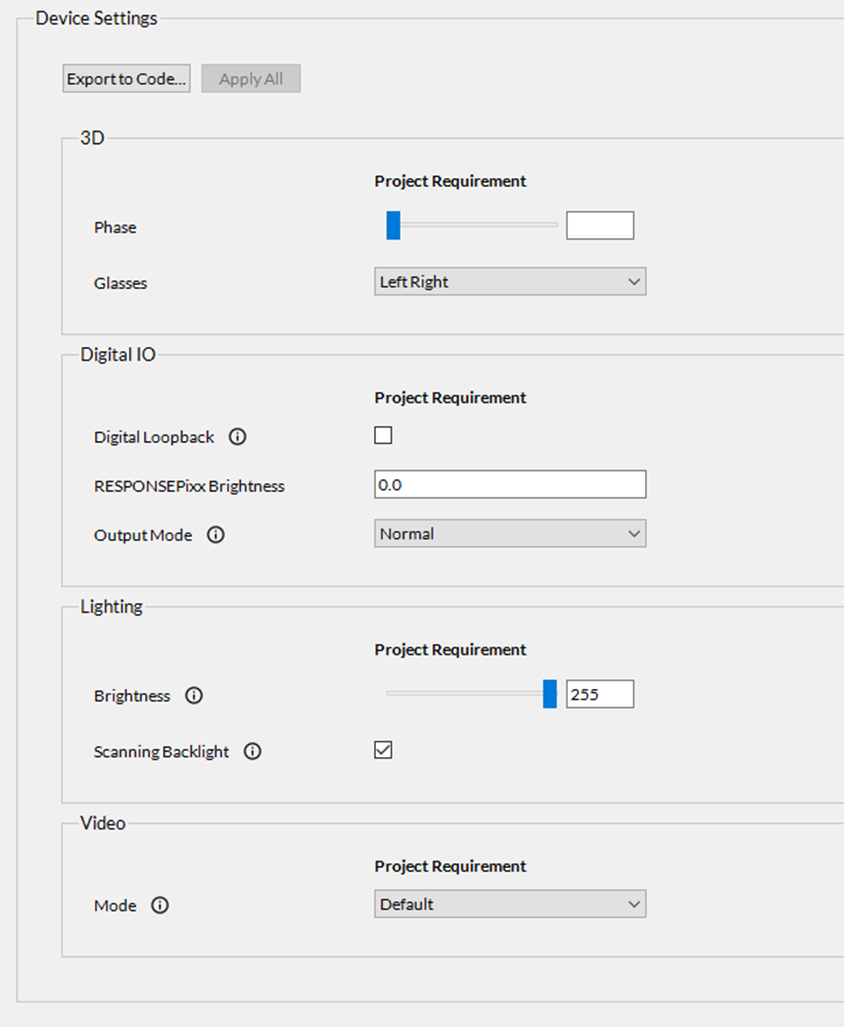
The VIEWPixx /3D and VIEWPixx 12-bit displays have identical device setting options in LabMaestro. In fact, in LabMaestro, there is no distinction between the VIEWPixx 12-bit and VIEWPixx /3D devices. Either device, when connected to your computer via USB, will be detected as a “VIEWPixx”.
In the Device Settings menu for the VIEWPixx, you will find the following device settings options:
|
Setting |
Description |
Options |
|---|---|---|
3D Settings*
|
||
|
Glasses |
Select the type of 3D glasses to use when VIEWPixx /3D is set to one of its 3D video modes. See the following guide to familiarize yourself with 3D Stimulus Presentation with the VIEWPixx /3D |
|
|
Phase |
Select the phase of the VESA 3D waveform that drives the 3D glasses; adjust this value to minimize cross-talk. |
0-255 (default = 100) |
Digital I/O
|
||
|
Digital Loopback |
Enable/disable the internal digital loopback between the digital inputs and outputs (each digital output channel sends its output to the corresponding digital input channel, e.g., DOUT 0 → DIN 0, DOUT 1 → DIN 1, etc.). |
Enable or Disable (default = disabled) |
|
RESPONSEPixx Brightness |
Set the LED brightness on the buttons of a standard RESPONSEPixx button box connected to the digital input. |
0.0-1.0 (default = 0.0) |
|
Output Mode |
Select the digital output mode. The “Normal” mode is the standard setting for Digital Output; the user may set digital output values “manually” or use schedules to output digital waveforms. Pixel Mode enables automated 24-bit digital output triggers based on the RGB channel values of the top-left pixel. Pixel Mode GB enables automated 16-bit digital output triggers based on the GB channel values of the top-left pixel. |
|
Lighting
|
||
|
Brightness |
Set the backlight intensity of the display |
0-255 (default = 255) |
|
Scanning backlight |
Enable/disable the scanning backlight |
Enable or disable (default = enabled) |
Video
|
||
|
Mode |
Set the device’s rendering mode. See the following guide on the different 3D modes available on the VIEWPixx and VIEWPixx /3D: 3D Stimulus Presentation with the VIEWPixx /3D
|
|
While 3D options are available in the VIEWPixx 12-bit Device Settings, we strongly discourage users from using the VIEWPixx 12-bit as a 3D display. This LCD panel does not support rapid pixel transitions, which are required to avoid ghosting/crosstalk reliably. For 3D stimulus presentation, use the VIEWPixx /3D or VIEWPixx3 /OLED for optimal performance.
VIEWPixx3 /OLED
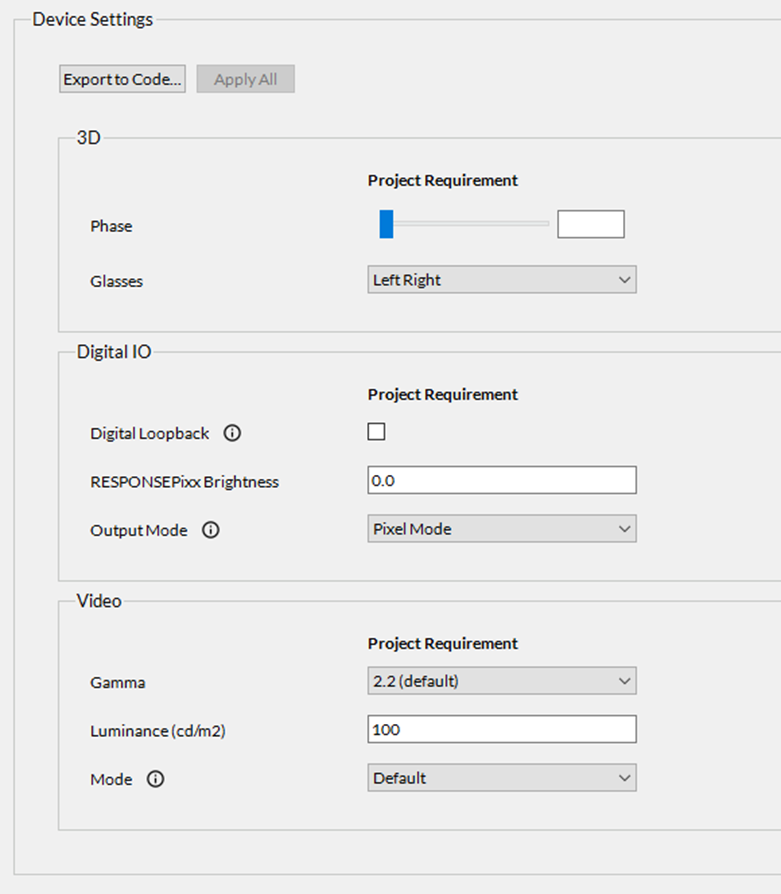
In the Device Settings menu for the VIEWPixx3 /OLED, you will find the following device settings options:
|
Setting |
Description |
Options |
|---|---|---|
3D Settings (Requires firmware >= 4)
|
||
|
Glasses |
Select the type of 3D glasses to use when the VIEWPixx3 /OLED is set to 3D video mode. |
|
Digital I/O
|
||
|
Digital Loopback |
Enable/disable the internal digital loopback between the digital inputs and outputs (each digital output channel sends its output to the corresponding digital input channel, e.g., DOUT 0 → DIN 0, DOUT 1 → DIN 1, etc.). |
Enable or Disable (default = disabled) |
|
RESPONSEPixx Brightness |
Set the LED brightness on the buttons of a standard RESPONSEPixx button box connected to the digital input. |
0.0-1.0 (default = 0.0) |
|
Output Mode |
Select the digital output mode. Pixel Mode enables automated 24-bit digital output triggers based on the RGB channel values of the top-left pixel. |
|
Video
|
||
|
Gamma |
Set the gamma of the display |
|
|
Luminance (cd/m^2) |
Set the peak luminance of the display (the luminance of full white) |
0-200 (default = 100) |
|
Mode |
Set the device’s rendering mode.
|
|
Additional Settings
|
||
|
Custom Name |
The custom name given to the device by the user |
Any string of text input by the user (default = none) |
Changing Display Resolution
When using a VIEWPixx3 /OLED, LabMaestro lets you change the display resolution directly from the application. This lets you choose between the default resolution (2560x1440) and the Top/Bottom 3D resolution (2560x2880). You can change the display resolution from the VIEWPixx3 display settings:
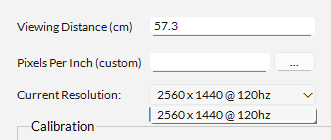
If you are using Windows as an OS, to avoid black bars around your display after changing the Top/Bottom 3D resolution, always change your display resolution from LabMaestro.
Setting Research Mode in LabMaestro
Read more about research mode in the VIEWPixx3 /OLED hardware documentation: VIEWPixx3 /OLED | Consumer vs. Research Modes
To set the VIEWPixx3 /OLED in Research Mode in LabMaestro, there is an indicator/button next to the “Launch Experiment” button that will tell you whether Research Mode is currently off (i.e. in Consumer Mode), or on (with the time remaining until the monitor reverts to Consumer Mode).
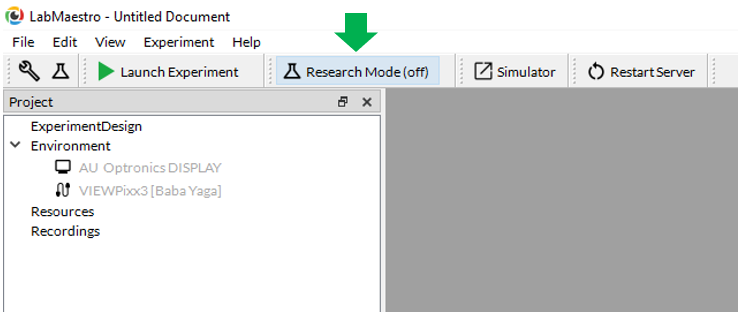
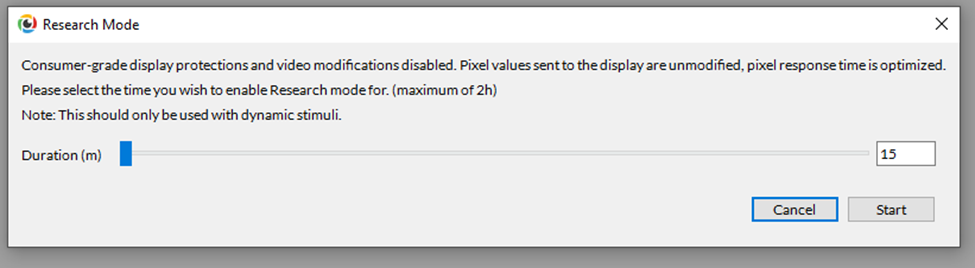
Pressing this indicator or button initiates Research Mode on the monitor. A window will pop up, where the user can select the duration of time, in minutes, to set the Research Mode, before the monitor automatically reverts to Consumer Mode; the Research Mode duration can be set between 15 minutes and 2 hours.
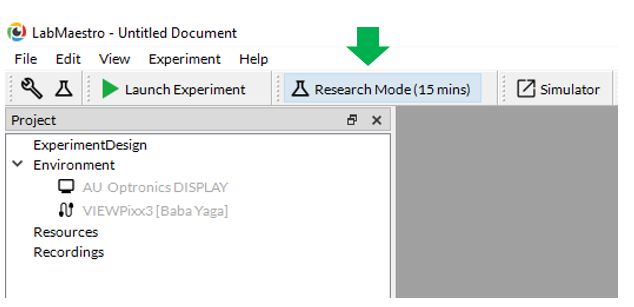
Research Mode also turns on automatically during screen calibration and colour calibration.
Simulating a VIEWPixx with the LabMaestro Hardware Simulator
The following instructions apply to the VIEWPixx /3D and VIEWPixx 12-bit displays. Simulation of the VIEWPixx /EEG is not supported. Simulation of the VIEWPixx3 /OLED will be available in a future release.
To simulate a VIEWPixx, you will first need to launch the LabMaestro Hardware Simulator by clicking the “Simulator” button.

After the simulator has launched, under “New Project”, select the VIEWPixx to create a new project simulating a VIEWPixx.

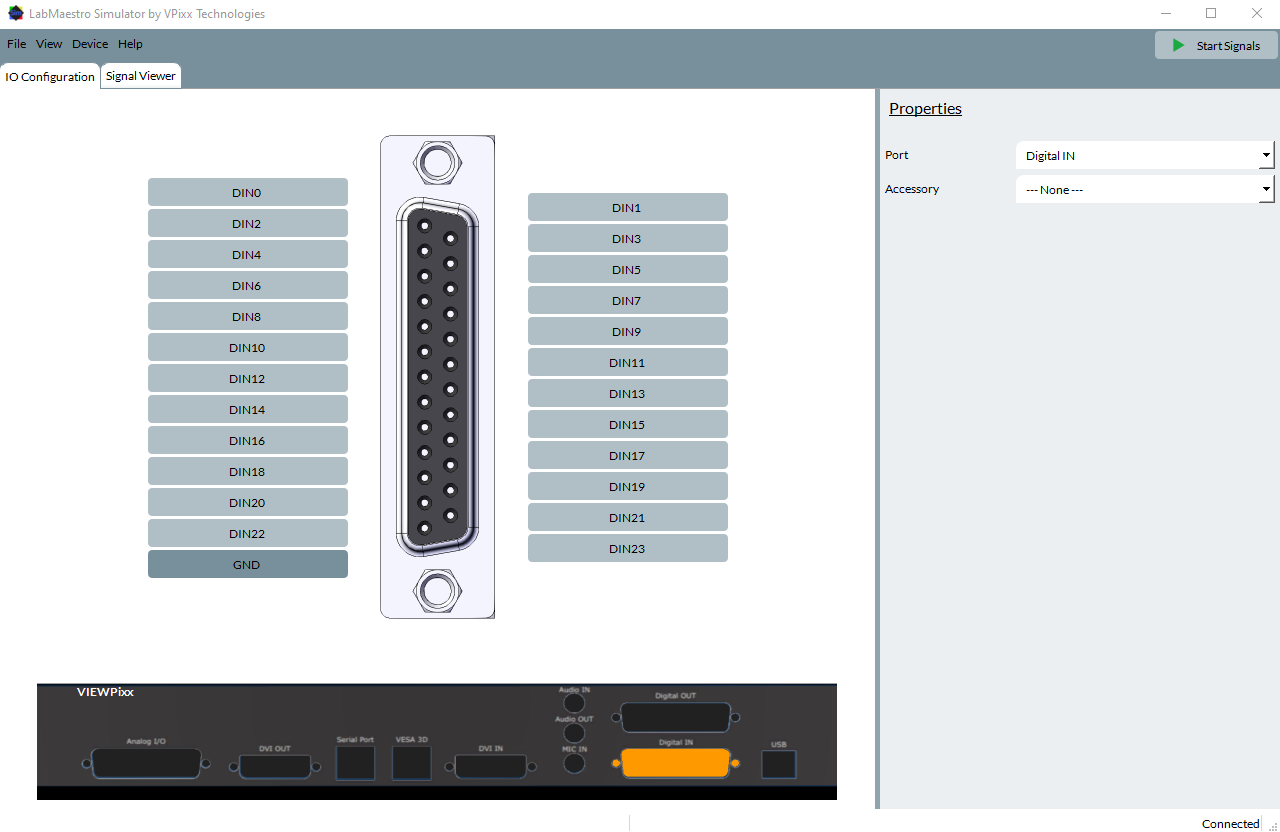
The simulated VIEWPixx device can emulate the I/O capabilities of a VIEWPixx /3D and VIEWPixx 12-bit, including Digital Input, Digital Output, and Analog I/O. The properties of these simulated features can be configured in the “IO Configuration” tab:
For general information on simulating devices and I/O signals, see [link soon]