
Overview
This page covers how LabMaestro handles data recordings after an experiment session. More detailed guides on data visualization and data export are also available.
Before you begin, you will need:
-
LabMaestro installed and activated
LabMaestro Recordings
Upon completing a LabMaestro experiment, data files will be created under Recordings in the Project panel. LabMaestro sorts recordings by Subject ID, then by date and time.
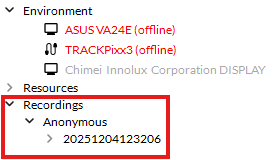
The date and time stamp of the recording sessions follow the format YYYYMMDDHHMMSS, where:
-
YYYY is the year
-
MM is the month
-
DD is the day
-
HH is the hour
-
MM is the minute
-
SS is the second
If you did not enter a Subject ID at the start of the experiment, LabMaestro sorts your data under an Anonymous ID. By default, LabMaestro stores only 1 Anonymous session in memory; upon acquiring data from a second Anonymous session, the first will be overwritten. You can change this in Preferences.
To avoid any data loss, we recommend you always enter a Subject ID.
Each session can include the following files, depending on your experiment:
-
If you are using a Method, your trial data will be saved in a *.mtd file. All elements saved using the Log Command will also be recorded in this file.
-
Eye tracker recordings measured through Tracker Commands. A tracker data file is created whenever the Stop Tracker Recording Command is called.
-
Digital and Analog recordings measured through Schedule Commands. An appropriate file is created whenever the Stop Digital Recording or Stop Analog Recording command is issued, respectively.
You can open each of these file types with the built-in LabMaestro Data Visualization tools for validation checks. LabMaestro also allows you to Export your data to the BIDS format.
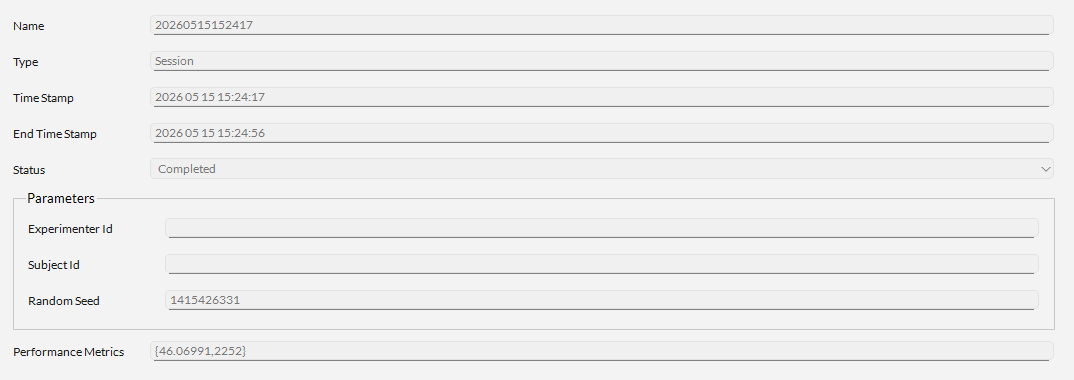
As of Version 1.12, you can click a session to see an overview of its information. This also includes global performance metrics, such as the average frame rate during the experiment and the number of dropped frames.
For more details, please see the pages below: