Overview
This page explains how to perform and manage manual commands for VPixx Devices in the LabMaestro application when the built-in Experiment Builder is not used. This functionality can be used to output analog/digital signals from compatible VPixx Devices, or manage digital, analog, or tracker recordings.
Manual Recordings
As of Version 1.12, the LabMaestro software can be used to send commands to VPixx devices without necessarily being the primary software for running your experiment. This can be useful if you are using a third-party application/environment (ex. Matlab, Python) to run your experiment, especially if you were already using LabMaestro to manage your devices.
Setting up a Manual Device Command
To start a manual command, right-click the desired device and select Add. You will be shown a variety of possible commands depending on your device.
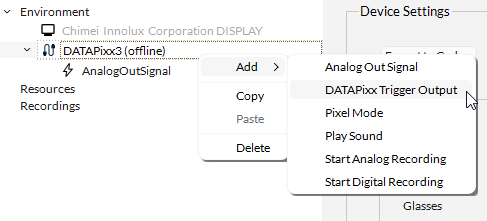
The following devices support manual commands:
|
Device |
Available Commands |
|---|---|
|
DATAPixx/DATAPixx2/DATAPixx3 VIEWPixx PROPixx Controller |
|
|
VIEWPixx/EEG |
|
|
VIEWPixx3 |
|
|
TRACKPixx3/TRACKPixxMini |
|
|
IOHub |
|
Once your recording has been added, you can edit its properties like you would with the relevant Command Components.
Starting a Manual Recording
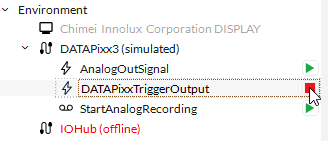
To execute your command, simply press the green arrow (play) button next to your component. The button will turn into a red square (stop), indicating that the recording has started successfully. You can then stop the command by pressing the button again.
Visualizing Manual Recordings
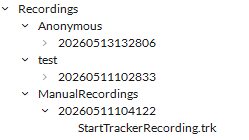
Tracker, digital, and analog recordings will be added to the Recordings section under the subject ID Manual Recordings. These can then be visualized using the built-in tools in the LabMaestro application.