
Introduction
This demo is a simple saccade-to-target experiment with 16 trials. During a trial, a fixation cross is presented in the center of the display. When a central fixation is detected, the cross changes for a target in one of eight locations. Participants must saccade towards the target as quickly as possible. We again use eye position to determine whether a fixation is then detected on the target. On a successful fixation, the time is logged, and a 1s visual mask appears before the next trial. During this time, gaze data from the trial is imported from the I/O controller to the main computer and saved.
Prerequisites
-
LabMaestro is installed and activated.
-
An eye-tracking device (e.g., TRACKPixx3) is connected to your computer via an I/O hub (e.g., DATAPixx3).
Project Files
Step 1 - Tracker Calibration
The first step to obtain good data with this demo is to calibrate the TRACKPixx3. To do so, press Configure TRACKPixx in the toolbar, as well as Wake TRACKPixx. Once in the Configure TRACKPixx window, take the time to define search limits, iris expected size, and properly adjust distance, participant positioning and tracker focus. Then, press Calibrate to initiate a calibration routine.

If you want more information on calibration and the available options, please consult this page.
Step 2 - Data Collection
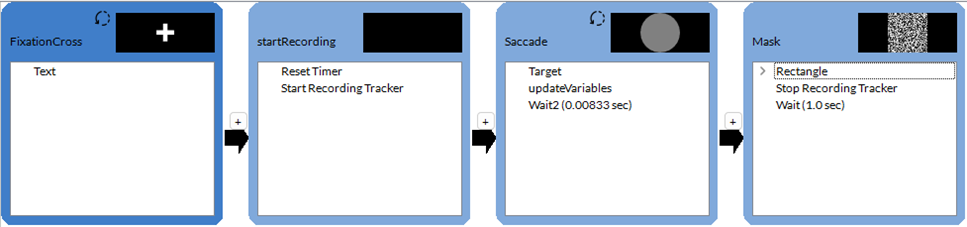
Before launching the experiment, here is a quick overview of the demo timeline:
FixationCross: We show a fixation cross in the center of the screen. Once the participant’s gaze is within 50 pixels of the fixation cross in both the horizontal and vertical directions, a trial begins. We accomplish this using the Tracker component.
startRecording: A simple epoch that resets the timer to begin with trial onset, then starts the TRACKPixx recording.
Saccade: Shows the target on the screen. The target is placed at 8 degrees of visual angle away from the center of the screen, horizontally, vertically or both. The trial ends once the participant’s gaze reaches the target.
Mask: We replace the target with a white-noise mask for 1 second, and the eye-tracking data is saved during this period. A separate file is saved for each trial.
The participant completes 16 trials before the task ends: two for each position, one with lower (.3) and higher (.8) target luminance.
Step 3 - Data Visualization
Once you have run the demo, you can visualize your data using the LabMaestro data visualization tools. You can use the sample data included with this demo (below Recordings, in the Project tab).
For example, let us visualize the trial sampleData_Saccade_-8_0.trk; by default, it shows the measured fixation positions for a trial in which the target appeared 8 dva to the left of the fixation cross.
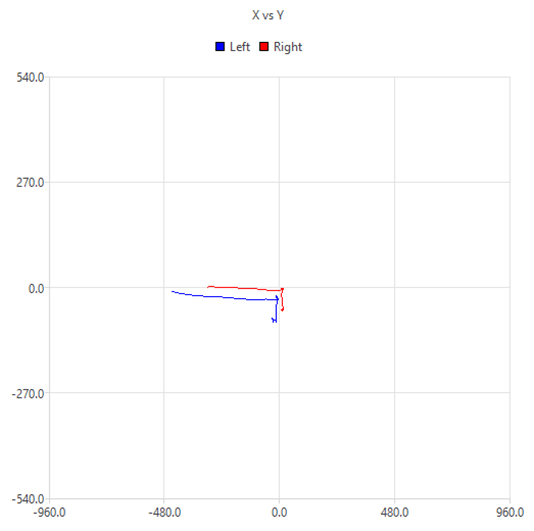
This representation provides information about where the participant was looking. However, in this experiment, this is not the information we’re looking for; we’d rather know when the participant moved their gaze away from the center. To examine this, we can instead choose Velocity to plot eye velocity across time for both eyes.
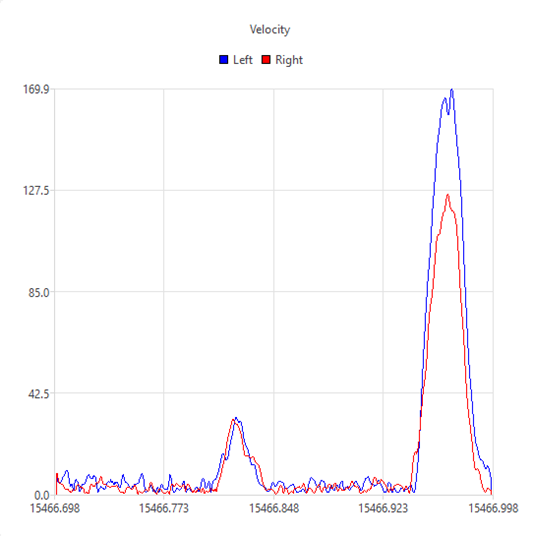
This representation shows that it took about 300ms after onset for the subject to perform a saccade to the target. Plotting X vs Time or Y vs Time will allow you to see the X/Y position of the eyes across time as well. We recommend exploring the visualization options offered by LabMaestro for both your data and various trials of the sample data.
If you wish to export data to run more in-depth analyses using your preferred programming language, right-click Recordings in the Project panel and select Export. By doing this, you can export all recordings saved in your project to the BIDS format.