
Introduction
As of LabMaestro version 1.11, the Wait for Text command component was added to simplify recording participants' text responses. This template experiment showcases how to use this new functionality.
Prerequisites
-
Have LabMaestro installed and activated
Template Experiment
Using Wait for Text to Record Text Response
Adding the Wait for Text Component
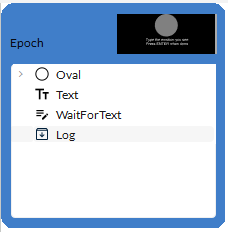
To record a text response, first add an instance of the Wait for Text command component to your epoch. The response will be saved to a variable, either defined in this component or from your Timeline variables. You can then add a Log command to save the variable value to a data file.
While running the experiment, LabMaestro proceeds to the next command once the participant presses ENTER. If desired, you can also set a Timeout value if your participant must answer within a given timeframe. In this case, the experiment is blocked until your participant presses ENTER or the Timeout value is reached, whichever happens first. If Timeout is set to 0.0, the experiment is blocked until the participant presses ENTER.
Showing the Text Entry on the Screen
By default, the typed text will not be shown anywhere on the screen during the experiment. In certain cases, this can make the task unintuitive for participants.
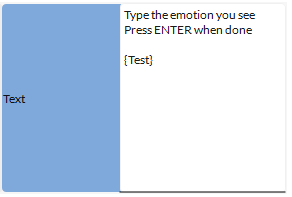
To remedy this, you can use a Text Region to refresh the screen every time a new character is typed. In your Text region’s content, simply type the variable to which you save your text entry between brackets, like so: {VariableName}.
Description of the Template Experiment
To showcase what is described on this page, the included template experiment simulates an emotion perception task in which the participant must enter a word describing the emotion they perceive in the stimulus. The participant’s response is saved to the data file and can be seen by exporting your data.