
Introduction
This tutorial will detail how to play an audio frequency or file on your VPixx device using the LabMaestro software.
Prerequisites
-
LabMaestro is installed and activated.
-
You have VPixx Hardware capable of playing audio stimuli, which is connected to your computer.
Project Files
Step 1 - Add your VPixx Device to your Project
If your device is connected to your computer, it should already be listed under Environment in LabMaestro. If your device is not listed here or you are working remotely, you can add a VPixx device manually by right-clicking Environment and selecting your device type from the Add menu.
To add a device to your project, right-click it and select Add to Project.
Step 2 - Use the Play Sound Command to Play Audio
In an Epoch, add the Play Sound command. For this tutorial, the sound played is a 1000Hz tone lasting 5 seconds, as defined in the component’s Tone property. However, you can change the signal properties as desired through the Play Sound command properties.
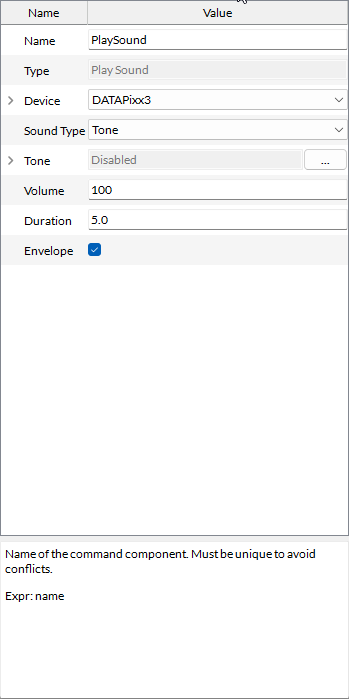
By importing an audio file under the Resources tab, you can change the sound stimulus to be an audio file instead. LabMaestro functions will automatically ensure your sound plays properly, regardless of the media file properties or format.
LabMaestro supports audio files in .wav and .mp3 formats.