
Introduction
In this tutorial, we will demonstrate how to use the Region Flicker Waveform property as a convenient way to generate flickering stimuli for Rapid Invisible Frequency Tagging (RIFT) applications on the PROPixx. For more information on the RIFT paradigm, see our VOCAL article on the topic here: Rapid Invisible Frequency Tagging (RIFT) using the PROPixx 1440 Hz mode
Prerequisites
-
LabMaestro is installed and activated.
-
Your PROPixx is connected to your computer via a DATAPixx or PROPixx controller.
Project Files
Region Flicker Waveform
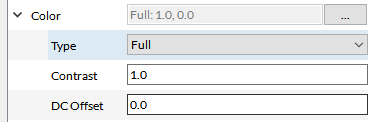
First, we will cover how to use the Flicker Waveform property of Region components. Once you’ve added a region in your project timeline, you can choose to flicker it according to a specified waveform automatically; you can customize the waveform amplitude, phase, frequency, and shape. The flicker automatically modulates the colour of the region between “endpoint” values specified in the region’s colour property settings. For example, if in the region’s Properties panel the colour type is set to Full, then the endpoints of the flicker will be full white and full black. If you set the colour type to Peak Trough, then the endpoints of the flicker will be the user-specified Peak and Trough colour values.
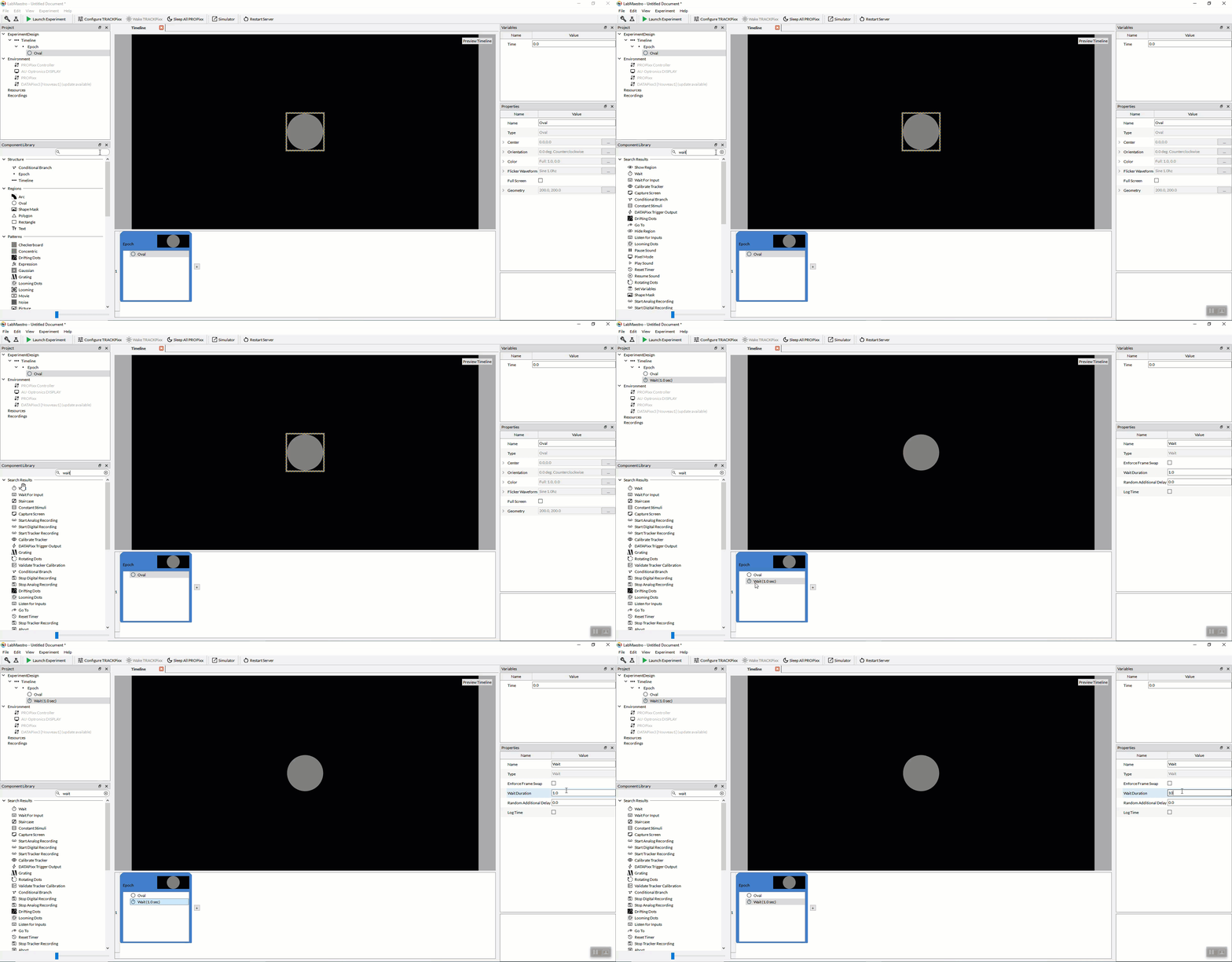
To demonstrate with a simple example: say we would like to have an oval region (a circle), in the center of the display, flickering between full-white and full-black, according to a sinusoidal waveform, with a frequency of 60Hz. The first step would be to add an Oval region in an epoch of our timeline.
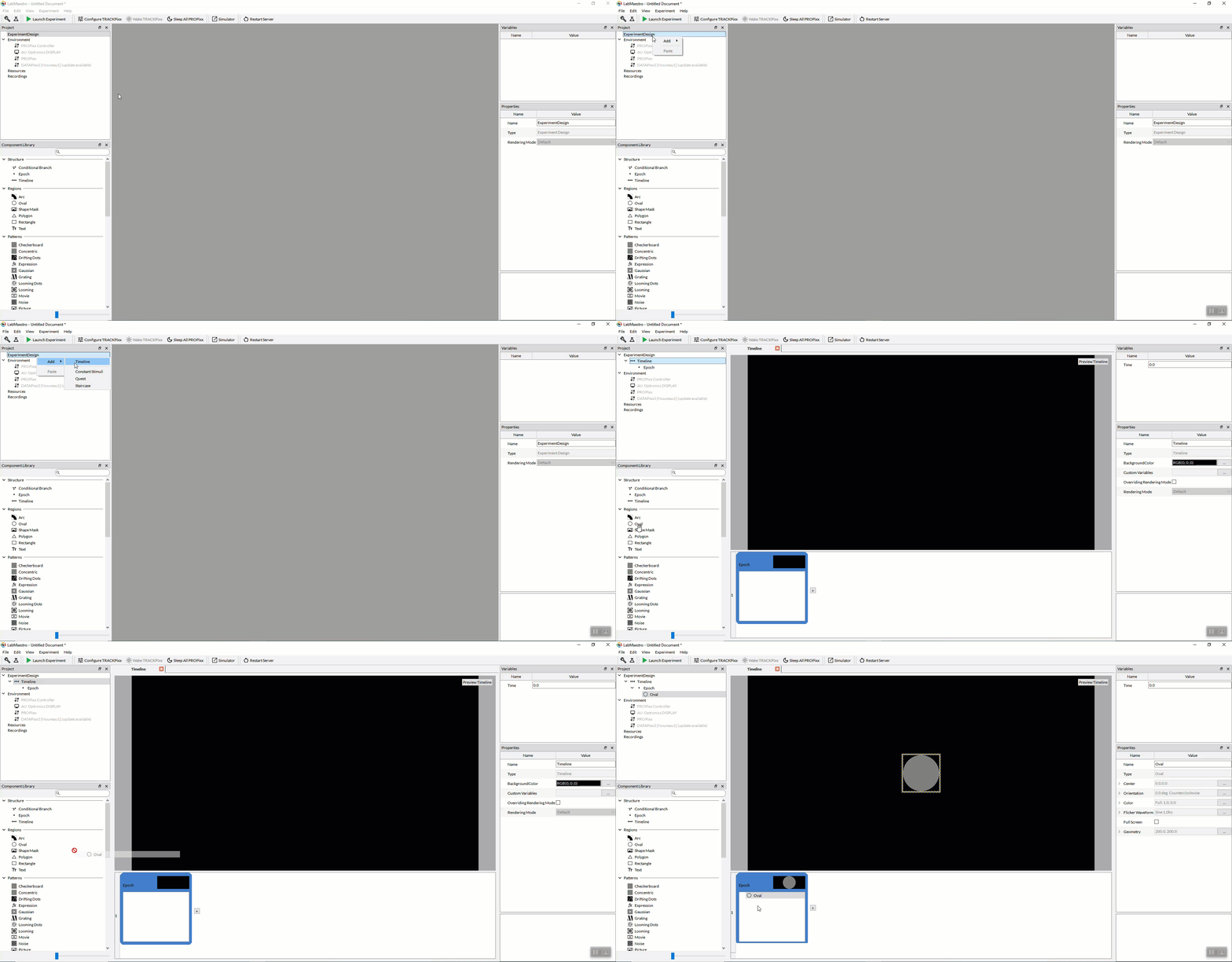
By default, the region's colour type is Full, meaning the flicker’s endpoints are full white and full black.
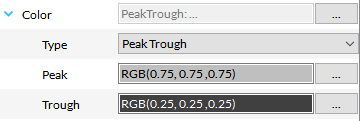
If we were to choose Peak Trough as the colour type instead, we could specify intermediate colour values as the endpoints; for example, the peak value could be each colour channel at 75%, and the trough value could be each colour channel at 25%:
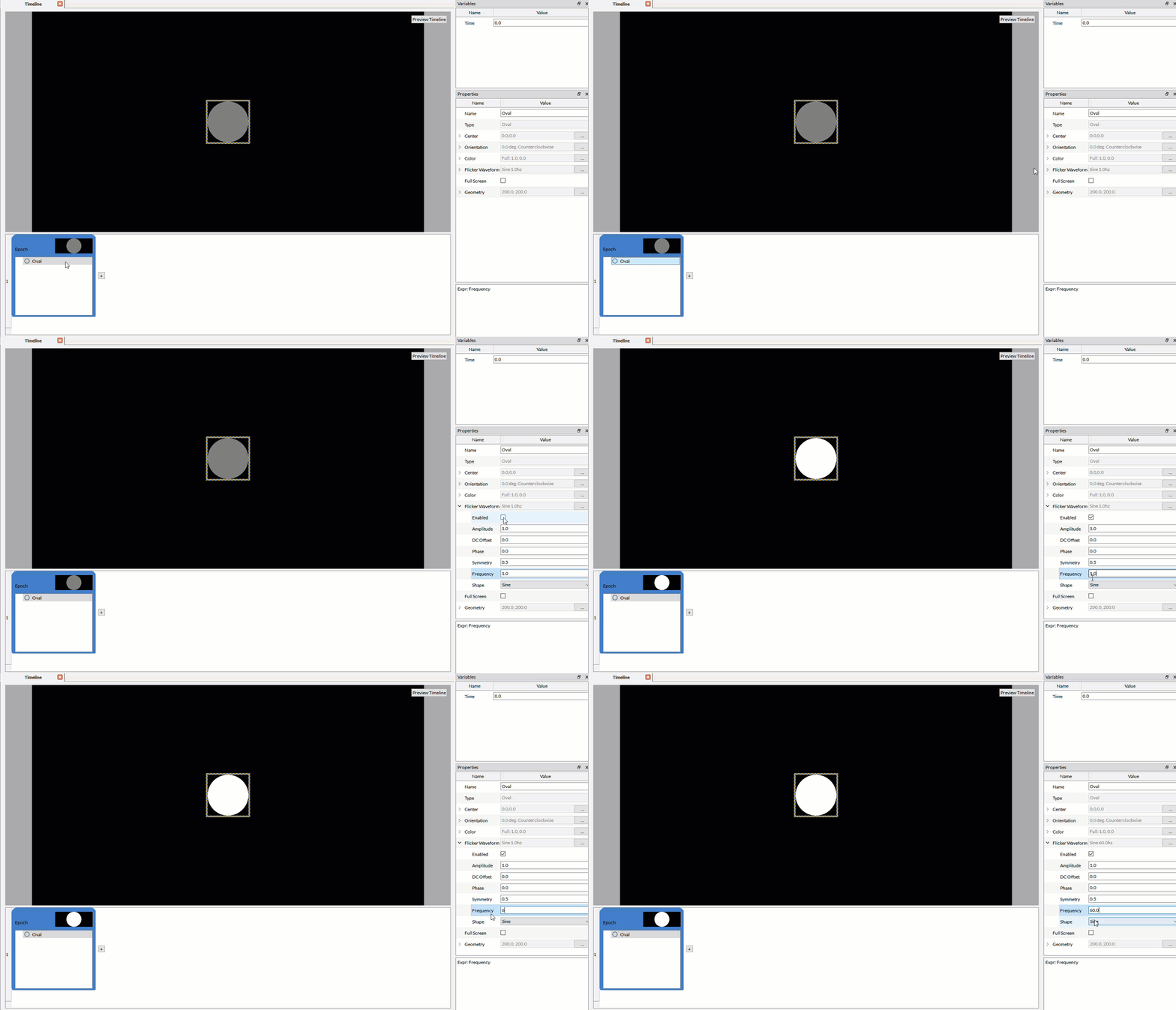
With the Oval region selected, under Properties → Flicker Waveform, check the Enabled box, and set the Amplitude, Phase, Frequency and Shape parameters of the Flicker Waveform; in this example, we are simply setting the frequency to 60Hz (we will keep the default Amplitude of 1.0, phase of 0.0, and Shape as Sine):
We will add a Wait command at the end of the Epoch such that the region is displayed for a sufficient duration of time; in this example, we set the Wait Duration to 10 seconds:
If we are displaying the flickering stimulus on the PROPixx, using the 1440Hz high refresh-rate video mode, we must make sure to set the video mode to 1440Hz Grayscale on the DATAPixx3 (or PROPixx controller):
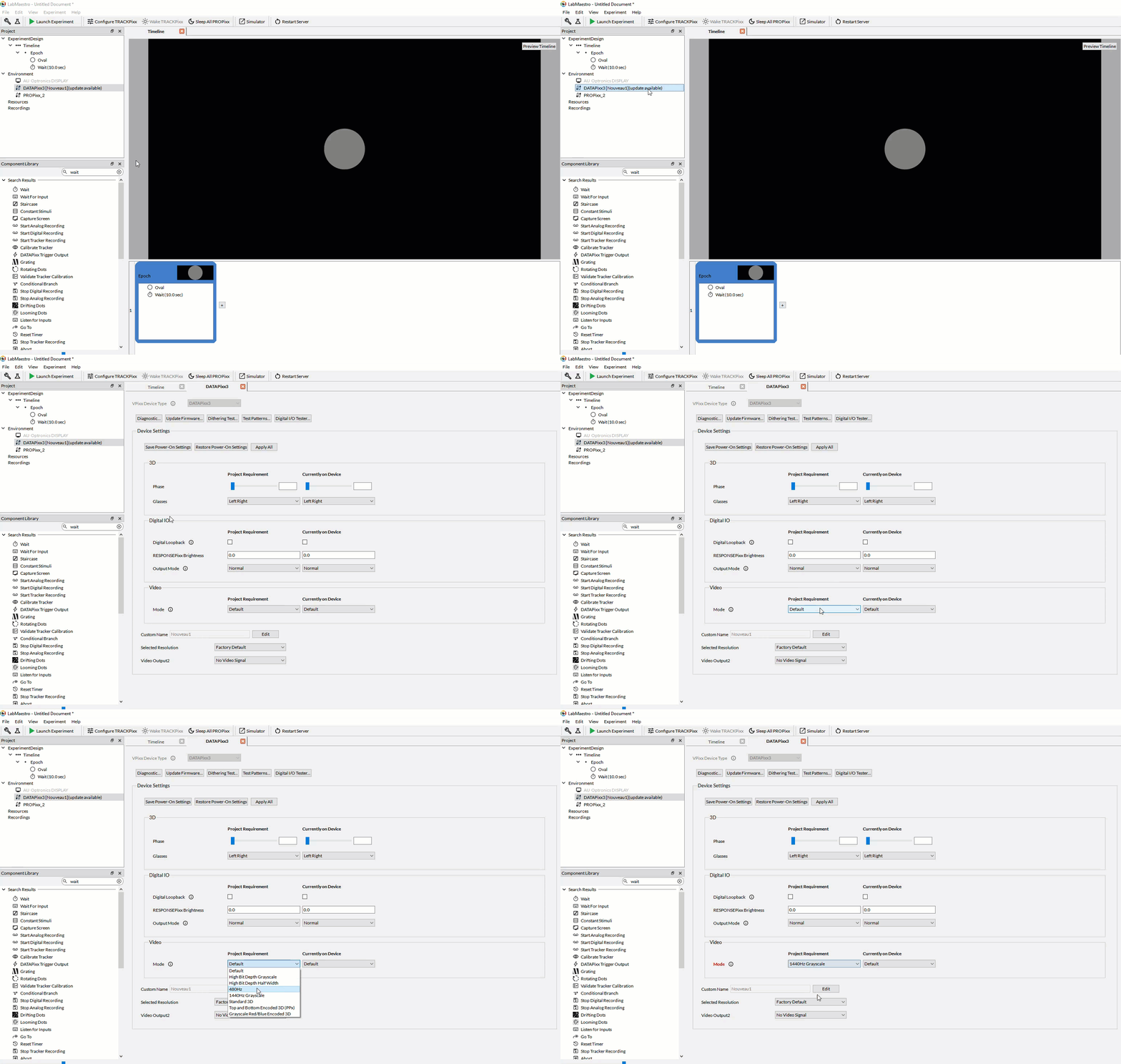
Starting with version 1.10, LabMaestro automatically adjusts video presentations for special video modes, such as this one - you won’t need to generate composite images with the 1440Hz subframes embedded into different colour channels and quadrants of each frame, like you normally would when generating stimuli for the PROPixx QUAD12X sequencer. LabMaestro does this “behind-the-scenes”.
The result, when we launch the experiment, is a circle at the center of the screen that sinusoidally flickers between full white and full black at 60Hz.

Flickering a custom shape/region
Now that we understand how to flicker a region using the Flicker Waveform property, we will apply it to a more complex shape/image. Assume that we’ve already added the PROPixx and DATAPixx3 to our project (with DATAPixx3 RX1 set as the main display), and that we’ve already set the background of our timeline to our desired colour (white, in this example) and set the video mode to 1440Hz Grayscale on the DATAPixx3. The next step would be to add a custom image as a shape. Whenever you have a custom image you would like to use as a shape/region in your project, add a Shape Mask Region. After adding a Shape Mask region to your project, select the image file you wish to import in the Resource drop-down menu in the Properties panel.
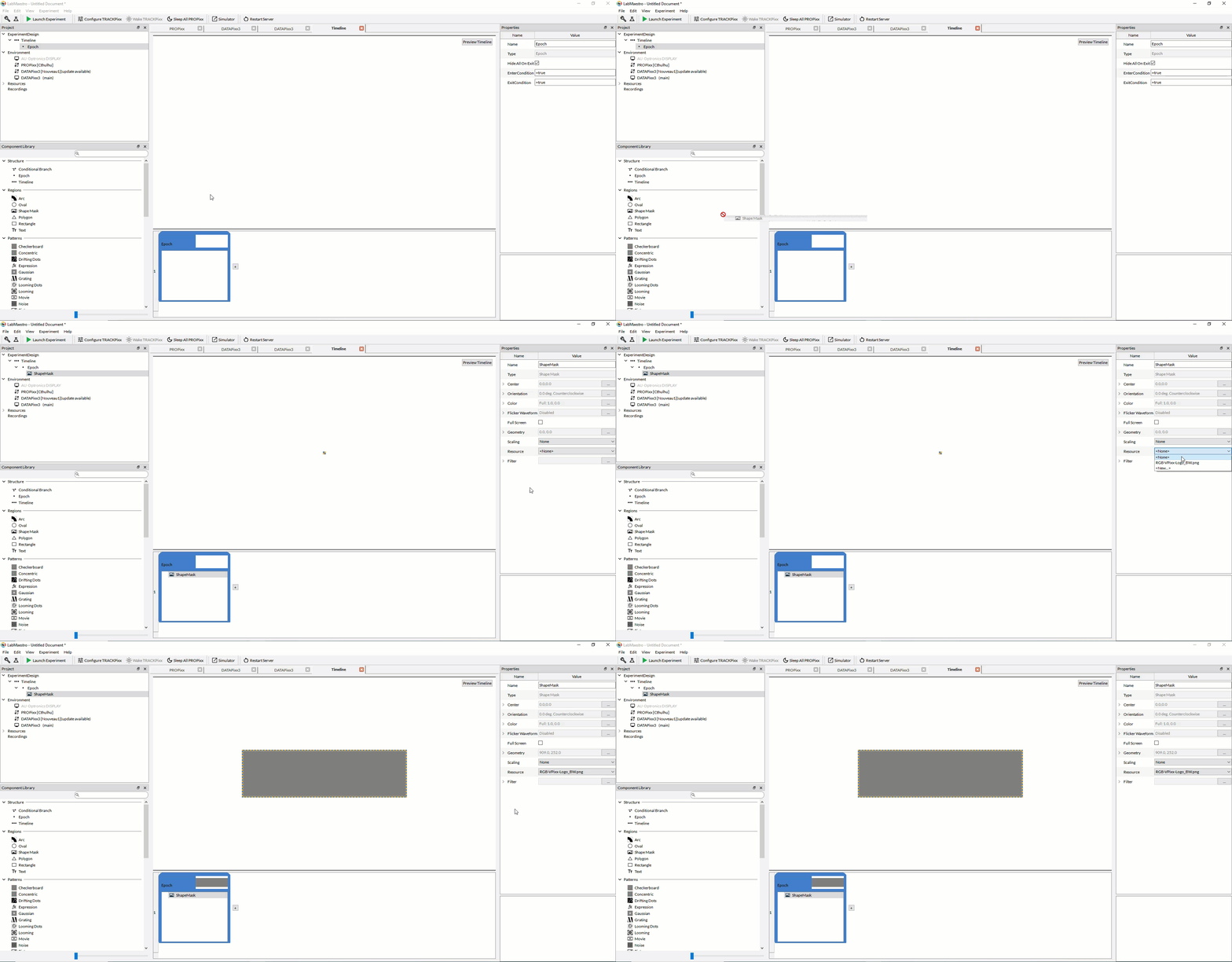
The imported image for our shape mask will be a PNG file containing an alpha channel; specifically, in this example, the image is a VPixx logo with a transparent background (alpha values are 0 for the background). For Shape Mask regions, the user must specify which pixels of the imported image are a part of the shape mask by setting filters for each colour channel (R, G, B, and Alpha); the filter operates by including any pixel that is greater than/less than a particular threshold value in the shape mask. For example, if we want the background of our imported logo to be truly transparent, we would apply a filter on the Alpha channel, setting the criterion to be greater than 0. Since the background pixels have an alpha value of 0, they will not be included in the shape mask, so the background will appear transparent.
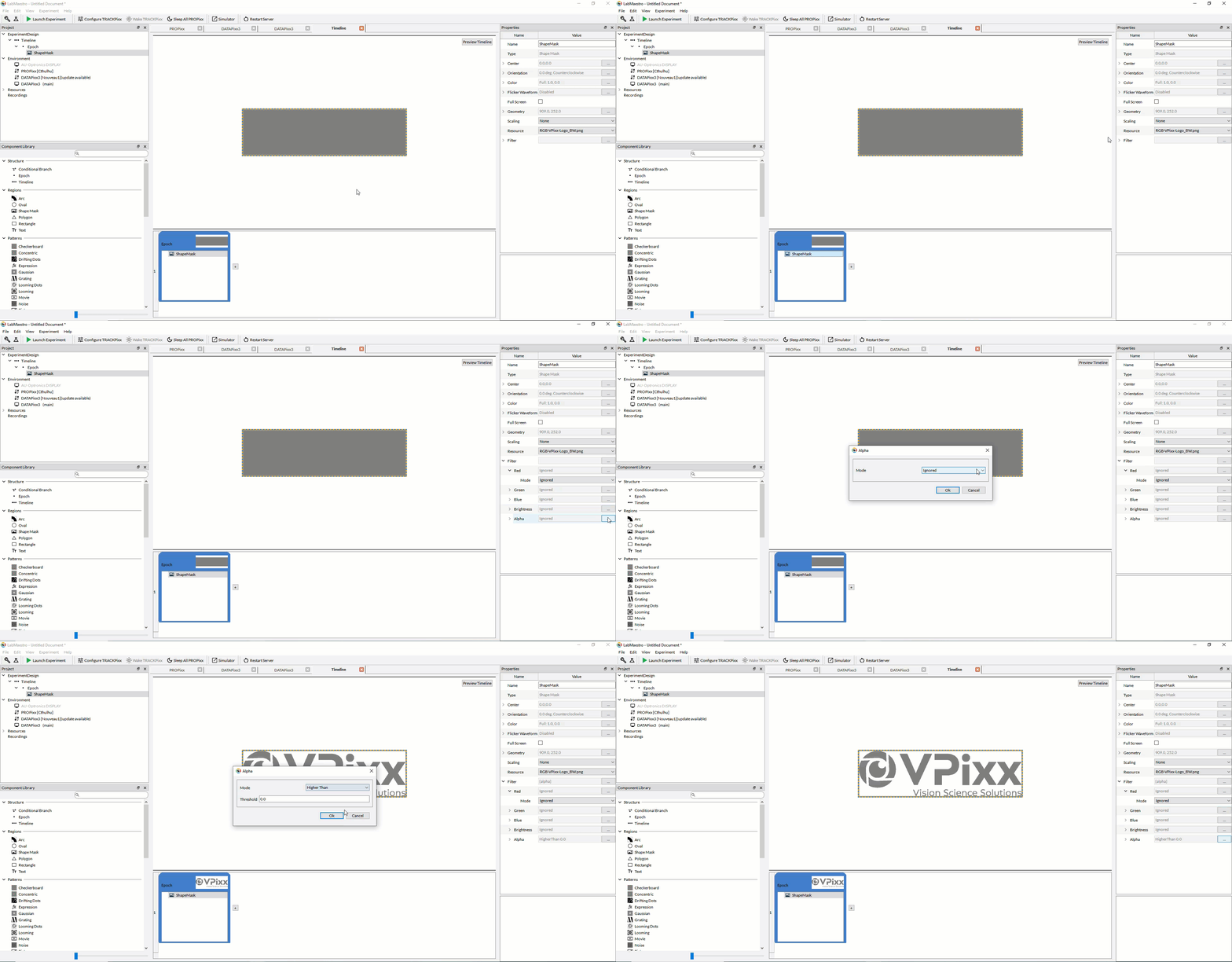
Finally, we apply the Flicker Waveform property to our Shape Mask region, just as we did for the simple flickering circle example at the beginning of the tutorial. We will also add a 10-second wait to display the stimulus for 10 seconds.
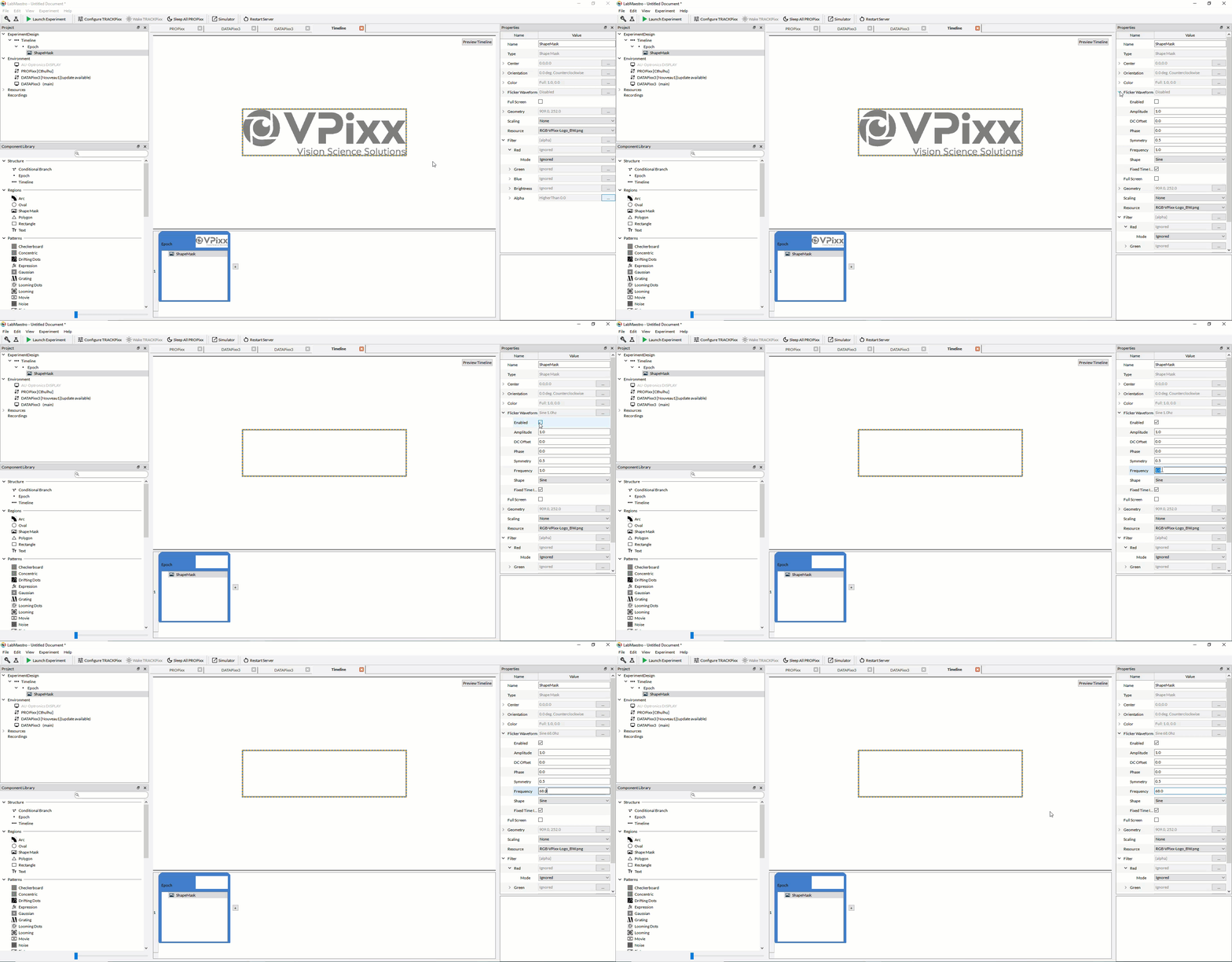
The result, when we launch the experiment, is a VPixx logo at the center of the screen that sinusoidally flickers between full white and full black at a frequency of 68Hz.

Related Links
Components: Building Blocks of Experiments
Customizing Stimuli with Mathematical Functions and Expressions