
Overview
This page lists all Region components and documents their properties.
After reading this page, you should:
-
Be familiar with all Region components available in the LabMaestro Experiment Builder.
-
Understand common Region component properties
-
Understand how specific Region Properties can be used to alter components.
Shared Region Parameters
Below is a list of properties shared across all Region components.
Center
Center lets you specify the region's center relative to the testing display. You can specify center coordinates in degrees of visual angle, pixels, or centimetres. LabMaestro also offers the flexibility to specify the center in Cartesian, Polar, or Clock coordinates.
-
Cartesian coordinates allow you to position your Region center by moving it along the X and Y axes using the unit system of your choice.
-
Polar coordinates are convenient if you conceptualize your stimulus location in visual eccentricity and meridian. The 0-degree origin is located towards the right, with increasing angles rotating counterclockwise, similar to a trigonometric circle.
-
Clock coordinates are the same as polar coordinates, but have a 0-degree origin towards the top of the display, with increasing angles rotating clockwise.
Changing the coordinate space buttons or the linear units will automatically convert the existing coordinates to the new space and units.
Orientation
The Orientation parameter allows you to specify the region's clockwise or counterclockwise rotation in degrees.
Color
All region dialogues include colour spaces, which let you specify a single colour or a range of colours that fill the region during the presentation. By default, Colour values are defined in the RGB colour space, though LabMaestro supports a variety of colour spaces.
You can define colours as Solid, Peak, Trough and Full.
-
Solid requires one colour definition. This colour will fill the region uniformly.
-
Peak and Trough offer greater flexibility by specifying a range of colours. First, select the colour space in which you would like to define the region's colour range, then enter the endpoint coordinates in the Peak and Trough fields. This can be useful when you want to fill a region with a static or dynamic pattern that spans a range of colours, like a grating.
-
Full should be selected when the region contains a pattern that will be shown in the full 3D RGB space.
Flicker Waveform
All regions have a Flicker Waveform property, which allows you to modulate the patterns within the region temporally.
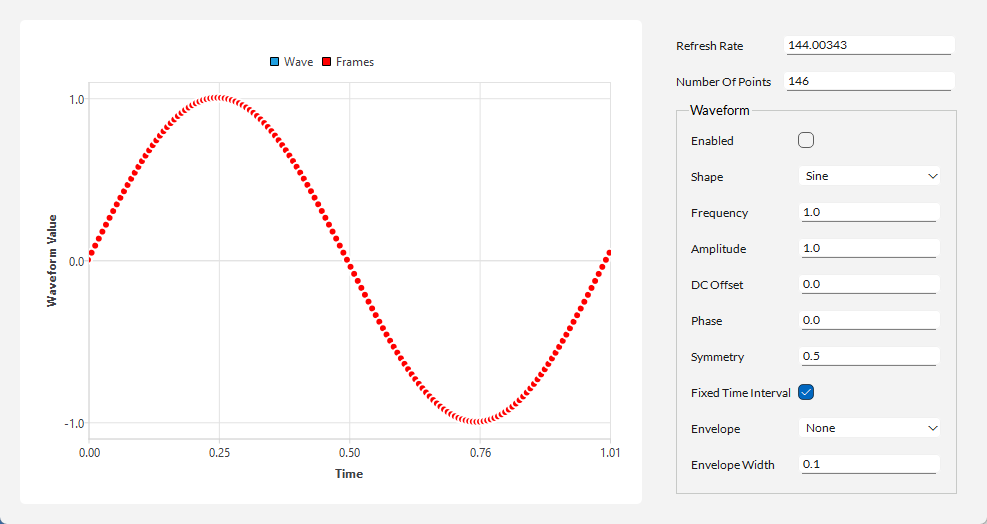
To enable region flicker, click the Enabled check-box sub-property. The Shape sub-property allows you to specify sinusoidal, square-wave, triangle-wave, or ramp flicker waveforms. The Amplitude, DC Offset, Phase, Frequency and Symmetry parameters give you complete control over the flicker waveform. As of Version 1.12, you can also apply an Envelope (Cubic, Quintic, or Hann) to your waveform and specify an Envelope Width.
As of Version 1.12, LabMaestro offers a contextual window to preview the shape of your flicker waveform. This allows you to preview how your changes to the waveform properties affect its appearance. To access it, press the button to the right of the Flicker Waveform property.
Geometry
Geometry defines the region size. The default units are pixels, but if you have defined a target display in your environment, you can specify the dimensions in centimetres or degrees of visual angle. The unit selection also serves as an automatic conversion calculator. If you specify the dimensions using one unit type and then change the units, the Width and Height parameters will change values to reflect the new units.
Available Region Components
Below is a list of all Region components currently supported in the LabMaestro Experiment Builder as of Version 1.11.
Rectangle Region
The Rectangle Region allows you to define a four-sided region with four right angles. Defining identical height and width draws a square.
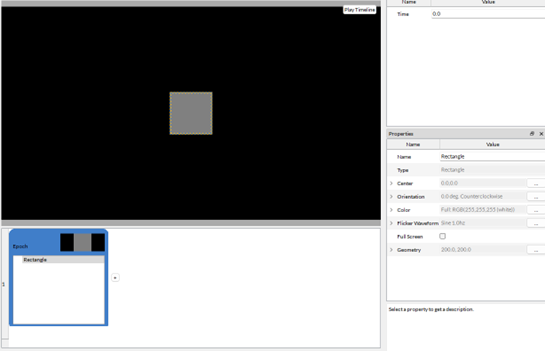
The Rectangle Region has no additional properties outside of those shared with all Regions.
Oval Region
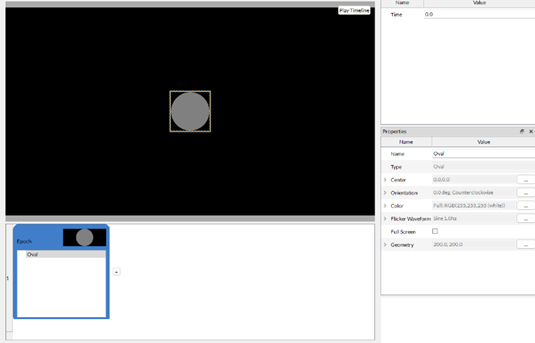
The Oval Region has no additional properties outside of those shared with all Regions.
Arc Region
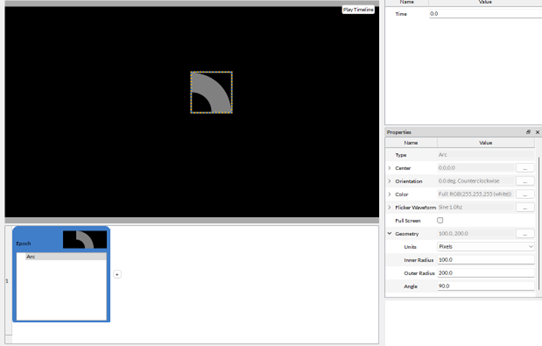
The Geometry parameter for arc regions differs from that of other regions. It uses the following properties instead:
-
Inner Radius: Radius of the inner portion of the arc.
-
Outer Radius: Radius of the outer portion of the arc.
-
Angle: The angle of the arc region in degrees.
Polygon Region
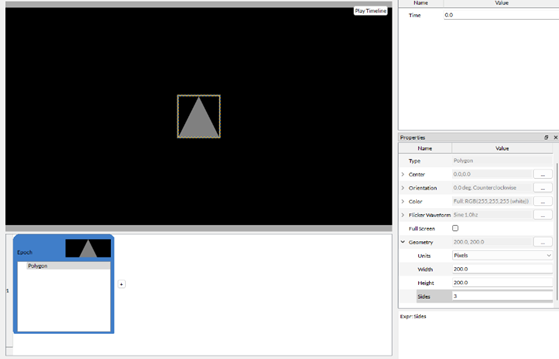
The Geometry parameter includes an additional property, Sides, that specifies the number of sides of the region.
Text Region
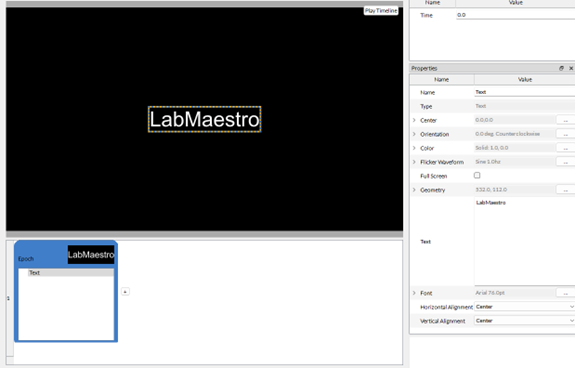
Text regions have four additional properties:
-
Text: Define the text string.
-
Font: Define the font and font size of the text string. You can also toggle options to make the text Bold, Italic, Strikethrough, Underline, and Kerned.
-
Horizontal Alignment: Specify the text string's horizontal alignment. Options are Center, Left, and Right.
-
Vertical Alignment: Specify the vertical alignment of the text string. Options are Center, Left and Right.
The Font property can be any font currently installed on your operating system.
As of Version 1.11, you can now run LabMaestro experiments online using VPixx Pack&Go. If you intend to run an Online Experiment, you should ensure your font is compatible with the latest version of Pack&Go.
Shape Mask Region
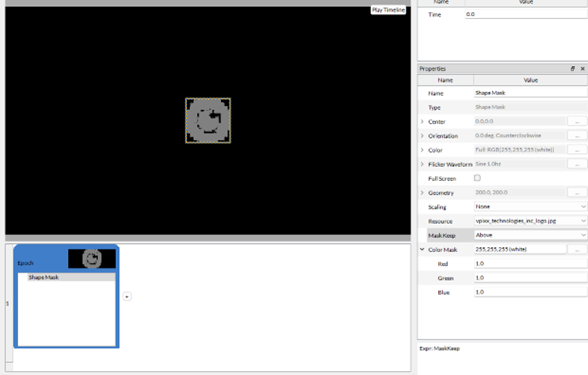
You can use a Shape Mask Region and specify the custom shape with the Resource property.
Shape Masks have the following additional parameters:
-
Scaling: Allows you to shape the content of your region with different scaling options
-
Resource: The custom shape resource.
-
Filter: This allows you to define thresholds to determine what is visible on your shape mask based on parameters of the selected Resource. Filters can be applied to all three colour channels (Red, Green, Blue) as well as Brightness and Alpha. If Higher than is selected for the filter, only values higher than a defined Threshold will be kept in the shape mask. The reverse is applied if Lower than is selected.
Related Links
Regions, Patterns and Static Psychophysical stimuli
Values and Expressions: Dynamic Content
Customizing Stimuli with Mathematical Functions and Expressions