
Overview
This page lists all Pattern components and their properties.
After reading this page, you should:
-
Be familiar with all Pattern components available in the LabMaestro Experiment Builder.
-
Understand common Pattern component properties
-
Understand how specific Pattern Properties alter components.
Shared Pattern Parameters
Below is a list of shared properties across all Pattern components.
Pattern Center
Center allows you to specify the location of the pattern's center relative to its embedded Region. The center coordinates can be defined in degrees of visual angle, pixels, or centimetres. LabMaestro allows you to define the center using Cartesian, Polar and Clock coordinates.
-
Cartesian coordinates allow you to position your Region center by moving it along the X and Y axes using the unit system of your choice.
-
Polar coordinates are convenient if you conceptualize your stimulus location in visual eccentricity and meridian. The 0-degree origin is located towards the right, with increasing angles rotating counterclockwise, similar to a trigonometric circle.
-
Clock coordinates are the same as polar coordinates, but have a 0-degree origin towards the top of the display, with increasing angles rotating clockwise.
By default, the coordinate frame is the same as the Region's centre.
Adjusting the center of a pattern can be helpful when fine-tuning the disparity between two grating patterns viewed binocularly. You can specify the grating's center relative to the center of the testing display or the center of the Region containing the grating. Should you plan to move the Region and want the grating to remain constant on the screen (giving the impression that the Region is a window moving over a fixed grating), turn off the Region Centered property.
Changing the coordinate space buttons or the linear units pop-up will cause LabMaestro to automatically convert the existing coordinates to the new space and units.
Pattern Flicker Waveform
While all Regions have a Region Flicker Waveform parameter group, which allows you to accurately control the flicker waveform of the combined patterns within the Region, sometimes you may require that just a single pattern within a region flicker. In contrast, the remaining patterns within the Region remain fixed.
You can use the Flicker Waveform property present in most Patterns to implement this kind of per-pattern flicker control.
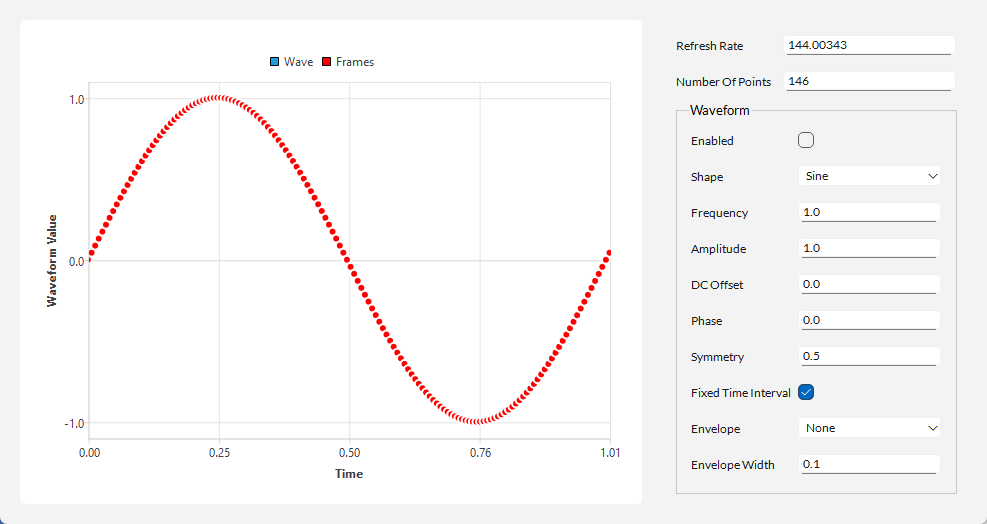
To enable pattern flicker, click the Enabled check-box sub-property. The Shape sub-property allows you to specify sinusoidal, square-wave, triangle-wave, or ramp flicker waveforms. The Amplitude, DC Offset, Phase, Frequency and Symmetry parameters give you complete control over the flicker waveform. As of Version 1.12, you can also apply an Envelope (Cubic, Quintic or Hann) to your waveform, as well as specify an Envelope Width.
As of Version 1.12, LabMaestro offers a contextual window to preview the shape of your flicker waveform. This allows you to preview how your changes to the waveform properties affect its appearance. To access it, press the button to the right of the Flicker Waveform property.
Pattern Spatial Waveform
The Grating, Radial Bars, Concentric Circles, and Looming Dots Patterns all map two-dimensional space onto a one-dimensional waveform. The Spatial Waveform parameter gives you flexibility in specifying this one-dimensional waveform.
As a first step, you can choose between a Sine, Square, Triangle, or Ramp wave. Then, you can scale and distort the waveform using the Amplitude, DC Offset, Phase, and Symmetry parameters. Finally, you can continuously drift the waveform's phase using the Drift Frequency parameter, giving rise to dynamic effects like drifting gratings and looming circles.
Available Pattern Components
Below is a list of all currently supported Pattern components within the LabMaestro Experiment Builder as of Version 1.11.
Checkerboard Pattern
One of the most commonly used stimuli in electrophysiology evoked-potentials research. Insert a checkerboard pattern to control the checkerboard's check size, orientation, and flicker waveform.
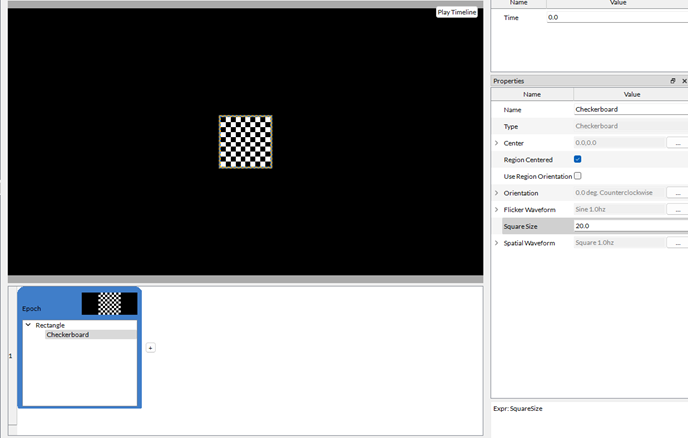
The Square Size lets you adjust the size of individual squares in the pattern.
Concentric Circles Pattern
Create a series of concentric rings about the point specified by the Center parameter.
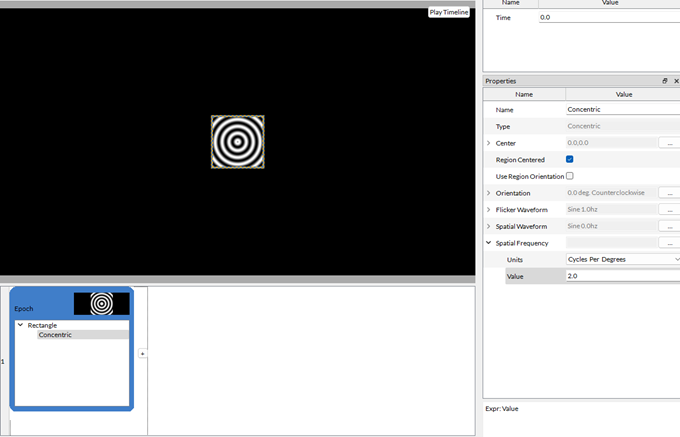
The Spatial Frequency parameter controls the frequency of white-to-black luminance transitions.
Drifting Dots Pattern
Create a drifting dot field with control over the dot population, coherence, velocity, update period, lifetime period, and flow center.
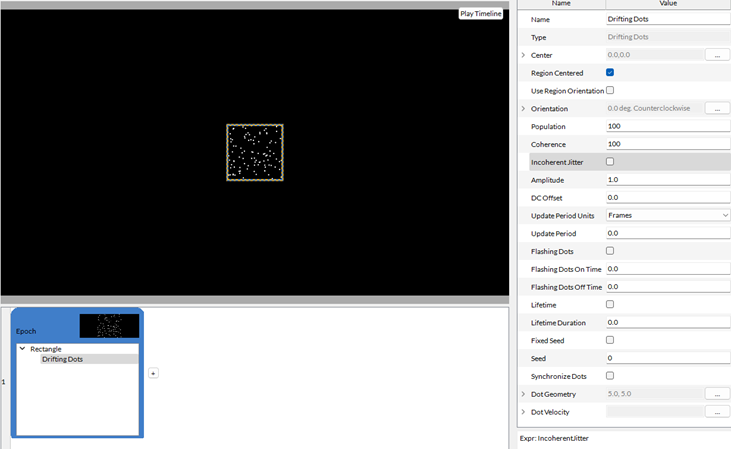
Drifting dots contain many additional properties :
-
Population: The higher this value, the more circles are present.
-
Coherence: The higher this value, the more coherent the drift.
-
Incoherent Jitter: Toggle this option to add jitter to the dot pattern.
-
Amplitude: Define the mean amplitude.
-
DC Offset: Define the mean amplitude displacement from zero.
-
Update Period Units: Toggle to define the update period.
-
Update Period: The number of frames until the display is updated. 0 is every frame.
-
-
Flashing Dots: Toggle to enable flashing dots.
-
On Time: The time it takes for the dot to turn from invisible to visible.
-
Off Time: The time it takes for the dot to turn from visible to invisible.
-
-
Lifetime: Toggle to define lifetime.
-
Lifetime Duration: The time individual dots remain on the screen.
-
-
Fixed seed: Toggle to define a fixed seed.
-
Seed: Define the specific seed used by this pattern.
-
-
Synchronize Dots: Generate dots in sync.
-
Dot Geometry: The dots' horizontal and vertical sizes.
-
Dot Velocity: Speed at which dots are moving on the screen.
Expression Pattern
Define a pattern as a general mathematical function evaluated for each pixel in the pattern.
The expression typically includes the variables x and y, but it can also contain variables. Standard programming functions are also available (e.g., sin, rand(min, max), etc.). You can generate dynamic patterns by including the variable "time" in the expression, which is the current animation time in seconds. You must scale this function to the range -1 to +1.
The Expression property defines the mathematical function. You can find more information on the Values and Expressions page.
Gaussian Pattern
Create a Gaussian pattern, controlling its horizontal and vertical standard deviation and overall orientation. Gaussian blobs can be used as stimuli or combined multiplicatively with other patterns to create complex stimuli, such as Gabor patches.
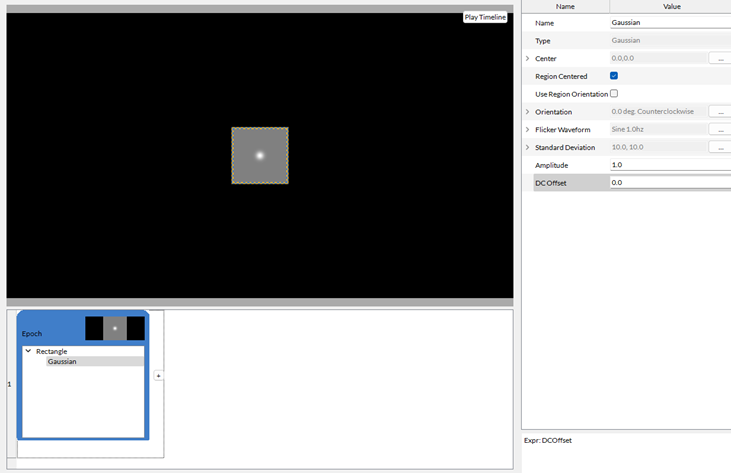
The Standard Deviation property can be defined to influence the size of the Gaussian blob along the horizontal and vertical axes.
Amplitude defines the amplitude of the Gaussian blob. Higher values are lighter, and lower values are darker. The DC Offset applies an offset to all values computed in the pattern, with a range of -2 to 2. Resulting values that fall out of the [-1, 1] range will be clamped to their limit values.
Grating Pattern
One of the most commonly used patterns in basic vision research. Fill a region with a grating. Specify the grating's spatial frequency and orientation. Optionally, control the grating's spatial and temporal waveforms, including the ability to drift the grating.
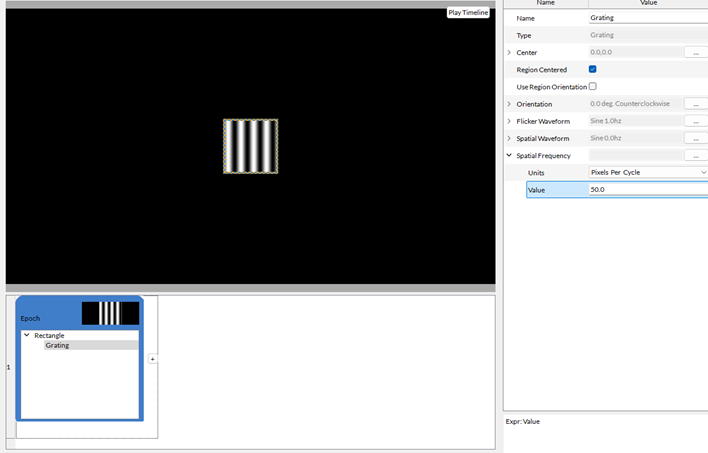
The Spatial Frequency parameter can be defined to change the frequency of luminance variations.
Looming Dots Pattern
Create true looming dot patterns. These patterns are spatially and temporally identical to the physical analogy of moving through a tunnel with light bulbs randomly placed along the walls.
Looming dots share many parameters with drifting dots, plus the following parameters:
-
Min Radius: Minimum distance from the center at which dots can appear.
-
Dot Speed: The speed at which the dots move away from the center.
-
At Radius: Reference radius for the Dot Speed.
-
Projection: Determines the movement of the dots, which can be Constant, Linear, Projection, or Starfield.
Looming Circles Pattern
Create true looming circle patterns. These patterns are spatially and temporally identical to the physical analogy of moving through a tunnel, with the Spatial Waveform parameter painted on its walls.
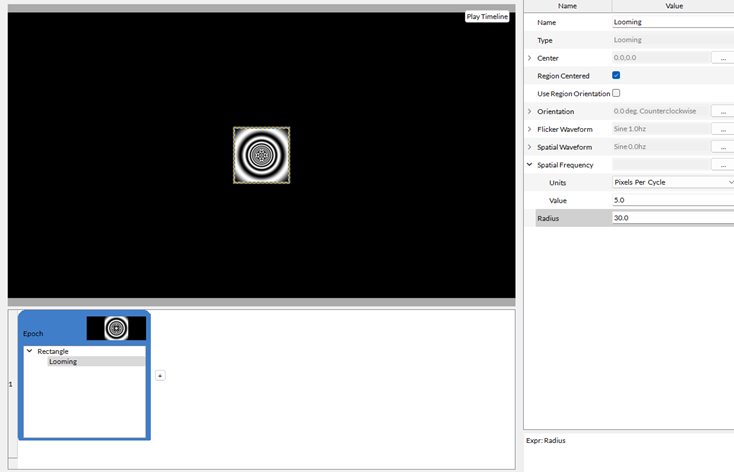
The Spatial Frequency parameter can be defined to change the frequency of luminance variations.
The Radius parameter defines the size of the circles.
Movie Pattern
Fill any region with a movie file. Individual parameters include:
-
Tiling: The toggle will enable tiling across the Region if space remains.
-
Scaling Mode: Define how the movie scales in the defined Region.
-
Auto Repeat: Toggle to repeat the movie once all frames have played.
-
Muted: Toggle to remove sound from the movie file.
-
Speed: Set the movie's playback speed.
Noise Pattern
Used to create static and dynamic random noise patterns, with control over the noise granularity, distribution, and seed, often used as masks or simple stimuli. You can also use it to create random-dot stereograms or to transform first-order stimuli into second-order stimuli.
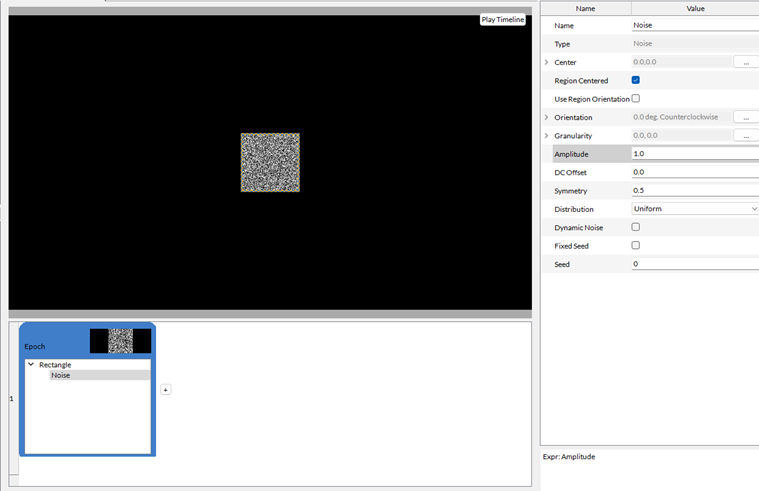
Here are the additional properties for Noise patterns:
-
Amplitude: Define the maximum pixel value in the noise patch.
-
DC Offset: Define the mean amplitude displacement from zero.
-
Symmetry: Define the point of symmetry in the noise patch.
-
Distribution: Define the noise distribution. Available distributions are Uniform, Gaussian and Binary.
-
Dynamic Noise: Toggle to enable dynamic noise. The noise patch will change each frame.
-
Fixed Seed: Toggle to define a single seed for the pattern.
-
Seed: Define the random seed of the pattern.
Picture Pattern
Fill any region with a picture file. If you only need to import a picture file's shape as a mask, not its internal pattern, use a Shape Mask Region instead of a picture pattern.
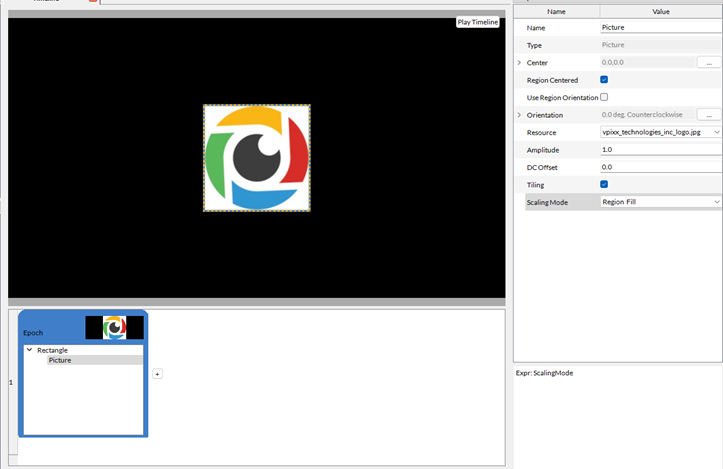
Picture patterns have the following additional parameters:
-
Resource: Define the custom resource used as a pattern.
-
Amplitude: Define the mean amplitude.
-
DC Offset: Define the mean amplitude displacement from zero.
-
Tiling: The toggle will enable tiling across the Region if space remains.
-
Scaling Mode: Select the preferred scaling mode for the resource image.
Radial Bars Pattern
Create windmills, spirals, and other related static and dynamic patterns.
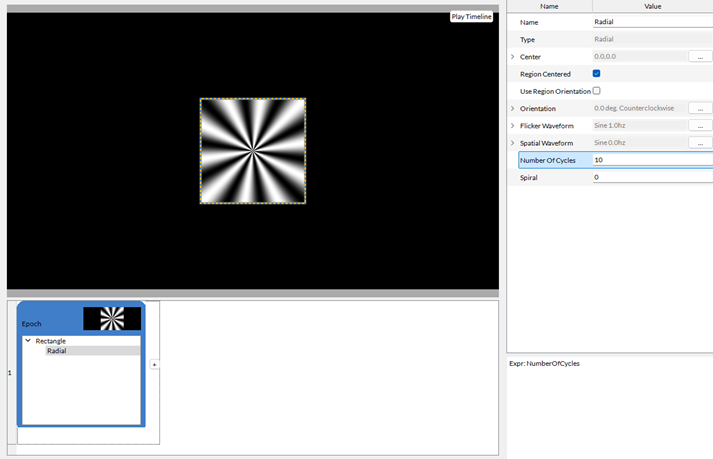
Radial patterns include the following additional parameters:
-
Number of Cycles: Define the number of rays in the pattern.
-
Spiral: Define the intensity of the spiral pattern, if desired.
Rotating Dots Pattern
Implements a uniform field of dots rotating about a common point specified by the center of rotation parameter.
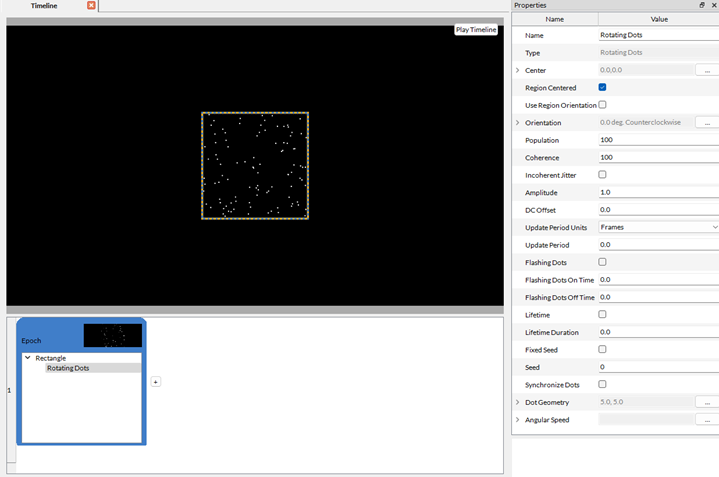
Rotating dots use the same properties as drifting dots, but Angular Speed, which defines the rotational speed of the dots, replaces Dot Velocity.
Uniform Patterns
Fill a region with a solid pattern. You can use this to implement several different types of stimuli and create a solid flickering field.
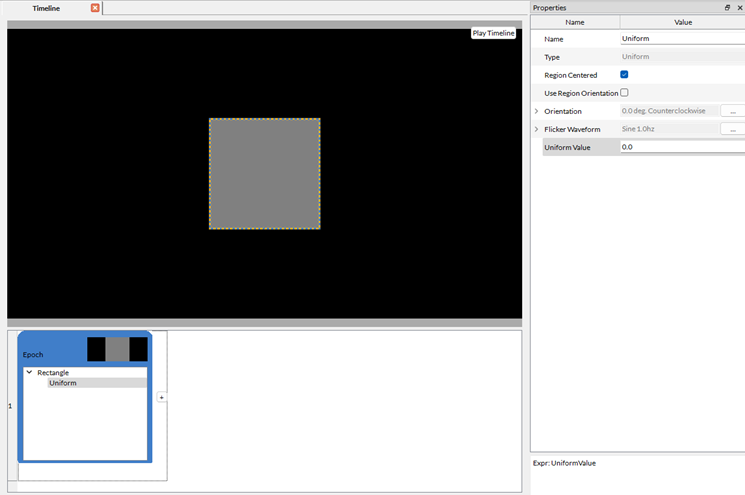
Uniform patterns have no additional properties.
Combine Modes
All pattern dialogues have a combine-mode option, allowing you to specify how to combine previously defined patterns within the same Region. The two Combine mode options are Add and Multiply.
-
Use the Add mode when creating a new pattern to add to the previous ones. For example, to create a plaid pattern, place a half-contrast grating in the Region, then create a second half-contrast grating with a different orientation and place it in the Region in Add mode. The result is a full-contrast plaid.
-
Use the Multiply mode when you want to modulate one pattern with another. For example, to make a Gabor patch, first place a full-contrast grating in the Region, then create a Gaussian pattern and place it in the Region in Multiply mode.
To select combine modes, first place two patterns in the same Region. The Combine Mode property will become available in the Properties panel of the second pattern.
Related Links
Phenomenal Coherence of Moving Patterns
Customizing Stimuli with Mathematical Functions and Expressions