Introduction
Starting with version 1.10, you can render LabMaestro experiments at a high refresh rate. This process is automated and will adjust your stimuli to the selected mode. Depending on the VPixx device you use, the total refresh available will vary by device type.
Prerequisites
-
LabMaestro is installed and activated.
-
You have a PROPixx connected to your computer, with either a DATAPixx3 or a PROPixx Controller.
Project Files
Changing to a High Refresh Rate Mode in LabMaestro
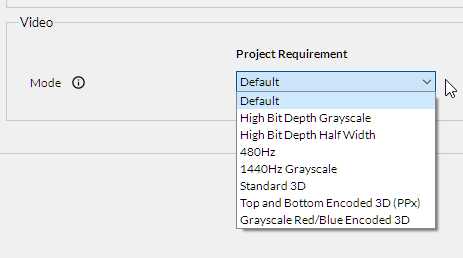
To set up your refresh rate, you need to specify one of two supported rendering modes. Please note that the method for setting up the resolution differs depending on whether you are using a PROPixx with DATAPixx3 or a PROPixx Controller.
Through Timeline Properties (Recommended)
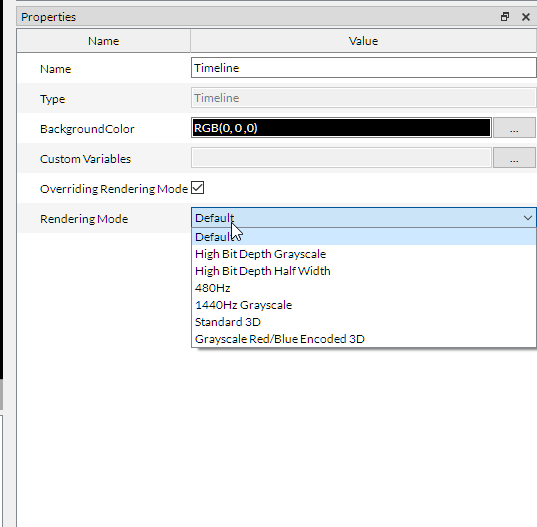
You can specify a rendering mode for each Timeline in your experiment. The rendering mode defined for a specific timeline overrides the one defined in device properties, making it useful if you need to change rendering modes between timelines during the experiment. To do so, you must first check the Overriding Rendering Mode box in your Timeline’s properties (double-click on the Timeline to access its properties). In the properties, select the preferred rendering mode.
Setting up the LabMaestro Mode via Hardware Properties
By clicking on your VPixx hardware in the Project window, under the Environment tab, you can access the device properties. In the Video section, you can select the required video mode for your experiment.
Rendering Modes
480Hz (QUAD4X)
In 480Hz mode, video is passed from the software to the display with a required resolution of 1920 x 1080 at 120Hz. Our custom sequencer divides the 1920 x 1080 image into four full-colour 960 x 540 quadrants and shows them sequentially. All quadrants are displayed full-screen. As such, this allows the frame rate to be four times higher, at the expense of half the horizontal and vertical resolution.
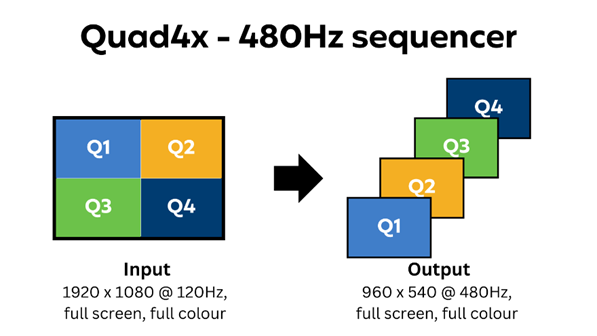
For more information on the inner workings of 480Hz rendering, please visit the VOCAL guide on this mode.
1440Hz Grayscale (QUAD12X)
In 1440Hz grayscale mode, video is passed from the software to the display with a required resolution of 1920 x 1080 at 120Hz. Our custom sequencer divides the 1920 x 1080 image into 12 grayscale quadrants of 960 x 540 each, from each colour channel, and displays them sequentially. All quadrants are displayed full-screen. As such, this allows the frame rate to be twelve times higher, sacrificing half the horizontal and vertical resolution.
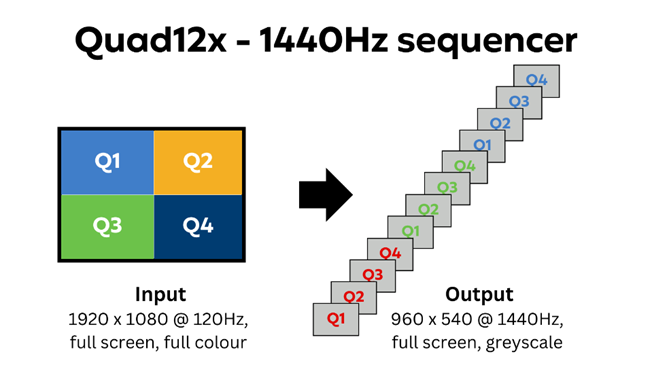
For more information on this rendering mode, please see the VOCAL guide for this video mode.
High Refresh Rate Demo
When building an experiment in LabMaestro, it is essential to note that the application automatically splits the screen into quadrants and adjusts the resolution accordingly. As such, what you build for your experiment and what you see in the timeline preview will be what is shown to the participant.
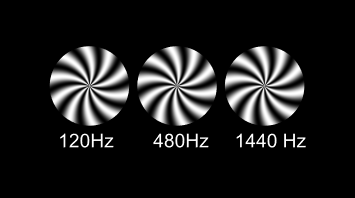
The above demo is an experiment rendering the counterclockwise rotation of three spirals, updating at 120Hz, 480Hz, and 1440Hz from left to right. The Wait command waits for 1/1440th of a second, the length of one frame in 1440Hz grayscale rendering. Running this experiment at 1440Hz in grayscale will show the three wheels spinning at the same speed, with much smoother movement at higher refresh rates.
If you have access to a second monitor, or if no PROPixx is connected, you can observe what the video feed sent to the PROPixx originally looks like at your full display resolution. In the Default rendering mode, the second monitor and PROPixx will display the same image. In 480Hz mode, the second monitor will display four quadrants with full colour. In 1440Hz mode, the second monitor will display four quadrants with partially overlapping red, white, and blue regions, representing the different frames encoded in each colour channel.