
Overview
This page details how the LabMaestro software handles colours and the options available for colour representation.
Before you begin, you will need:
-
LabMaestro to be installed and running
Color Picker
As of version 1.10, there is a new widget that allows users to select colours. When specifying solid-type colours, you have greater freedom in specifying the desired colour.
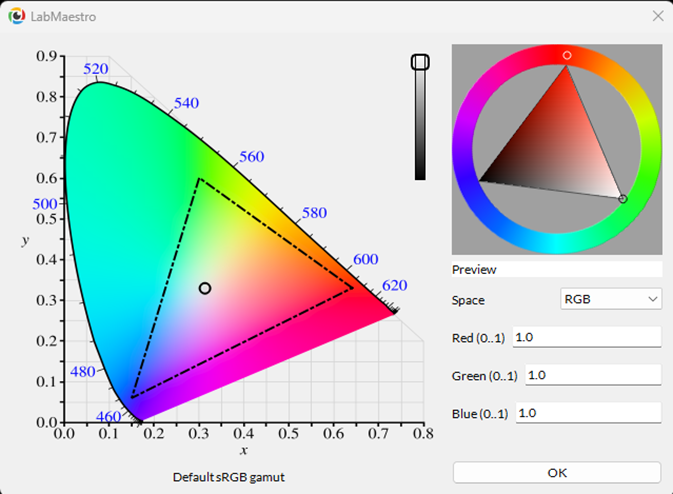
On the left, you can see the position of the colour point on the default sRGB gamut through its x and y coordinates. In the top right, a luminance slider and a preview of the colour point relative to saturation and luminance are available. In the bottom right of the window, you can manually specify the numerical values of the desired colour point in a variety of colour spaces.
Supported Colour Spaces
LabMaestro supports the following colour spaces:
-
*Default* RGB, as specified to define colour values
-
LMS HPE (Long, medium, short) using the Hunt-Pointer-Estevez transformation matrix (HPE) https://en.wikipedia.org/wiki/LMS_color_space#Hunt,_RLAB
-
LMS CAT02 (Long, medium, short) using the CAT02 transformation Matrix https://en.wikipedia.org/wiki/CIECAM02#CAT02
-
CIE XYZ https://en.wikipedia.org/wiki/CIE_1931_color_space#CIE_XYZ_color_space
-
Lxy (CIE xyY) https://en.wikipedia.org/wiki/CIE_1931_color_space#CIE_xyY_color_space
-
LuvP (CIELUV with u’ and v’) https://en.wikipedia.org/wiki/CIELUV
-
LuvS (CIELUV with u* and v*) https://en.wikipedia.org/wiki/CIELUV
-
Lab (CIELAB) https://en.wikipedia.org/wiki/CIELAB_color_space
Colour Value Interaction with Calibration
If you have used LabMaestro to calibrate your display, LabMaestro will use the newly defined Colour Lookup Table to ensure colour gradients follow a linear Gamma. Consequently, you do not need to take your monitor's gamma into account when defining colour values; the software will automatically adjust colour rendering to fit a linear function.
Related Links: