
Introduction
As of Version 1.13.0, you can now import your condition list directly from a *.csv file, which makes it easier to populate it in LabMaestro. This page details how to do this.
Prerequisites
-
Have LabMaestro installed and activated
Importing a Condition List
As of Version 1.13.0, you can now import your condition list directly from a *.csv file, which makes it easier to populate it in LabMaestro, especially if you have multiple conditions. To import from a *.csv file:
-
Press the new Import button.

-
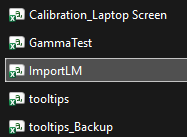
Select the *.csv file you wish to import.
-
A pop-up window will appear, showing how the LabMaestro software has parsed your *.csv file. You can preview the output in the bottom-right corner to confirm it has been imported as desired.
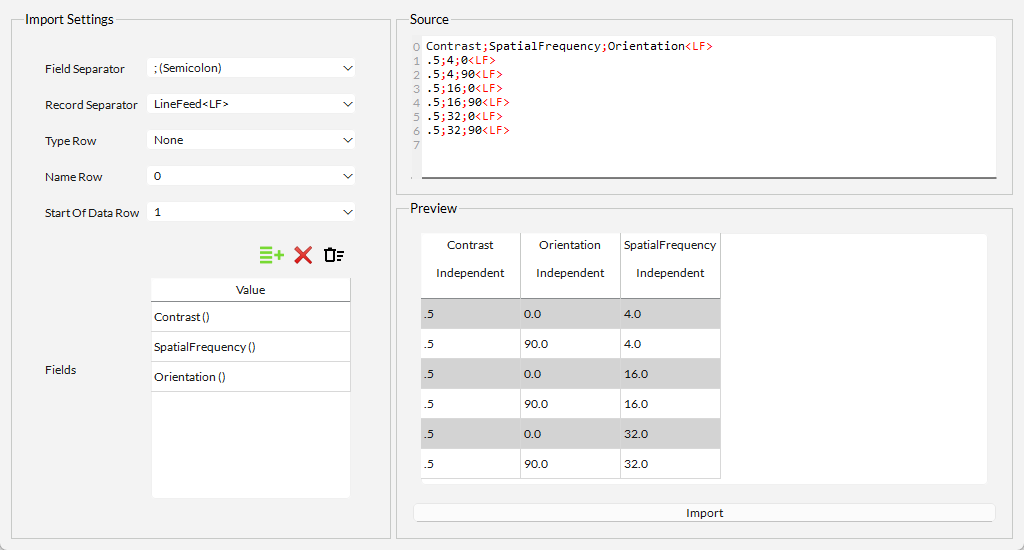
If the preview is not as expected, you can edit the following Import Settings on the left:
-
Field Separator. Define the delimiter used between cells. You can use the Source panel in the top-right corner of the window, or open your original file to confirm this.
-
Record Separator. Define the delimiter used between rows. You can use the Source panel in the top-right corner of the window or open your original file to confirm this.
-
Type Row. Define the index of the row in which variable type information is located. Enter None if your file does not have one.
-
Name Row. Define the index of the row in which variable name information is located. Enter None if your file does not have one.
Avoid using names identical to those of existing LabMaestro components or properties, as this could cause your experiment to behave unexpectedly.
Make sure you do not include spaces in your variable names! Otherwise, your variable will not be accessible through expressions.
-
Start Of Data Row. Define the index of the first row containing data. The software will assume all following rows also contain data.
-
Decimal Separator. Specify the character used as the decimal delimiter. Options are dot (.) and comma (,).
-
Fields. Edit the variable names and types. If your file did not contain any rows for variable names and types, you can use this section to enter the information.
Once this is done, click Import to add this Condition List to your Method component. If needed, you can edit it as you normally would if you had entered the parameters manually.