

Product Overview
The SHIELDPixx generally accompanies a full PROPixx /MRI projection system provided by VPixx Technologies, which consists of the following components:
-
A PROPixx 1440Hz projector (/MRI)
-
A lens suited to the desired display size and projection distance
-
A DATAPixx3 video I/O hub that acts as a control unit
-
All required video cables and USB cables
-
A SHIELDPixx Enclosure
-
A VPixx Bridge to extend connection range, split into Receiver and Sender components
-
A remote control for operating the projector
-
A Lens Selection Report prepared by VPixx Staff Scientists
In addition to the components listed above, you will need a projection screen provided by VPixx or sourced elsewhere.
SHIELDPixx
The SHIELDPixx is a complete shielding enclosure where you can install multiple electronic devices for safe use in an MR room. The SHIELDPixx is optimized to reduce EMI at the operating frequency of a 1.5T, 3T, or 7T scanner.
VPixx Bridge
The two VPixx Bridge modules (VPixx Bridge Receiver and VPixx Bridge Sender) supplied with your SHIELDPixx/PROPixx package transmit video and USB signals between the control room computer and the PROPixx projector in the MR room’s SHIELDPixx via fibre optic cabling. They enable seamless transmission of an uncompressed DVI video stream with no dropped frames, while high-speed peripherals operate with no latency. Each VPixx Bridge connects to either the control room computer or the MR room projector via standard USB and DVI cables over fibre-optic.
Product Details
This hardware manual focuses on the SHIELDPixx enclosure and the specifics of installing an MR-sage projection system. For detailed information on the PROPixx projector, please see the PROPixx Projector Manual.
For data acquisition, triggering, and other I/O integration features, see the user manual for the DATAPixx3.
Specifications
SHIELDPixx Enclosure
-
Aluminium casing
-
Width: 50.24 cm (19.780 inches)
-
Depth: 92.46 cm (36.040 inches)
-
Height: 35.80 cm (14.094 inches)
-
Shielding glass window 101.6mm x 101.6mm (4.0 x 4.0 inches)
-
One waveguide
VPixx Bridge Receiver
-
USB 2.0 compliant
-
Allows connection of 4 USB 2.0 devices to the SHIELDPixx
-
DVI dual-link interface
-
Video resolution: 3840 x 2400@ 60 Hz or 1920 x 1200 @ 120 Hz
-
Conditionally MRI-safe
VPixx Bridge Sender
-
USB 2.0 compliant
-
Allows connection of 4 USB 2.0 devices to the SHIELDPixx
-
DVI dual-link interface
-
Video resolution: 3840 x 2400@ 60 Hz or 1920 x 1200 @ 120 Hz
-
MRI Unsafe
System Requirements
The SHIELDPixx has no software requirements. For your PROPixx projector requirements, see this page.
Assembly and Installation
Follow these instructions to install your SHIELDPixx and PROPixx and complete the necessary cabling in both the MR room and the control room. This example assumes an MR room where available space does not allow you to install the SHIELDPixx directly behind the MRI (due to size constraints or other reasons). The example therefore uses a mirror, allowing you to place your SHIELDPixx (containing the PROPixx projector) at an angle to the MRI according to your experimentation needs.
In MR rooms with enough space, the installation removes the need for a mirror, placing the SHIELDPixx directly behind the MRI, outside the 100 Gauss line.
Verify MR warning labels on each component you intend to bring into the MR room. Failure to do so may cause severe injury or equipment damage. The PROPixx controller and the VPixx Bridge Sender are not MR compatible.
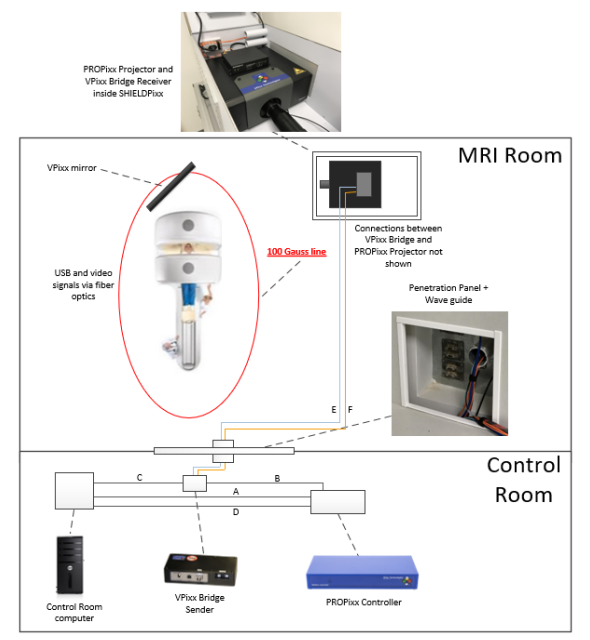
|
Connection |
Description |
|---|---|
|
A |
Dual-Link DVI cable from computer to PROPixx Controller (DVI IN connector) |
|
B |
Dual-Link DVI cable from PROPixx Controller (DVI Out to projector connector) to VPixx Bridge Sender |
|
C |
USB cable from computer to VPixx Bridge Sender |
|
D |
USB cable from computer to PROPixx Controller |
|
E |
Fibre optic cable from VPixx Bridge Sender USB interface to VPixx Bridge Receiver USB interface |
|
F |
Fibre optic cable from VPixx Bridge Sender VIDEO interface to VPixx Bridge Receiver VIDEO interface |
Installation steps
THE INSTALLATION SHOULD BE MADE OUTSIDE OF THE MR Room
Never perform the installation in the MR Room. First, assemble your products in a safe location, then transport the stand, SHIELDPixx, and PROPixx into the MR Room with two people.
-
Install the PROPixx projector (NOT the controller, which is MR unsafe) inside the SHIELDPixx enclosure.
-
Secure the VPixx Bridge Receiver on the PROPixx cover plate using Velcro tape. ENSURE you use the VPixx Bridge Receiver, NOT the VPixx Bridge Sender, which is MR UNSAFE.
-
Connect the DVI cable from the PROPixx projector to the VPixx Bridge Receiver.
-
Connect the USB cable from the PROPixx projector to the VPixx Bridge Receiver.
-
Connect the 5 V power cable between the PROPixx projector and the VPixx Bridge Receiver.
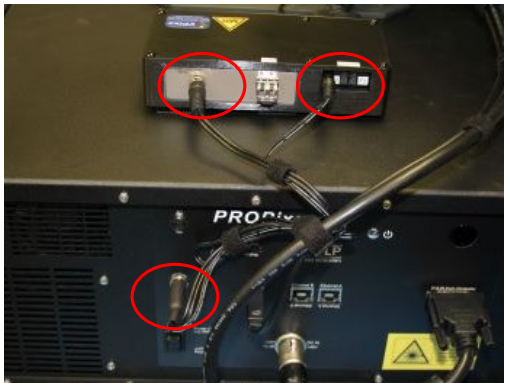
5V power connections -
Connect a Dual-Link DVI cable from the PROPixx Controller (DVI Out to projector connector) to the VPixx Bridge Sender (connection B)
-
Connect a USB cable from the computer to the VPixx Bridge Sender (connection C)
-
Connect a USB cable from the computer to the PROPixx Controller (connection D)
-
Connect the fibre optic cables to the VPixx Bridge Receiver (VIDEO / USB) interfaces (BLUE fibre optics into the fibre optic interface labelled USB and ORANGE fibre optics into the fibre optic interface labelled VIDEO) and pass them through the SHIELDPixx waveguide.
Remember when manipulating or connecting fibre optic cables not to kink or otherwise bend them with a bending radius of less than 2‘’ (5 cm). Doing so may damage the cable.
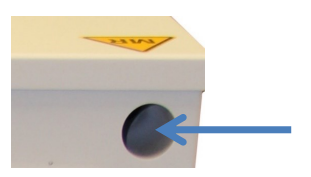
-
Connect the fibre optics leading out from the SHIELDPixx to the VPixx Bridge Sender (VIDEO / USB) interfaces (BLUE fibre optics into the fibre optic interface labelled USB and ORANGE fibre optics into the fibre optic interface labelled VIDEO) by passing them through the penetration panel’s waveguide (connections E and F).
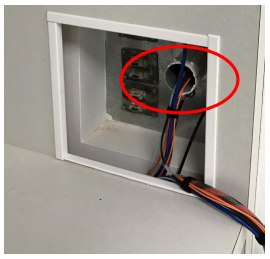
Penetration Panel with waveguide -
Connect a Dual-Link DVI cable from the control room’s computer to the PROPixx Controller’s DVI IN connector. (connection A).>
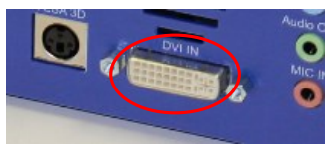
PROPixx Controller DVI IN connector -
Connect a Dual-Link DVI cable from the PROPixx Controller to the VPixx Bridge Sender.
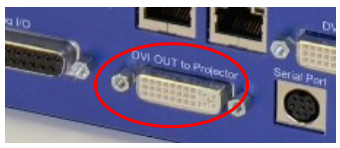
PROPixx Controller DVI OUT to Projector connector 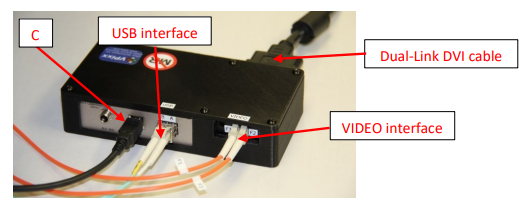
VPixx Bridge Sender connections -
Connect the SHIELDPixx AC Power Interface (located to the side of the unit) to the MR room power outlet.
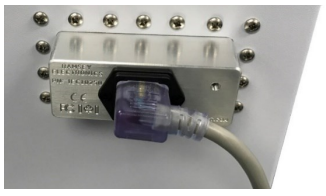
AC power interface
Finalizing the Setup
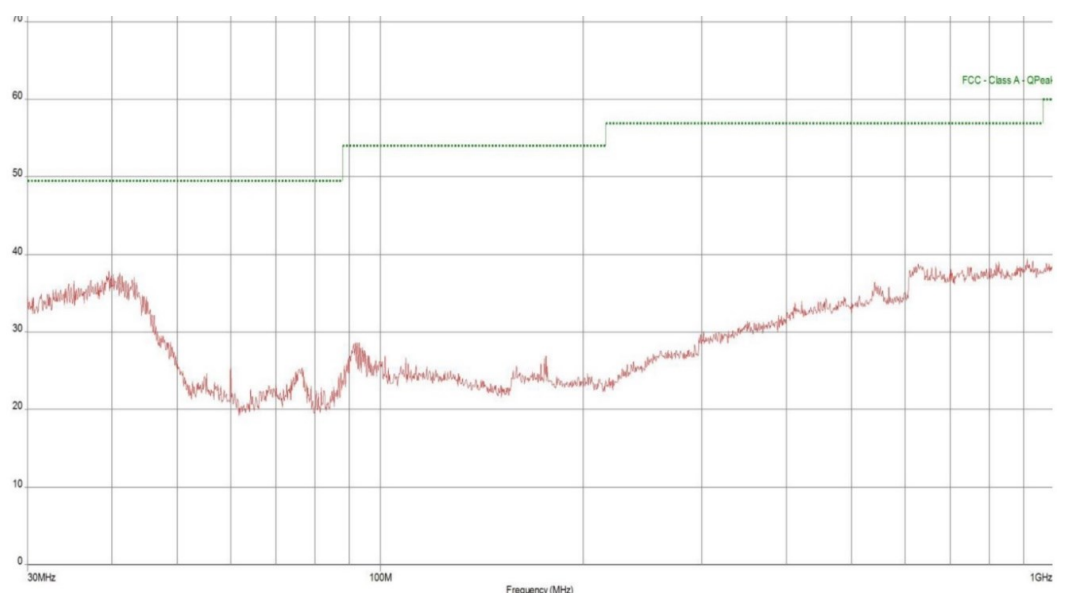
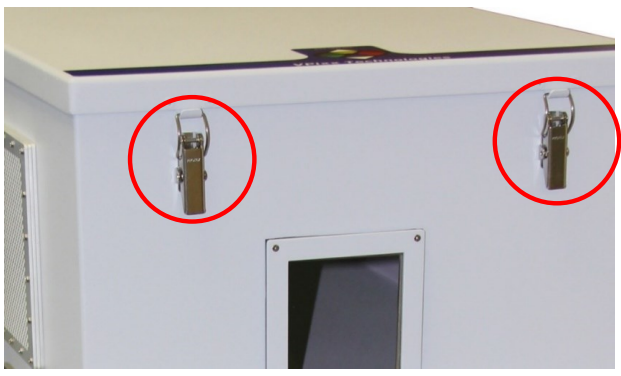
Ensure the SHIELDPixx’s closing clamps are fully closed PRIOR to using the system. Failure to do so may cause electromagnetic contamination to spill beyond the SHIELDPixx. The following graphic shows typical electromagnetic emissions from a fully functional PROPixx projector inside the SHIELDPixx enclosure, with its clamps properly closed.
Because precise positioning of most VPixx instruments (including the VPixx trolley, MRI screen, and MRI mirror) is critical to running your experiment properly, VPixx Technologies supplies a set of Foot Locators.
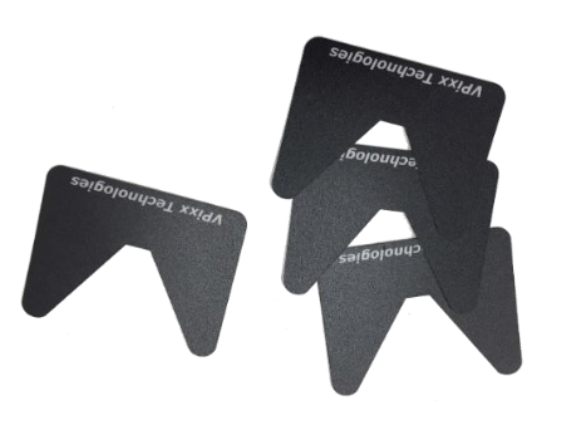
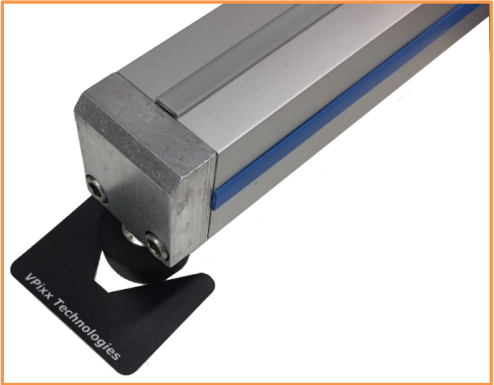
Once you determine the exact, final position of these instruments, place the foot locators at their feet so you can return them to the same configuration if they are ever displaced.
To apply the foot locators, follow this procedure:
-
Ensure the VPixx instrument location is final and meets your experiment requirements.
-
Remove the adhesive tape from one foot locator and set it as shown in this figure.
-
Repeat step 2 for the remaining instrument legs.
Product Usage
Power ON Sequence
-
Ensure you have completed all installation steps properly.
-
Power up the PROPixx controller (or the DATAPixx3 if you are not using a PROPixx Controller).
-
Toggle the SHIELDPixx Master Power Switch inside the system's top cover to ON. This switch controls the SHIELDPixx's internal power supply. By toggling the Master Power switch to ON/OFF, you can power the equipment inside the SHIELDPixx on or off without plugging/unplugging the AC power interface.
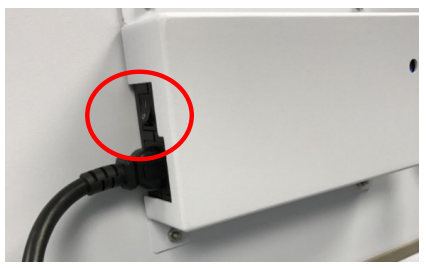
SHIELDPixx Master power switch -
On the projector, press the power button once to turn it on.
Press and hold the projector’s power button for 3 seconds or more to put it in SLEEP mode.
-
Close the SHILEDPixx cover and ensure the closing clamps are fully closed.
Device Detection
After powering up the PROPixx, your computer should detect the projector and controller and perform the necessary installation. On Mac OS X, no driver is required; however, on Microsoft Windows, you must install a driver.
To ensure all drivers are installed, install the VPixx Software Tools on the computer connected to the projector.
Status LED
PROPixx
Your PROPixx has two status LEDs that indicate the energy or power status of your system. The table below summarizes the information relayed by each LED, one blue and one red.
|
|
ON |
Blinking |
|---|---|---|
|
Blue LED |
Awake Mode |
LED Off mode |
|
Red LED |
Sleep Mode |
Thermal Shutdown |
VPixx Bridge LED
The following image describes the LEDs of both VPixx Bridges (Sender and Receiver).
|
LED |
Description |
|---|---|
|
PWR |
LED turns bright blue when power is supplied |
|
LNK |
This LED turns bright green when a valid link is established between the VPixx Bridge Sender and the VPixx Bridge Receiver. |
|
HST |
This LED turns bright green when the VPixx Bridge (USB 400 FO from Gefen) system is properly enumerated on the host PC. The LED blinks when in Suspend Mode. |
|
ACT |
This LED turns bright amber, indicating active data transmission between the VPixx Bridge Sender and the VPixx Bridge Receiver. The LED blinks intermittently, whether or not a USB device is plugged in. When the VPixx Bridge Sender and the VPixx Bridge Receiver are in Suspend Mode, the LED is off. |
Maintenance & Cleaning
You can clean the PROPixx's metal and plastic chassis, aluminum stand, and all cabling with regular cleaning or disinfecting products. Clean ports and plugs with compressed air.
To clean the PROPixx lens, gently wipe it with a damp cloth and a gentle soap, such as hand soap. Wipe away excess soap with a second, clean cloth. Alternatively, you can use a commercial LCD screen cleaner like this brand. Do not apply pressure to the lens or remove it from its housing during cleaning.
If you use a video signal booster, we recommend marking your dial setting before cleaning it in case it is accidentally adjusted.
Troubleshooting
For Troubleshooting support, seeDiagnosing Display Issues on the PROPixx Projector.
Compliance
Safety & Warranty
The SHIELDPixx is warranted against manufacturing defects in materials and workmanship for two years for parts and labour from the date of purchase.