
Product Overview
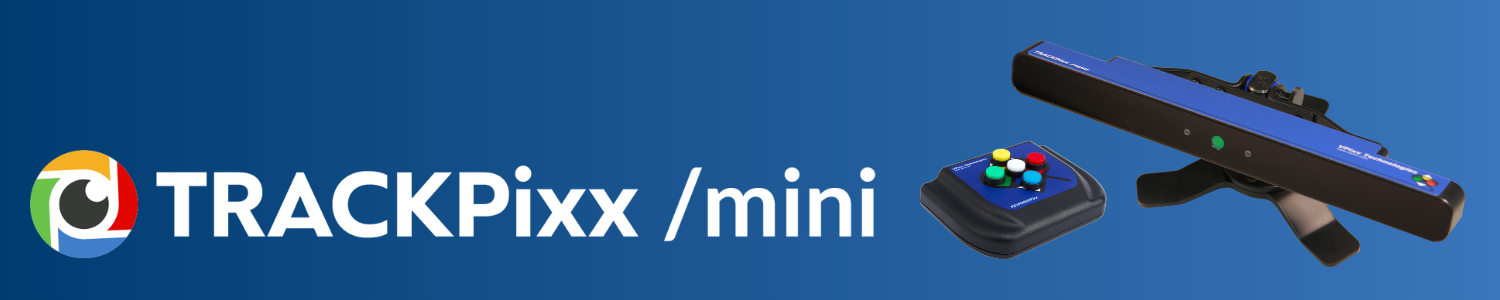
This installation guide covers conformity, safety, hardware, installation, and maintenance for VPixx Technologies Inc.’s TRACKPixx /mini.
The TRACKPixx /mini is a versatile eye/gaze-tracking solution. It does not require a dedicated PC to process eye images and generate gaze information; the TRACKPixx /mini hardware performs all image processing. Its compact size and ease of installation make it uniquely suited to research projects that require data collection outside the laboratory.
Product Details
|
Item |
Name |
Quantity |
|---|---|---|

|
TRACKPixx /mini Eye Tracker |
1 |
|
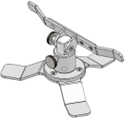
Arm Support |
1 |

|
Steel Support Bar |
1 |
|
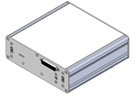
USB I/O Hub (Includes one Power Cable) |
1 |
|
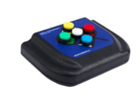
RESPONSEPixx 5-Button Input Box |
1 |
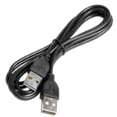
|
USB Cable |
1 |
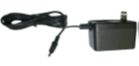
|
Power Supply |
1 |
Hardware Description
Your USB I/O Hub has the following ports:
|
Port |
Connection |
|---|---|
|
DB25 |
Connects to the RESPONSEPixx 5-button input box |
|
USB (1) |
Connects to your TRACKPixx /mini eye tracker. |
|
USB (2) |
Connects to your testing PC. |
|
Power Supply (Optional) |
You can connect an additional power supply, should your computer not be able to provide the required 900 mA of power |
Specifications
|
Specification |
Value |
|---|---|
|
Connection Type |
mini USB |
|
Dimensions |
25.4 x 2.6 x 3.2 cm (10’’ x 1’’ x 1.26’’) |
|
Operating Distance |
50 - 70 cm (19.7’’ - 27.5’’) |
|
Head Motion Box (W x H x D) |
31.5 x 22.5 x 20 cm (12.4’’ x 8.8’’ x 7.9’’) |
|
Accuracy |
0.5° |
|
Tracking Method |
Dark Pupil, binocular tracking |
|
Weight |
0.21 kg (0.46 lb) |
|
Certification |
CE and FCC |
|
Speed |
120 Hz |
|
Power Supply |
USB port or external power supply |
System Requirements
|
Specification |
Value |
|---|---|
|
Operating System |
Microsoft Windows 10 or 11, 64-bit |
|
USB Port(s) |
1 |
|
Maximum monitor display size |
24” |
VPixx Software Tools is a package of APIs and high-level software tools for use with VPixx products. It contains everything you need to connect to, configure and operate our devices from your experiment PC. It includes the following:
-
LabMaestro, a program designed by VPixx Technologies for configuring VPixx hardware and designing/implementing experiments.
-
Datapixx.mex, a library of commands for use with MATLAB/Psychtoolbox and VPixx products
-
pypixxlib, a library of Python tools for VPixx products
The latest version of VPixx Software Tools can be downloaded directly from our website at any time. Support documentation, tutorials, and demos for all of our software tools can be found on our support site: https://docs.vpixx.com/
Assembly and Installation
Direct PC Connection
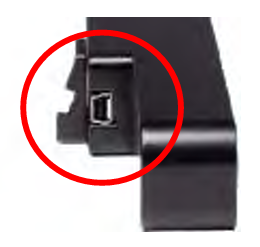
The TRACKPixx /mini system constitutes the core component of your eye-tracking solution. To connect the TRACKPixx /mini using the provided USB cable, locate the USB connector on the side or rear of the system.
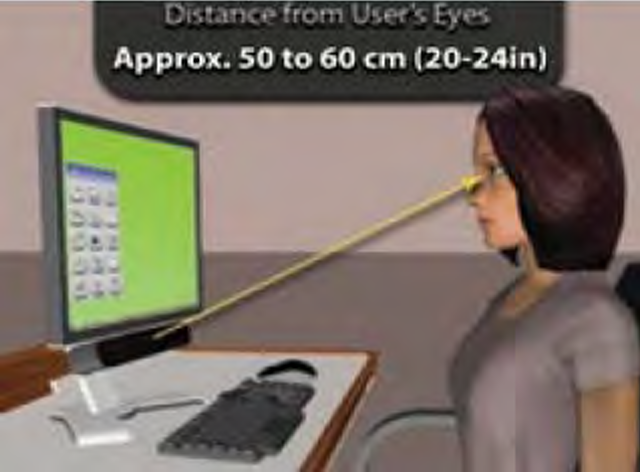
The following illustration shows the ideal distance between the subject and the TRACKPixx /mini system, whether the TRACKPixx /mini is mounted on the arm support or directly on the display monitor.
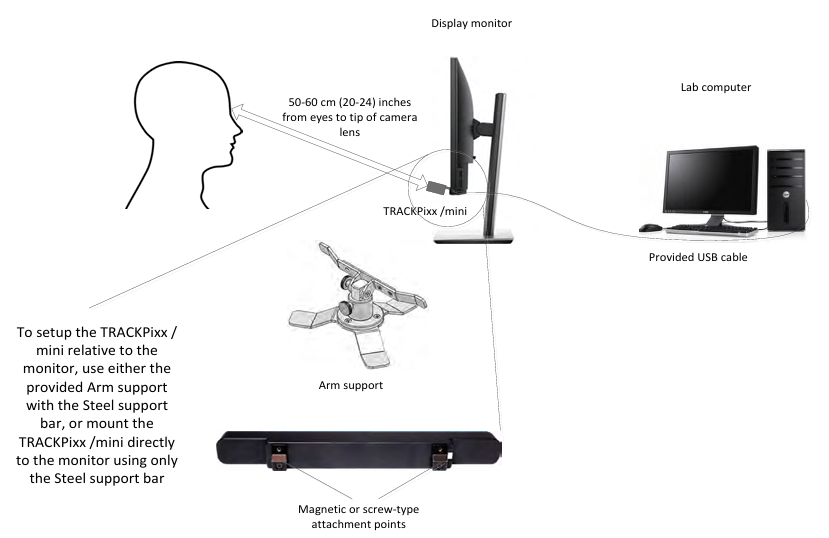
Note that the TRACKPixx /mini can only be used with display monitors of 24’’ or less.
To use the TRACKPixx /mini’s Steel support bar, simply remove the paper from both adhesive strips and mount the bar either to the Arm support or directly to your display monitor. In the latter case, ALWAYS position the Steel support bar to the bottom of the monitor, never the top.
To raise the TRACKPixx /mini when using the Arm support, place the USB I/O HUB under the Arm support.
Using the I/O Hub
By using the provided USB I/O HUB, the TRACKPixx /mini can be used in conjunction with the RESPONSEPixx 5-button box to record subject responses to various experimental stimuli. The following figure shows how to connect the equipment for this setup.
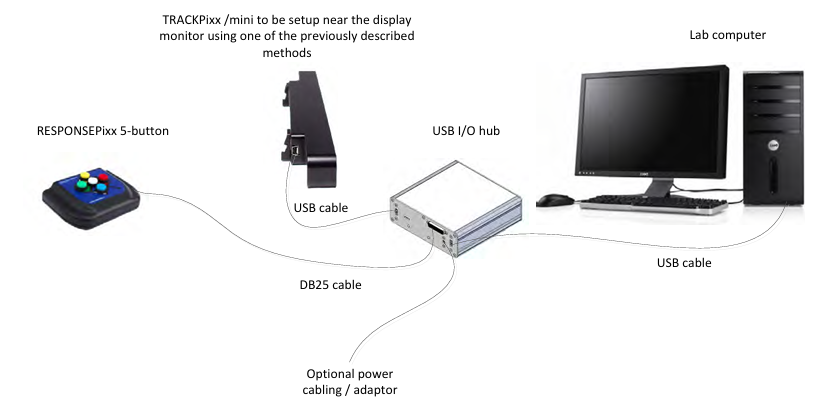
If the lab computer is incapable of supplying the approximately 900 mA of power required by the USB I/O HUB, simply plug the HUB’s provided power cable into one of your facility’s power outlets.
If needed, you can place the USB I/O HUB under the Arm support for your experimental setup.
Powering On the TRACKPixx /mini
After you power on the TRACKPixx /mini, its front-panel Tracking Indicator LEDs will light up BLUE to indicate the device is powered.
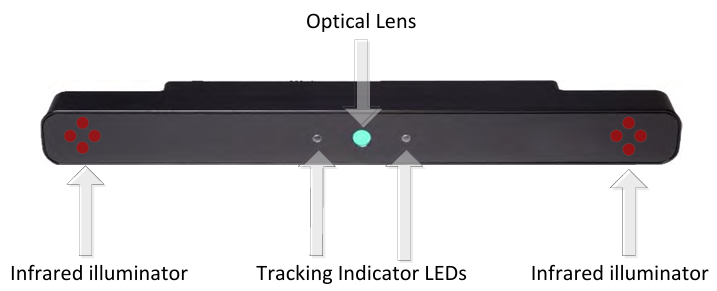
Ensure that the two infrared illuminators at the edges of the TRACKPixx /mini are not blocked by anything (sticker, object, subject’s arm(s)) since this would make eye tracking impossible.
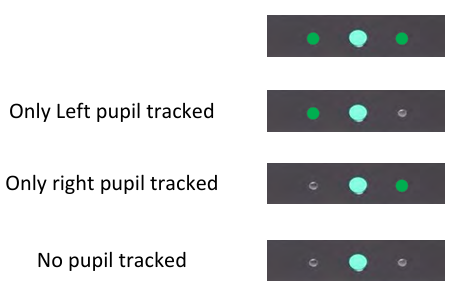
The Tracking Indicator LEDs will turn GREEN as soon as an eye-tracking application starts, and the TRACKPixx /mini detects the subject’s pupils. If a Tracking Indicator LED (left, right, or both) doesn't light up green, it can't currently track the subject’s corresponding pupil.
Useful Installation Tips
-
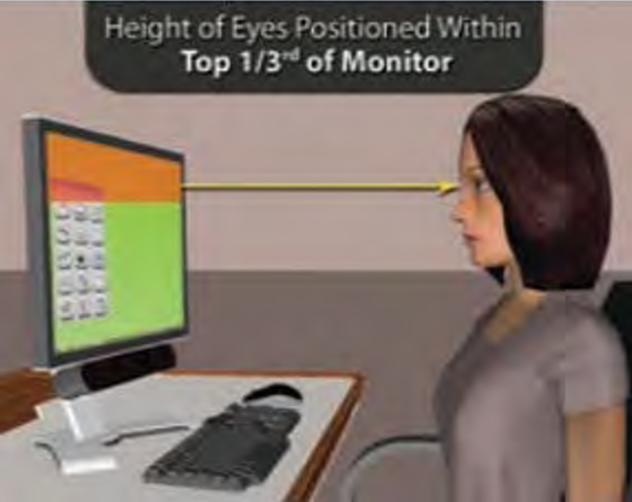
Position. To maximize subject comfort and ensure the most accurate eye-tracking data, the subject’s eyes should be level with the top third of the display monitor and well within the TRACKPixx /mini's line of sight.
-
Distance. The subject’s eyes should be at a distance of 50-60 cm (20-24’’) from the green LEDs visible on the front panel of the TRACKPixx /mini.
-
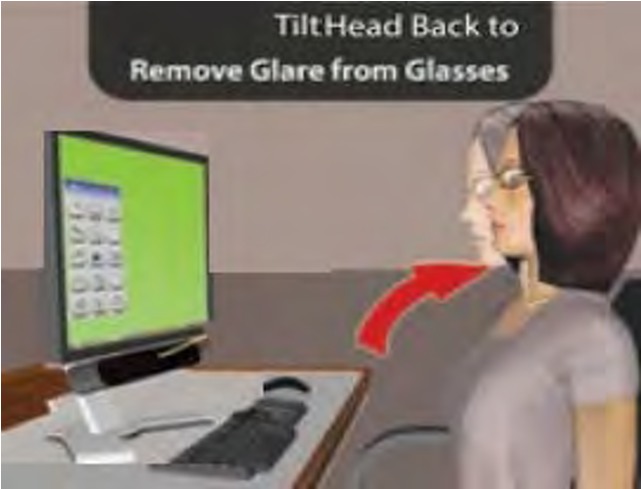
Eyewear. Certain eyewear may impede eye-tracking equipment. If the TRACKING INDICATOR LEDs on the front panel of the TRACKPixx /mini are not constantly ON, try tilting the subject’s head (or eyewear) up or down until the LEDs stop shutting down.
Product Usage
TRACKPixx /mini
Accessing your tracker in software
Start by installing the latest version of VPixx Software ToolsSoftware Download & Information.
After installing the software, open the LabMaestro application and create a new, empty project. In the Project menu, under the Environment tab, find your TRACKPixx /Mini and double-click it to open the settings widget and add it to your project.
Next, you can access the camera view by clicking Configure Tracker in the application menu at the top. In this section, you can configure the camera viewer settings, wake the tracker, view the live camera feed, run a calibration, and enable recording.
For more details, please refer to Using the TRACKPixx3 within LabMaestro. Although this guide was written for the TRACKPixx3, the calibration tutorial and the LabMaestro components you use to run your tracker apply to your TRACKPixx /mini.
Ready to get started? Try our LabMaestro calibration project here and collect some dataTRACKPixx3 calibration and data collection routine in LabMaestro. This is part of a larger guide on calibrating and collecting data, which we recommend for all new users.
We recommend using LabMaestro to familiarize yourself with tracking configuration options, camera settings and calibration features. Once you are comfortable, you can use the Export to Code feature to copy the desired settings to your programming environment and continue interfacing with the eye-tracking system using our tracker APIs. Several guides at the bottom of this manual can help you.
USB I/O Hub
The USB I/O HUB integrates a high-speed USB hub and an event detection and capture module. A VPixx RESPONSEPixx can be connected to the hub through the DB25 input port. The hub connects to a PC and enumerates as a USB composite device. For modern operating systems (Windows 10, Linux, Mac), no drivers are required in order to use the hub.
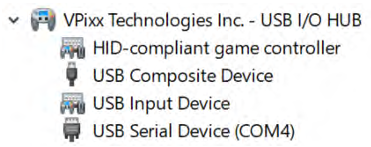
Two devices are installed: a game controller and a serial port. The game controller generates keypress events when connected to a RESPONSEPixx box. Whenever an event is generated, the hub records it with a timestamp in its internal memory. The user can eventually read the event(s) through the serial port. The I/O HUB can also configure RESPONSEPixx LEDs and get the current system time.
The following commands are sent through the serial communication port and can be accessed via a terminal application (such as HyperTerminal) or programming applications (such as Python or E-Prime).
|
Serial Command |
Description |
Example of return string |
|---|---|---|
|
GetEventTime |
Returns the recorded time for a button press. The time is captured on a falling edge event. |
'0' (ms) |
|
GetReleaseTime |
Returns the recorded time for a button release. The time is captured on a rising edge event. |
‘457’ (ms) |
|
GetCurrentTime |
Returns the current system time of the module. This is the time since boot-up (in milliseconds). |
‘303775’ (ms) |
|
SetLedAllOn |
Turns ON all button LEDs. |
N/A |
|
SetLedAllOff |
Turns OFF all button LEDs. |
N/A |
|
SetLed{0..4}{0..100} |
Turns ON the LED denoted by the first field to the percentage illumination given by the second field. |
N/A |
|
GetVersion |
Returns the current version of the I/O HUB firmware. |
V0001 |
If using the SetLed, the controller API’s .get_button function or other similar functions, the labels are the following:
-
Red: 0
-
Yellow: 1
-
Green: 2
-
Blue: 3
-
White: 4
Communication with the host computer USB serial port is handled exactly as for a generic serial device. Commands are sent as strings ending with a carriage return. Responses from the USB I/O HUB are sent as an ASCII string terminated by a carriage return. Under normal use, the host PC USB port can generally power the USB I/O HUB and all its USB ports, as it can supply up to 500 mA when a USB 2.0 device is connected. If not, the user can connect an external 5 V power adaptor.
Maintenance & Cleaning
The TRACKPixx/Mini system does not require periodic maintenance and can be cleaned as needed, depending on usage.
You can wipe down the TRACKPixx/Mini with any commercial cleaner or disinfectant. Spray the cleaner onto a microfiber cloth and gently wipe down the unit, taking care to avoid creating streaks on the front glass panel.
If you use a chinrest, thoroughly disinfect it between uses, as this device comes into direct contact with your participant’s face. Spray liberally with disinfectant solution and wipe down with a cloth. You can also use rubbing alcohol as a disinfectant.
Do not use cleaners that contain petroleum-based materials such as benzene, thinner, or other volatile substances.
Troubleshooting
Having trouble getting good tracking? See Common Eye Tracking Problems and How to Solve Them, or contact our support team to set up a training session over Teams.
Compliance
For Canada
This Class A digital apparatus complies with Canadian ICES-003.
CISPR warning: This is a Class A product. In domestic environments this product may cause radio interference in which case the user may be required to take adequate measures.
For the United States of America
This device complies with part 15 subpart B of FCC rules. Its operation is subject to the following two conditions: (1) this device may not cause harmful interference, and (2) this device must accept any interference received, including interference that may cause undesired operation. This equipment has been tested and found to comply with the limits for a Class A digital device, pursuant to part 15 subpart B of the FCC rules.
For European Countries
DECLARATION OF CONFORMITY

|
Manufacturer’s Name:
Manufacturer’s Address:
|
|
|
SUPPLEMENTARY INFORMATION
To remain CE compliant, only CE compliant parts should be used with this product. Maintaining CE compliance also requires proper cable and cabling techniques. VPixx Technologies will not retest systems or components that have been modified by customers. Signature: 
|
The following information is only for EU member states:

|
The mark shown to the left is in compliance with the Waste Electrical and Electronic Equipment directive 2012/19/EU (WEEE). The mark indicates the requirement NOT to dispose of the equipment as unsorted municipal waste. For more information call VPixx Technologies Inc. or email us at support@vpixx.com |
Safety & Warranty
As a Class 1 LED device, the TRACKPixx /mini (VPX-TRK-3200) is compliant with the IEC-62471 LED safety standard, which regulates LED and laser eye and skin safety. Class 1 LED devices are safe under most operational and testing conditions. As the system may be used in test and laboratory conditions where a subject may be exposed to its infrared emissions for protracted periods, precautions must be taken, mainly to ensure maximum subject comfort.
The TRACKPixx /mini is warranted against manufacturing defects in materials and workmanship for a period of two years from the date of purchase.
Usage Notes
-
Use only the provided cables and equipment.
-
Do not expose any component of the TRACKPixx /mini to adverse weather conditions such as rain, water, heat, cold or abnormally high levels of humidity.
-
Unplug the system before cleaning, and refer to the appropriate cleaning procedure in the maintenance section of this document to clean any component.
-
Handle the power cable carefully. Never use a damaged power cable.