
Thank you for your patience as we continue to update our library of user manuals. This page is currently under construction and will be updated with new content soon. Please refer to the PDF user manual linked below for the time being.
Product Overview
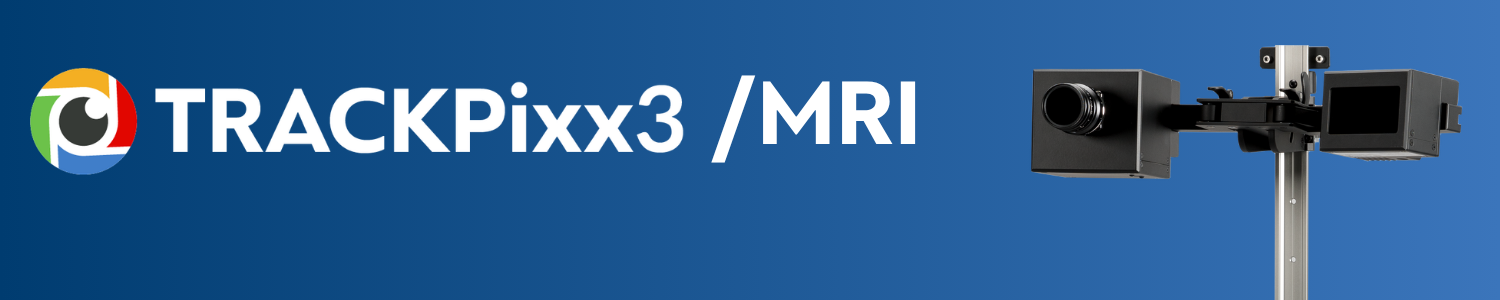
The TRACKPixx3 MRI/MEG is a 2 kHz eye/gaze-tracking solution compatible with MRI and MEG environments. The TRACKPixx3 is versatile, supporting both monocular and binocular tracking with a single mechanical configuration. The TRACKPixx3 does not require a dedicated PC to process eye images and generate gaze information; it performs all image processing on the TRACKPixx3 hardware. The TRACKPixx3 can log gaze data and the testing PC can retrieve it via a simple, low-latency USB interface.
You can access the TRACKPixx3 video feed directly through a console display for real-time visualization and adjustment of the tracker. You can also access these video feeds through the USB interface to remotely control the TRACKPixx3.
You can also convert the TRACKPixx3 MRI / MEG into a low-cost eye-tracker tabletop configuration.
Product Details
Your TRACKPixx3 MRI package should include the following items. After opening the package, please verify that all items are accounted for. If an item is missing, contact VPixx Technologies without delay.
|
Item |
Description |
Quantity |
MR Safety |
|---|---|---|---|

|
TRACKPixx3 |
1 |
|
|
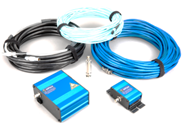
TRACKPixx3 MRI Cable Kit |
1 |
|
|
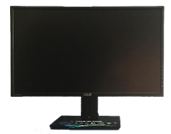
Console Monitor 2560x1440 60Hz |
1 |

|
|
Arm Support |
1 |

|
In addition to these components, as part of your order, you will also have received:
|
Component |
Description |
Options |
MR Safety |
|---|---|---|---|
|
Camera lens (1x) |
The lens and IR filter that attaches to the camera body |
VPX-ACC-1182 (75 mm long-range) |
|
|
Infrared illuminator (1x) |
IR lamp that illuminates the participant’s face |
VPX-TRK-9000 (850 nm short-range)
|
|
|
Control unit (1x) |
Dedicated VPixx hardware that manages eye tracking data |
VPX-DPX-1005C DATAPixx3 video I/O Hub |
|
The exact options provided will depend on your installation requirements, the species you are tracking, and your testing needs. You discussed these with a VPixx staff scientist during your sales consultation.
This guide provides key information about your eye tracking system, installation tips, data format and access, and links to in-depth resources for using your eye tracker.
-
For detailed system specifications, see our TRACKPixx3 product datasheet.
-
For general usage within LabMaestro software, see: TRACKPixx3 Eye Tracker
-
For calibrating the tracker, see: TRACKPixx3 Calibration Walkthrough
Hardware Description
This guide concerns the eye tracking system specifically; for data acquisition and display features associated with your control unit (DATAPixx3 or VIEWPixx3 /OLED) please see their respective user manuals.
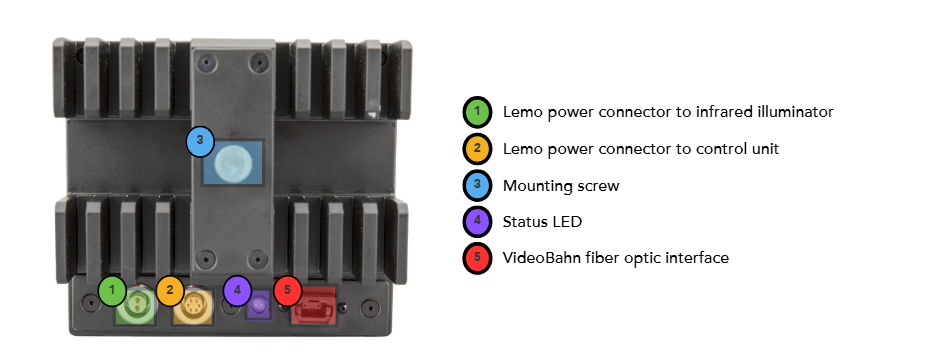
The camera
The mounting apparatus - Freestanding
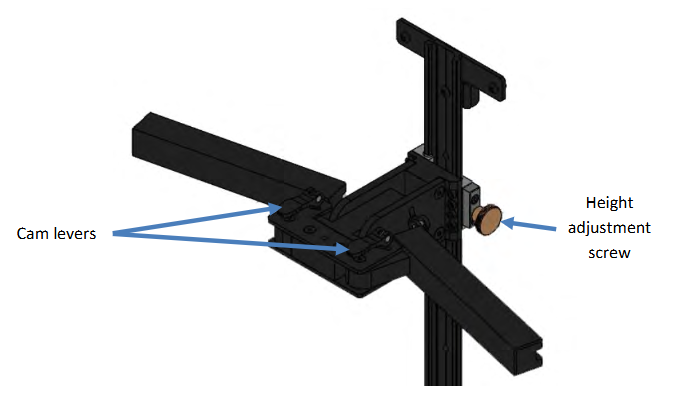
In MRI installations, particularly with a PROPixx projection screen, the tracker is mounted on a freestanding arm. This is pictured below, with the camera levers identified with arrows:
The camera lens
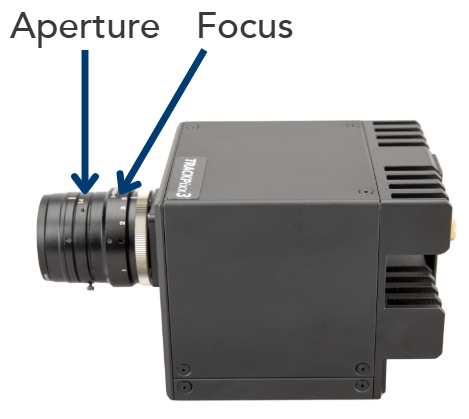
The camera lens is shipped in a separate box to protect the optics. It can be mounted on the camera body and screwed into place. Arrows indicate the focus adjustment and aperture.
The aperture controls how much light reaches the sensor; the focus adjusts image sharpness.
The console monitor
Your TRACKPixx3 installation includes a 27” LCD monitor that can be used as a console display. The console shows a copy of the main experiment display and a live camera feed, without adding load to the experiment PC’s graphics processor. The console is typically placed at the experimenter’s station for real-time participant monitoring. The layout of the camera feed and experiment display can be configured in LabMaestro → TRACKPixx3 → Device Settings.
|
Display |
Description |
Use case |
|---|---|---|
|
Stimulus Display 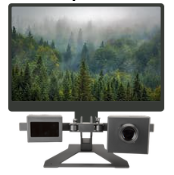
|
The screen that presents all visual stimuli and instructions to the participant |
Main experiment display |
|
Console Display 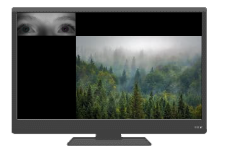
|
A secondary monitor that shows a copy of the experiment and a live eye-tracking camera feed |
Participant and experiment monitoring (e.g., from the control room) |
Specifications
|
Parameter |
Value |
|---|---|
|
Sampling Rate |
2 kHz Binocular1 |
|
Eye Tracking Method |
Pupil with corneal reflection |
|
Accuracy2 |
0.20o - 0.60o |
|
Spatial Resolution3 |
0.01o |
|
Tracking Precision with Subject Fixations2 |
0.04o |
|
Blink Recovery Time |
1 frame (0.5 ms) |
|
Real-Time Data Access |
Deterministic 1.70 ms via Analog Outputs 1.95 ms via USB |
|
Pupil Size Accuracy |
+- 0.1 mm |
|
Allowable Head Movement |
Head Restricted |
|
Optimal Range of Use |
100 - 180 cm |
|
Glasses Compatibility |
Yes |
|
Data Output |
Raw and calibrated eye position, pupil size (major axis), digital inputs and outputs, blink and saccade detection. All the data are perfectly synchronized to your compatible stimulus monitor. |
|
Infrared Wavelength |
850 nm (940 nm for primates) |
|
Console Monitor |
Console monitor shows participant view with optional camera live feed |
|
Button Box Interface |
RESPONSEPixx series compatible via DB25 input on DATAPixx3 |
|
Analog Output |
4 configurable channels for streaming eye data (16 options for data output) |
|
Tracker Computer |
Not required |
|
Suggested Lens |
75 mm |
1Binocular is available depending on the head coil used. For binocular recording, both eyes must be clearly visible to the TRACKPixx3 camera.
2Measured with human eyes.
3Measured with an artificial eye.
System Requirements
VPixx Software Tools is a package of APIs and high-level software tools for use with VPixx products. It contains everything you need to connect to, configure and operate our devices from your experiment PC. It includes the following:
-
LabMaestro, a program designed by VPixx Technologies for configuring VPixx hardware and designing/implementing experiments.
-
Datapixx.mex, a library of commands for use with MATLAB/Psychtoolbox and VPixx products
-
pypixxlib, a library of Python tools for VPixx products
The latest version of VPixx Software Tools can be downloaded directly from our website at any time. Support documentation, tutorials, and demos for all of our software tools can be found on our support site: https://docs.vpixx.com/
Operating System
VPixx Software Tools are developed and supported under Windows, macOS and Linux (Ubuntu) operating systems. For an up-to-date list of supported OS versions visit Software Download & Information.
Assembly and Installation
What’s included:
-
1/8” allen wrench
-
27” LCD monitor (console display)
-
AC adaptor and power cord (for console display)
-
Fiber optic data cable
-
Camera power interface cable
-
TRACKPixx3 camera box
-
TRACKPixx camera mount
Assembling the camera
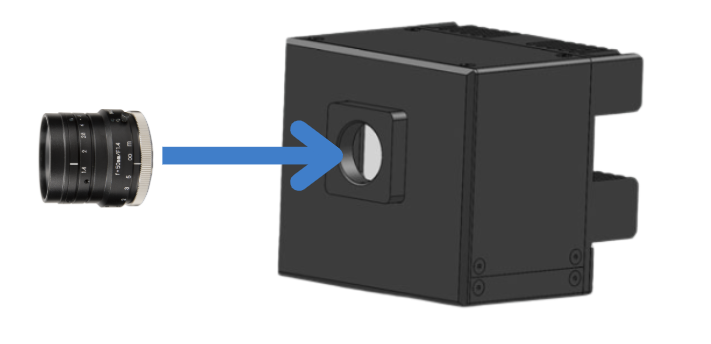
We suggest assembling the camera on a clean, stable surface. Unpackage the lens and screw it onto the sensor mount on the front of the camera box. Do not over-tighten.
Placing the camera and illuminator on the mount
The camera and illuminator both have slots on the back that slide onto the arms of the camera mount. It doesn't matter which component you place on which arm. Select the configuration that allows the easiest access to the camera lens without reaching in front of the illuminator, as the lens needs to be adjusted manually during calibration:
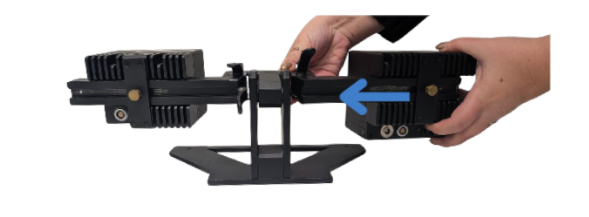
*While the picture shows a desktop mount, the same process applies to the freestanding mount.
Once the camera and illuminator are in position, tighten the mounting screws (bronze-coloured screws on the back of the camera and the illuminator; #2 in the labelled image of the camera above). This holds the components in place.
Step-by-step installation
Use the following guide to ensure all eye-tracking system connections are established.
-
Connect the power cable between the illuminator and the camera (Tip: the textured metal shank on the lemo connector slides back for easier connection. The orange dot on the top of the connector aligns with the dot on the port).
-
Connect the power cable between the camera and the control unit
-
Connect the fiber optic cable between the camera and the control unit
-
Connect the control unit to a power source (like a wall outlet)
-
Connect the control unit to your PC via USB and DisplayPort cable (Tip: the DisplayPort input to the control unit should insert into the port labelled Video Input or Video In 1)
-
[Optional] Connect the console monitor to the video output on the control unit
-
Power on the control unit. The status LED on the back of the camera should flash red, then orange.
Product Usage
The TRACKPixx3 requires 15 minutes of warm-up time after power-up before use. This warm-up period will ensure the best image and tracking quality.
Accessing your tracker in software
Start by installing the latest version of VPixx Software Tools: Software Download & Information.
Once you have installed our software, power on the control unit by pressing the power button (if it is not already on). On your PC, open the LabMaestro application and create a new empty project. In the Project menu, under the Environment tab, find your control unit and double-click it to open the settings widget.
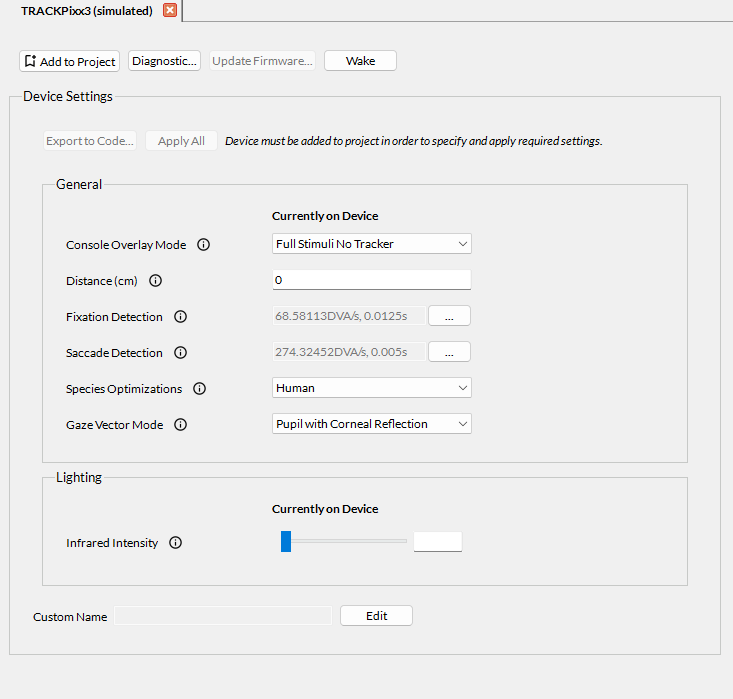
You can use this widget to modify settings on the camera, such as:
-
Configure saccade and fixation flag parameters
-
Configure the console display layout
-
Add a tracking distance
-
Specify the species being tracked
-
Set infrared illuminator intensity
Next, you can acces the camera view by clicking on Configure Tracker in the menu at the top of the application. In this section, you can configure the camera viewer settings, wake the tracker, view the camera live feed, run a calibration, and enable recording.
For more details, please refer to Using the TRACKPixx3 within LabMaestro. You can find a full list of tracker settings here: TRACKPixx3 Calibration Walkthrough | Appendix I: List of tracker and calibration settings.
Ready to get started? Try our LabMaestro calibration project here and collect some data: TRACKPixx3 calibration and data collection routine in LabMaestro. This is part of a larger guide on calibrating and collecting data, which we recommend for all new users.
We recommend using LabMaestro to familiarize yourself with tracking configuration options, camera settings and calibration features. Once you are comfortable, you can use the Export to Code feature to copy the desired settings to your programming environment and use our tracker APIs to continue interfacing with the eye-tracking system. Several guides at the bottom of this manual can help you.
Principles of Operation
Understanding eye movements
Eye movements are a window into cognition and perception. Several types of eye movements are relevant for research:
-
Saccades are rapid ballistic movements of the eyes that orient the eye so that a target of interest falls on the fovea
-
Antisaccades are ballistic movements away from a target; they have unique characteristics that can be related to cognitive control and pathology
-
Fixations are durations in which the eye remains approximately stable (e.g., while focusing)
-
Smooth pursuit occurs when the eyes follow a moving object
-
Blinks occur when the eyelids close over the eye and may be reflexive or related to attention/fatigue
-
Pupil dilation is the natural widening and constricting of the pupil in response to changes in light and other stimuli
The TRACKPixx3 can track all of these movements. Other types of eye movements, such as vergence (rotation of the eyes to focus in depth), nystagmus (reflexive eye movement during motion) and oculomotor torsion (torting of the eyeball in response to head movement), cannot be measured and are not discussed here.
Eye movements are relevant for a variety of research topics. Entire books, journals, and conferences are dedicated to eye tracking and what it tells us about the brain. Some key paradigms include:
-
Foveal and parafoveal processing
-
Oculomotor control
-
Reading
-
Attention
-
Perception during eye movement (e.g., transsaccadic perception)
-
Visual search
In some experiments, eye tracking is necessary to ensure the participant is fixating and thus following the experiment instructions. It may also be used in sensitive brain recordings to detect blinks and exclude trials with eye-movement artifacts.
TRACKPixx3 operation
The TRACKPixx3 is an infrared video-based eye tracking system, a noninvasive method for measuring gaze and eye movements at high speeds.
During tracking, the infrared illuminator beams infrared light into the participant's face. A specialized infrared camera records the illuminated face and eyes, and a high-speed image processing algorithm is applied to this video recording. Two key landmarks in each eye are identified: the center of the pupil (non-reflective), and the reflection of the light off of the cornea (also known as the first Purkinje image).
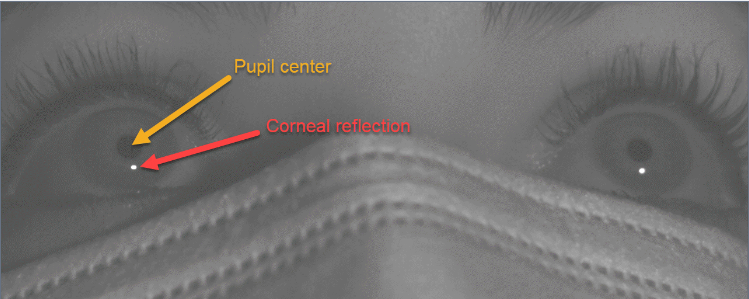
The pupil is defined as the dark region around the center of the pupil. The pupil diameter is measured by mapping this region as an oval, and taking the major axis as the current diameter.
The relationship between the pupil center and corneal reflection changes systematically as a participant looks around the display:
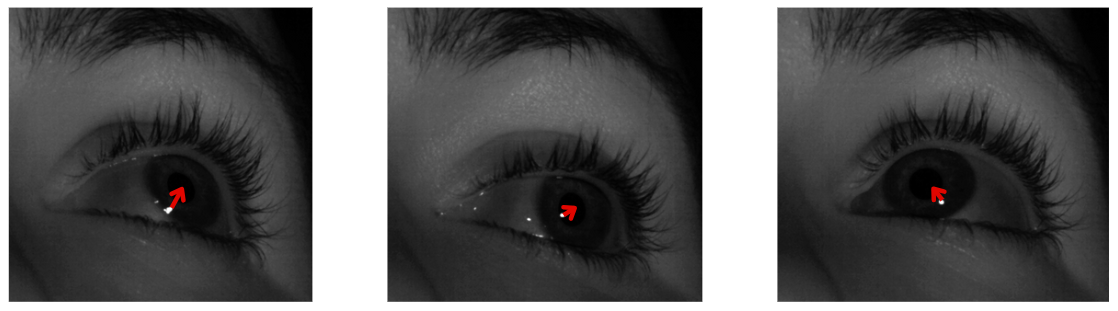
The exact nature of this change depends on several other factors:
-
the angle of the camera/lamp
-
the position of the participant
-
individual morphology of the eye/face
-
which eye is being tracked
Therefore, it is necessary to build a unique model of this change for each participant, and each eye, each time they or the camera take on a new position. We do this by calibrating the eye tracker at the start of the session.
Related links:
After calibration, we can infer with high accuracy and precision where the participants are looking. This allows us to report the x and y gaze position in screen coordinates. We collect this data at a rate of 2000 samples/second. Simple rolling window averages can be configured to generate automated fixation and saccade detection flags during online analysis; more complex analyses can be applied in postprocessing to categorize types of eye movements (e.g., microsaccades).
Tracking loss occurs when the camera loses one or both landmarks. This may indicate the participant looked offscreen or blinked; the camera cannot distinguish between the two events, but simple heuristics can identify one vs. the other in postprocessing. Tip: blinks are typically preceded by a rapid downward saccade.
TRACKPixx3 data output
The TRACKPixx3 samples data at 2000 Hz. Each sample saves the following information:
|
Col |
Name |
Units |
Description |
|
1 |
Time tag |
seconds |
Time, in seconds, since the control unit was last turned on. Uses the same clock as all other I/O on the control unit for easy synchronization. |
|
2 |
Left Eye x |
pixels |
x screen coordinate, in pixels, corresponding to the calibrated x position of the left eye. Uses a Cartesian system where (0,0) corresponds to the center of the display. |
|
3 |
Left Eye y |
pixels |
y screen coordinate, in pixels, corresponding to the calibrated y position of the left eye. Uses a Cartesian system where (0,0) corresponds to the center of the display. |
|
4 |
Left Eye Pupil Diameter |
pixels |
The diameter of the left pupil. The pupil is mapped as an ellipse; the diameter always reflects the major (longest) axis of this ellipse. |
|
5 |
Right Eye x |
pixels |
x screen coordinate corresponding to the calibrated x position of the right eye. Uses a Cartesian system where (0,0) corresponds to the center of the display. |
|
6 |
Right Eye y |
pixels |
y screen coordinate corresponding to the calibrated y position of the right eye. Uses a Cartesian system where (0,0) corresponds to the center of the display. |
|
7 |
Right Eye Pupil Diameter |
pixels |
The diameter of the right pupil. The pupil is mapped as an ellipse; the diameter always reflects the major (longest) axis of this ellipse. |
|
8 |
Digital Input |
integer |
An integer value which represents the 24-bit digital input to the control unit. This value will change in response to button box presses, incoming triggers, and any other input coming in from the Digital In port. |
|
9 |
Left Eye Blink |
boolean |
0 if the left eye is open, 1 if the left eye is closed. |
|
10 |
Right Eye Blink |
boolean |
0 if the right eye is open, 1 if the right eye is closed. |
|
11 |
Digital Output |
integer |
An integer value which represents the 24-bit digital output being sent from the control unit. This value will change in response to outgoing triggers, e.g. from the DOut schedule or Pixel Mode. |
|
12 |
Left Eye Fixation |
boolean |
Default 0, changes to 1 if the conditions for a left eye fixation event are met. By default, the fixation flag raises when the eye has moved less than 2500 pixels/second for the last 25 consecutive frames. These default thresholds can be changed by the user. |
|
13 |
Right Eye Fixation |
boolean |
Default 0, changes to 1 if the conditions for a right eye fixation event are met. By default, the fixation flag raises when the eye has moved less than 2500 pixels/second for the last 25 consecutive frames. These default thresholds can be changed by the user. |
|
14 |
Left Eye Saccade |
boolean |
Default 0, changes to 1 if the conditions for a left eye saccade are met. By default, the saccade flag raises when the eye has moved more than 10,000 pixels/second for the last 10 consecutive frames. These default thresholds can be changed by the user. |
|
15 |
Right Eye Saccade |
boolean |
Default 0, changes to 1 if the conditions for a right eye saccade are met. By default, the saccade flag raises when the eye has moved more than 10,000 pixels/second for the last 10 consecutive frames. These default thresholds can be changed by the user. |
|
16 |
Message code |
– |
implemented in future release |
|
17 |
Left Eye Raw x |
pixels |
x value of the left eye pupil-corneal vector |
|
18 |
Left Eye Raw y |
pixels |
y value of the left eye pupil-corneal vector |
|
19 |
Right Eye Raw x |
pixels |
x value of the right eye pupil-corneal vector |
|
20 |
Right Eye Raw y |
pixels |
y value of the right eye pupil-corneal vector |
Eye tracking data is stored in a memory buffer on the device. This allows for an extremely high, uninterrupted sampling rate. Data can be accessed in three ways:
-
Access current eye position via API commands or Tracker.gazeX, Tracker.gazeY in Labmaestro.
This method requires a USB transaction to the control unit, which takes time. This method is intended for online experiment management (e.g., gaze-based screen updating). Do not use it for offline analysis. -
Batch import tracking data from the device buffer using API commands or the StopTrackerRecording command component in LabMaestro.
This method is recommended for offline data analysis. The control unit can store about 60 minutes of continuous tracking data; we recommend importing data frequently (e.g., between experiment blocks) to prevent data loss if the experiment crashes. -
Stream eye tracking data to a third-party analog receiver (e.g., an MEG acquisition system). This requires a DATAPixx3 control unit and a custom cable. See this guide for details: Configuring the TRACKPixx3 Analog Output.
Below are some general timing guidelines for the three different methods:
|
Method |
Description |
Use Cases |
Time delay from eye movement → acquired data |
|---|---|---|---|
|
Get eye position |
Query current eye position from experiment PC |
Fast checking of eye position during experiment |
~1.95 ms (variable, due to USB transaction) |
|
Batch import buffer data |
Import data from tracker buffer for analysis |
Post-processing of gaze data |
1.7 ms |
|
Stream data to analog output |
Streaming gaze data to analog receiver (requires DATAPixx3 & analog cable) |
Recording gaze data on external system |
1.7 ms |
Consider this delay in the broader context of your experiment. For instance, if you are running a gaze-contingent display, you also need to consider delays associated with evaluating the gaze position, rendering the image buffer, and passing the rendered image to the display. On a high-performance PC with a 120 Hz monitor and low-demand graphics, an end-to-end latency of 2-3 video frames (16.6-25 ms) is reasonable.
Coordinate systems
In all TRACKPixx3 tools, the directions ‘left’ and ‘right’ always refer to the sides of the camera view as it appears on the display. These labels may not correspond to the left and right eyes from your participant’s point of view.
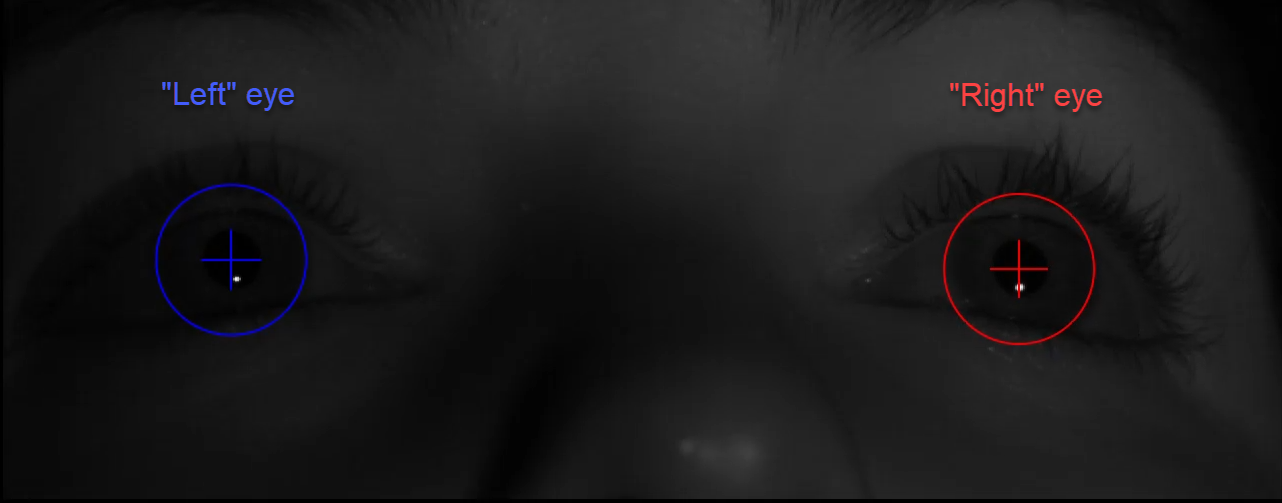
As mentioned in the table above, x and y screen coordinates are in pixels. They use a convention where the origin (0,0) is in the middle of the screen:
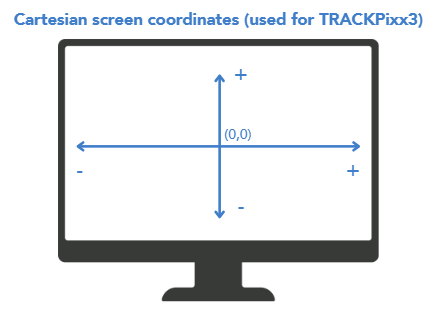
Compare this to screen coordinates for a number of popular psychology software tools, where screen resolution in pixels is W x H:
|
Program |
Location of Origin (0,0) |
(x, y) value of bottom right corner |
How to convert TRACKPixx buffer data (x, y) |
|---|---|---|---|
|
TRACKPixx buffer |
Center |
(W/2, -H/2) |
— |
|
Psychtoolbox |
Top left corner |
(W, H) |
PTBx = x + (W/2);
|
|
PsychoPy (pix, origin=center) |
Center |
(W/2, −H/2) |
PsychoPyx = x;
|
|
PsychoPy (norm, origin=center) |
Center |
(1, −1) |
PsychoPyx = x / (W/2); PsychoPyy = y / (H/2) |
Automatic video and digital input synchronization
Your control unit supports sending video-based digital triggers via Pixel Mode. Some units can also send custom triggers configured by the user (e.g., to indicate audio onset). Outgoing digital signals are automatically recorded by the tracking buffer (see Column 11 in the buffer contents table), allowing you to align eye movement data with stimulus behaviours with excellent precision.
Digital input from button boxes or third-party devices is also captured in the tracking buffer (Column 8).
Maintenance & Cleaning
Do not use cleaners that contain any petroleum-based materials such as benzene, thinner, or any other volatile substance to clean any part of this product.
You can wipe down the camera mount, camera body, and illuminator body with a commercial cleaner. Cables may also be wiped down. Avoid bending the fibre optic cables; they are very fragile. You can clean sockets with compressed air.
Clean the glass LED illuminator cover and camera lens with a soft microfiber cloth and a commercial LCD screen cleaner (like this one). You can also use warm water and a small amount of gentle soap, such as hand soap. Then remove excess soap and water with a second clean cloth.
Thoroughly disinfect chinrests between uses, as they come into direct contact with your participant’s face. Spray liberally with disinfectant solution and wipe down with a cloth.
Troubleshooting
Having trouble getting good tracking? See Common Eye Tracking Problems and How to Solve Them, or contact our support team to set up a training session over Teams.
Compliance
For Canada
This Class A digital apparatus complies with Canadian ICES-003.
CISPR warning: This is a Class A product. In domestic environments this product may cause radio interference in which case the user may be required to take adequate measures.
For the United States of America
This device complies with part 15 subpart B of FCC rules. Its operation is subject to the following two conditions: (1) this device may not cause harmful interference, and (2) this device must accept any interference received, including interference that may cause undesired operation. This equipment has been tested and found to comply with the limits for a Class A digital device, pursuant to part 15 subpart B of the FCC rules.
For European Countries
DECLARATION OF CONFORMITY

|
Manufacturer’s Name:
Manufacturer’s Address:
|
|
|
SUPPLEMENTARY INFORMATION
To remain CE compliant, only CE compliant parts should be used with this product. Maintaining CE compliance also requires proper cable and cabling techniques. VPixx Technologies will not retest systems or components that have been modified by customers. Signature: 
|
The following information is only for EU member states:

|
The mark shown to the left is in compliance with the Waste Electrical and Electronic Equipment directive 2012/19/EU (WEEE). The mark indicates the requirement NOT to dispose of the equipment as unsorted municipal waste. For more information call VPixx Technologies Inc. or email us at support@vpixx.com |
Safety & Warranty
Safety precautions
This device is intended solely for research purposes and is not suitable for medical applications or diagnostic use.
Please consult the user manual for the infrared illuminator for important safety warnings:
https://docs.vpixx.com/hardware/infrared-illuminators#Compliance,-Safety-and-Warranty-Information
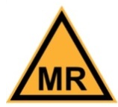
The following table shows MR safety warning indicators and their names and meanings. Please pay special attention to the symbols on your equipment, and obey all guidelines to protect staff and equipment from injury.
|
Symbol |
Name |
Description |

|
MR safe |
Components marked with the green MR safe indicator present no danger to staff and equipment operating in the MR room. |
|
Conditionally MR safe |
The yellow Conditionally MR safe indicator denotes components that are only MR safe in a limited fashion. Product-specific safety requirements apply. For additional details, consult the product manual's safety section. |

|
MR unsafe |
The red MR unsafe indicator denotes components prohibited from entering the MR room. |
Product care
-
Use only the provided power cable.
-
Do not expose any component of the TRACKPixx3 to adverse weather conditions such as rain, water, heat, cold or abnormally high levels of humidity.
-
Unplug the system before cleaning, and refer to the appropriate cleaning procedure in the maintenance section of this document to clean any component.
-
Handle the power cable carefully. Never use a damaged power cable.
-
Ensure that air circulation surrounds all system components.
-
If a failure occurs, replace the TRACKPixx3 and Infrared Illuminator devices. There are no user serviceable/adjustable parts inside. Contact Us for repair or replacement as required.
Warranty Information
This product is warranted against manufacturing defects in materials and workmanship for two (2) years for parts and labour from the date of shipment.
Related Links
-
VPixx Online Classroom and Library (VOCAL) articles:
-
Introduction to Eye Tracking with the TRACKPixx3 -
TRACKPixx3 Calibration Walkthrough -
Common Eye Tracking Problems and How to Solve Them -
Implementing a Real-Time Gaze Follower on the Console -
Configuring the TRACKPixx3 Analog Output -
Visualizing Gaze Data -
Checking if Fixation is Inside a Region of Interest
-
-
Book a personalized eye tracking training session with a staff scientist