
Product Overview
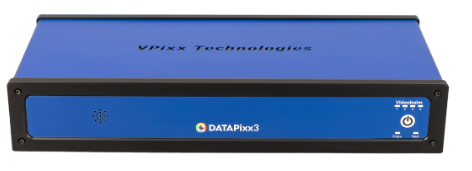
The DATAPixx3 is an advanced multi-function data and video processing USB peripheral designed for vision research. It acts as a controller for the TRACKPixx3 eye tracker and the PROPixx projector. It integrates a dual-display video processor with peripherals for precise synchronization with video during experiments. These peripherals include:
-
Button box interface
-
24 TTL trigger inputs and outputs
-
Stereo audio input and output
-
Analog inputs and outputs
-
Interface for 3D glasses
-
VideoBahn interface for TRACKPixx3 eye tracker
By implementing video control and peripheral management on the same circuit board, the DATAPixx3 ensures microsecond precision in synchronizing all subject I/O with visual stimuli.
To learn more, check out our DATAPixx3 Product Tour on YouTube!
Product Details
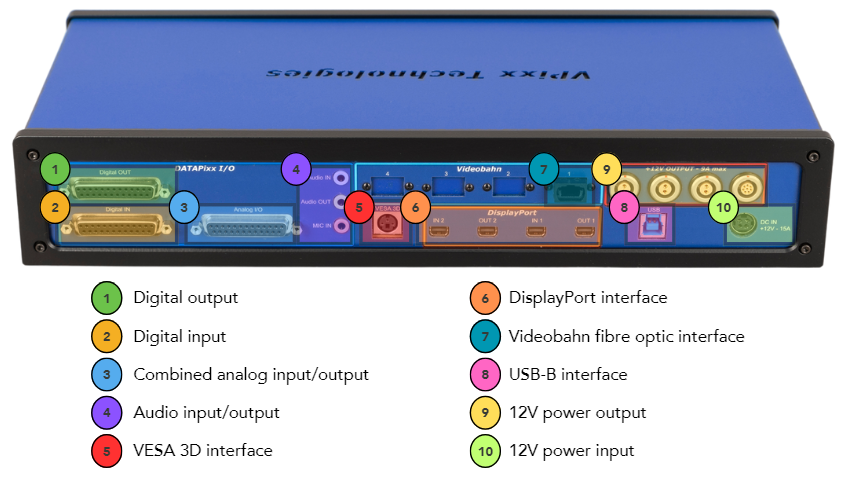
This section includes detailed information about the various ports of the DATAPixx3 Video I/O hub. Expand the relevant section to view details about the device subsystem, including technical specifications and pin assignment.
1. Digital output
Digital output
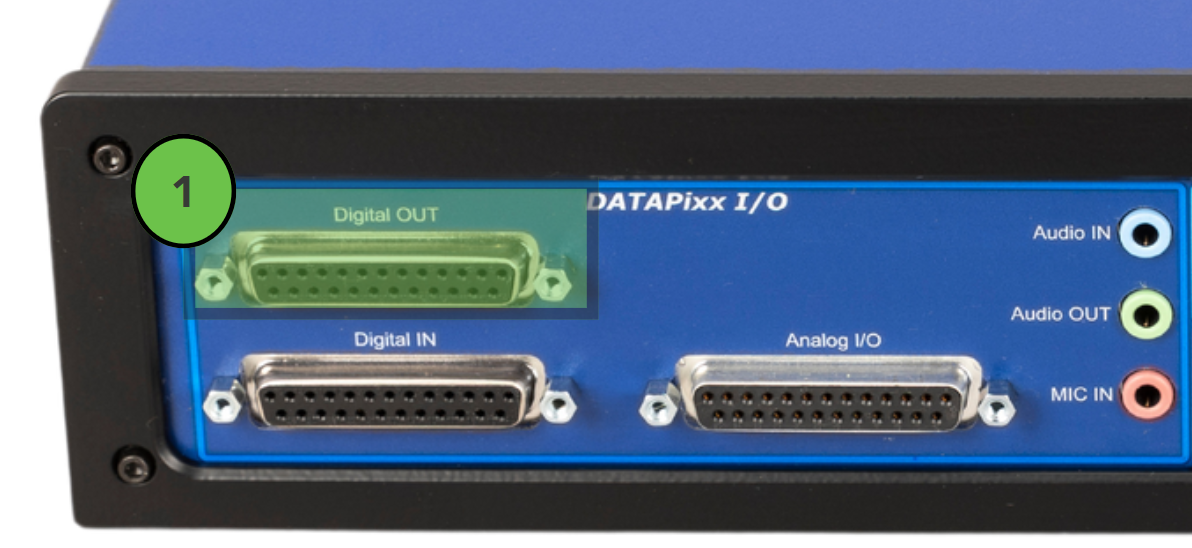
The DATAPixx3 supports TTL digital outputs via a DB25 port on the rear of the unit (highlighted below).
TTL stands for transistor-transistor logic, which is a simple digital communication protocol that consists of rising and falling voltages. It is commonly used for rapid, simple communication between electronic devices. Common applications in research include sending TTL “triggers” to signal events like visual stimulus onset to third-party systems.
Technical specifications:
-
24 digital outputs on DB25 connector (female)
-
Output drive stage: 5 V through 25 Ω series resistor
-
Maximum output current:
-
Source: 15 mA
-
Sink: 12 mA
-
Detailed pin assignment information:
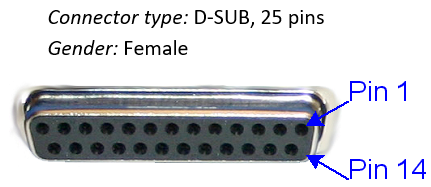
Below are the industry standard pin labels and their corresponding function. Pins 1-12 are configured for even digital output channels from 0-22; pins 12-25 are configured for odd digital output channels from 1-23; pin 13 is ground. Note that pin numbering follows the industry standard for DB25 ports.
|
Pin |
Description |
Pin |
Description |
|
|
1 |
Digital Out 0 |
14 |
Digital Out 1 |
|
|
2 |
Digital Out 2 |
15 |
Digital Out 3 |
|
|
3 |
Digital Out 4 |
16 |
Digital Out 5 |
|
|
4 |
Digital Out 6 |
17 |
Digital Out 7 |
|
|
5 |
Digital Out 8 |
18 |
Digital Out 9 |
|
|
6 |
Digital Out 10 |
19 |
Digital Out 11 |
|
|
7 |
Digital Out 12 |
20 |
Digital Out 13 |
|
|
8 |
Digital Out 14 |
21 |
Digital Out 15 |
|
|
9 |
Digital Out 16 |
22 |
Digital Out 17 |
|
|
10 |
Digital Out 18 |
23 |
Digital Out 19 |
|
|
11 |
Digital Out 20 |
24 |
Digital Out 21 |
|
|
12 |
Digital Out 22 |
25 |
Digital Out 23 |
|
|
13 |
GND |
Shield * |
||
*Shield is tied to the GND by a 0 Ohm resistor inside the DATAPixx3.
2. Digital input
Digital input
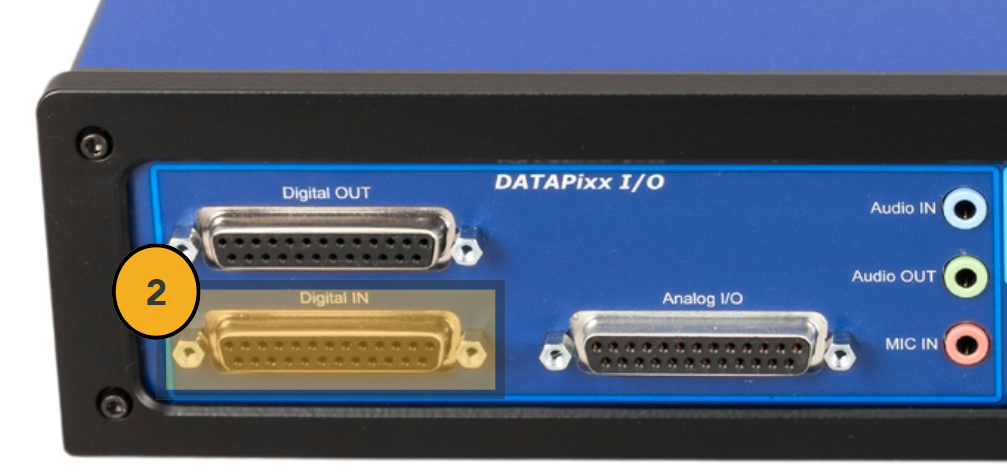
The DATAPixx3 supports TTL digital inputs via a DB25 port on the rear of the unit (highlighted below).
TTL stands for transistor-transistor logic, which is a simple digital communication protocol that consists of rising and falling voltages. It is commonly used for rapid, simple communication between electronic devices. Common applications in research include receiving high-speed input from TTL-based button boxes and MRI triggers.
Technical specifications:
-
24 inputs on DB25 connector (female)
-
Input termination: >20 kΩ pull-up to 3.3 V
-
Input tolerance: 5 V
Detailed pin assignment information:
Below are the industry standard pin labels and their corresponding function. Pins 1-12 are configured for even digital input channels from 0-22; pins 12-25 are configured for odd digital input channels from 1-23; pin 13 is ground. Note that pin numbering follows the industry standard for DB25 ports.
|
Pin |
Description |
Pin |
Description |
|
|
1 |
Digital In 0 |
14 |
Digital In 1 |
|
|
2 |
Digital In 2 |
15 |
Digital In 3 |
|
|
3 |
Digital In 4 |
16 |
Digital In 5 |
|
|
4 |
Digital In 6 |
17 |
Digital In 7 |
|
|
5 |
Digital In 8 |
18 |
Digital In 9 |
|
|
6 |
Digital In 10 |
19 |
Digital In 11 |
|
|
7 |
Digital In 12 |
20 |
Digital In 13 |
|
|
8 |
Digital In 14 |
21 |
Digital In 15 |
|
|
9 |
Digital In 16 |
22 |
Digital In 17 |
|
|
10 |
Digital In 18 |
23 |
Digital In 19 |
|
|
11 |
Digital In 20 |
24 |
Digital In 21 |
|
|
12 |
Digital In 22 |
25 |
Digital In 23 |
|
|
13 |
GND |
Shield * |
||
*Shield is tied to the GND by a 0 Ohm resistor inside the DATAPixx3.
3. Combined analog input/output
“Full” vs. “Lite” Systems: As of September 2023, all VPixx data acquisition systems include analog and audio I/O functionality. Units sold before this were either Lite or Full models; only Full models have analog and audio I/O features enabled. Depending on the age and model of your device, you may not have access to these features. For more details, see our FAQ.
Combined analog input/output
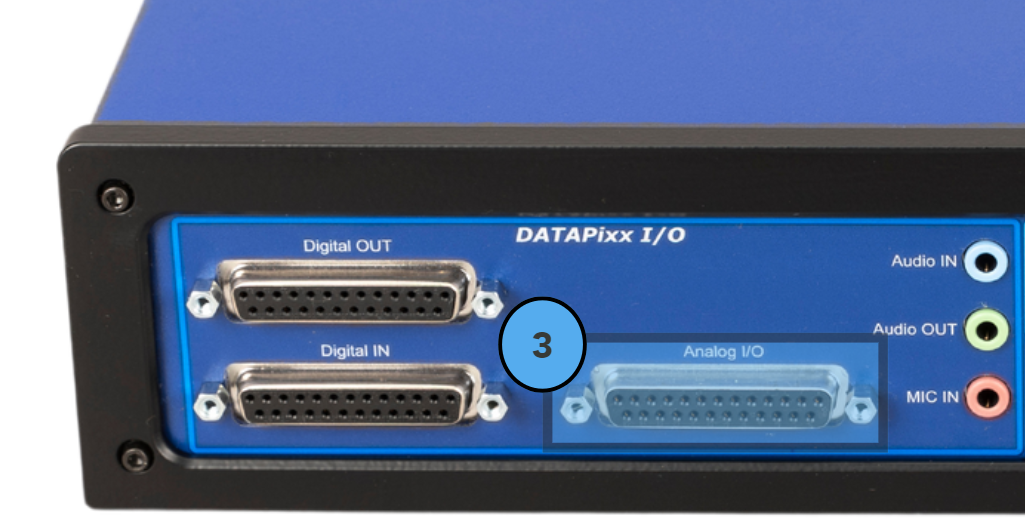
Analog signals are continuous voltages that vary over time and are used to record fluctuating variables like position, force and energy. They are also the foundation for audio output. Modern systems digitize analog signals using Analog to Digital Converters (ADC) and convert digital signals back into analog using Digital to Analog Converters (DAC). The DATAPixx3 features 16 ADC channels (or 8 differential channels) and 4 DAC channels on a single DB25 port on the rear of the unit.
Technical specifications:
Analog to digital converter
-
Number of channels: 16 (or 8 differential), on DB-25
-
Converter resolution: 16 bits
-
Maximum sampling rate: 200 kSPS per channel
-
Frequency programming modes:
-
samples per second or per video frame
-
nanoseconds per sample
-
-
Simultaneous sampling across all channels
-
Input range: ±10 V
-
Input impedance: 1.6*108 Ω // 3 pF
-
Absolute maximum input tolerance: ±12 V
Digital to analog converter
-
Number of channels: 4 on DB-25 connector
-
Converter resolution: 16 bits
-
Maximum sampling rate: 1 MSPS per channel
-
Frequency programming modes:
-
samples per second or per video frame
-
nanoseconds per sample
-
-
Simultaneous output updates
-
Output range: ±10 V on 4 ch
-
Drive capability: ±25 mA
Detailed pin assignment information:
Below are the industry-standard pin labels and their corresponding functions. Note that pin numbering follows the industry standard for DB25 ports.
|
Pin |
Description |
Pin |
Description |
|
|
1 |
ADC0 |
14 |
ADC1 |
|
|
2 |
ADC2 |
15 |
ADC3 |
|
|
3 |
ADC4 |
16 |
ADC5 |
|
|
4 |
ADC6 |
17 |
ADC7 |
|
|
5 |
ADC8 |
18 |
ADC9 |
|
|
6 |
ADC10 |
19 |
ADC11 |
|
|
7 |
ADC12 |
20 |
ADC13 |
|
|
8 |
ADC14 |
21 |
ADC15 |
|
|
9 |
REF0 |
22 |
REF1 |
|
|
10 |
GND |
23 |
+5 VDC ** |
|
|
11 |
DAC0 |
24 |
DAC1 |
|
|
12 |
DAC2 |
25 |
DAC3 |
|
|
13 |
GND |
Shield * |
||
*Shield is tied to the GND by a 0 Ohm resistor inside the DATAPixx3.
** Current limited (400mA).
4. Audio input/output
“Full” vs. “Lite” Systems: As of September 2023, all VPixx data acquisition systems include analog and audio I/O functionality. Units sold before this were either Lite or Full models; only Full models have analog and audio I/O features enabled. Depending on the age and model of your device, you may not have access to these features. For more details, see our FAQ.
Audio input/output
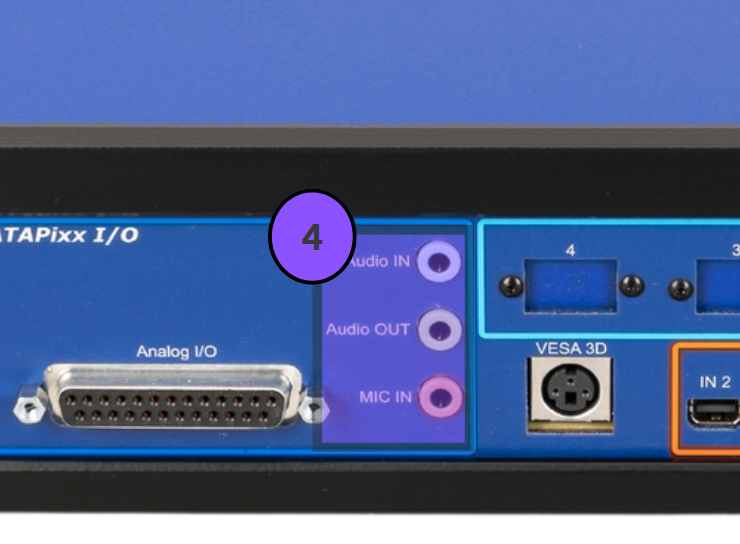
The DATAPixx3 supports audio output, audio input and microphone input on 3 3.5 mm stereo jacks on the device's rear.
The audio out port plays audio waveforms uploaded to DATAPixx3 device memory with microsecond-precise timing and supports various sound systems, from speakers to headphones.
Audio in and mic in are both used to record audio from other sources and save the input to the DATAPixx3 memory for later transfer to your experiment PC.
Technical specifications:
-
Audio line in, microphone in, speaker out, on 3.5 mm jacks
-
Stereo microphone input amplifier resistance: 20 kΩ
-
Microphone sampling rate: 96 kHz
-
Programmable microphone bias voltage range: 2.0 V to 3.1 V
-
Stereo DAC sampling rate: 96 kHz
-
Maximum output power into 8 Ω load: 500 mW
Detailed pin assignment information:
Audio In
|
|
|
Pin |
Description |
|
Tip |
Audio In left |
|
Ring |
Audio In Right |
|
Sleeve |
GND |
|
Shield * |
|
*Shield is tied to the GND by a 0 Ohm resistor inside the DATAPixx3.
Audio Out
|
|
|
Pin |
Description |
|
TIP |
Audio Out left |
|
Ring |
Audio Out Right |
|
Sleeve |
GND |
|
Shield * |
|
*Shield is tied to the GND by a 0 Ohm resistor inside the DATAPixx3.
|
Microphone In |
|
|
Pin |
Description |
|
TIP |
Microphone In left |
|
Ring |
Microphone In Right |
|
Sleeve |
GND |
|
Shield * |
|
*Shield is tied to the GND by a 0 Ohm resistor inside the DATAPixx3.
5. VESA 3D interface
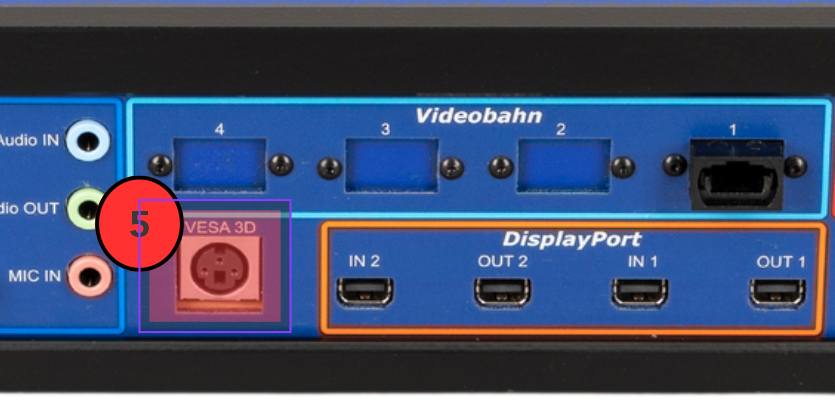
VESA 3D interface
The DATAPixx3's VESA 3D interface enables 3D stimulus presentation with a screen connected to the DisplayPort interface. A VESA-compliant system like the 3DPixx must be connected to use 3D features.
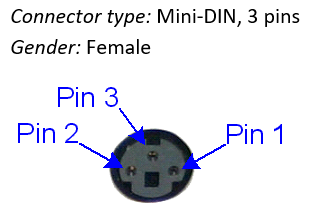
Detailed pin assignment information:
Below are the industry standard pin labels and their corresponding function.
|
Pin |
Description |
|
|
1 |
+5 VDC ** |
|
|
2 |
GND |
|
|
3 |
VESA_LR (+5 VDC) |
|
|
Shield* |
||
*Shield is tied to the GND by a 0 Ohm resistor inside the DATAPixx3.
**Current limited (400mA).
6. DisplayPort interface
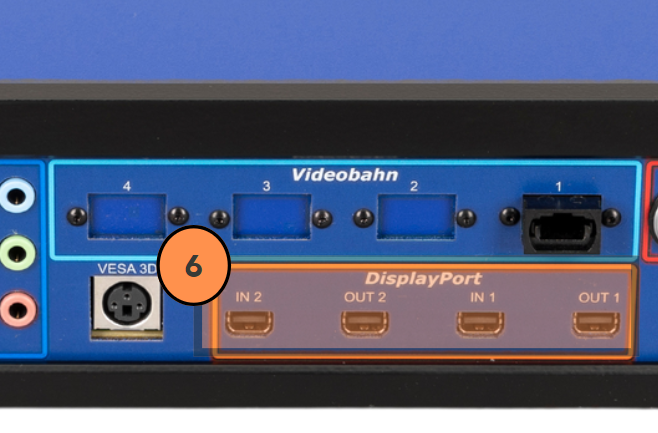
DisplayPort interface
The DATAPixx3 sits in the video chain between your experiment PC and your display. It receives a copy of the video output from your PC via the IN 1 port on the rear of the unit and passes it to your stimulus display via the OUT 1 port. The DATAPixx3 can be configured to monitor the properties of the video signal for timing and synchronization purposes.
An optional second display can be connected to OUT 2. This display will mirror the contents of OUT 1 without adding any load to your graphics processor. We call this secondary display the “console” display. The researcher typically uses it to the progress of the experiment from their control station. Unique information, such as an eye-tracking live feed or “hidden” metadata, can be shown on the console depending on the device connected and the video mode used.
Currently, the IN 2 port is reserved for future product development and is not in use.
Technical specifications:
-
2x DisplayPort 1.4 inputs (32.8 Gb/sec on each input)
-
2x DisplayPort 1.4 outputs (32.8 Gb/sec on each output)
-
Video output format: One stimulus display and one console display
7. Videobahn fibre optic interface
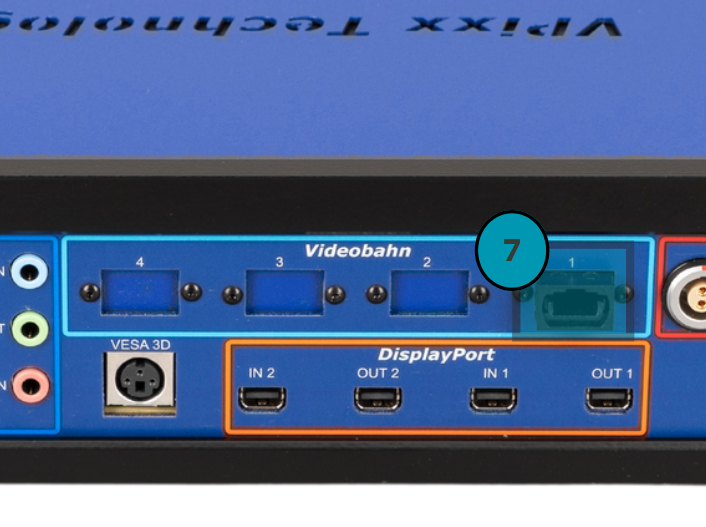
Videobahn fibre optic interface
The DATAPixx3 supports fibre optic communication over a proprietary high-speed Videobahn protocol. Four slots on the back of the unit allow this. These connections are used, for example, for rapid data transmission and control of the TRACKPixx3 2 kHz eye tracker.
Technical specifications:
-
4 Videobahn interfaces are available. Each one can carry up to 48 Gb/sec of video and data in each direction.
8. USB-B interface
USB-B interface
The DATAPixx3 connects to your experiment PC via a USB connection. The connection port is shown below:
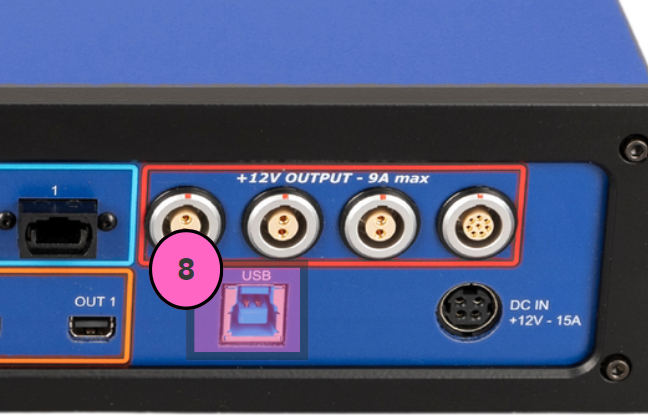
Technical specifications:
-
USB 2.0 with 480 Mbit/s theoretical maximum bandwidth
9. 12V power output
12V power output
The DATAPixx3 can provide 12V DC power to specific external devices during operation. Examples include:
-
TRACKPixx3 eye tracking camera and illuminator (rightmost port only)
-
RESPONSEPixx /MRI control unit
-
Certain models of DisplayPort to Dual-Link DVI adapter
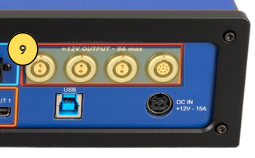
There are three 12V DC 2-pin female LEMO sockets and one 8-pin female socket available. To connect a device to the power supply, ensure the corresponding LEMO connector has the appropriate number of pins and power requirements for the port.
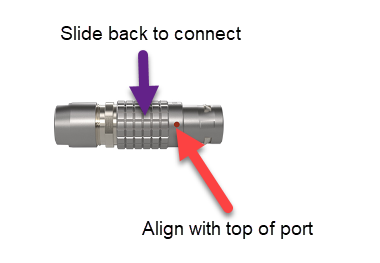
Connectors have a small orange dot indicating which side of the connector should point upwards. The textured metal ring around the connector slides back for cable insertion. Ensure the connector is firmly attached to the port during operation.
Technical specifications
-
4 power output connectors, each one able to supply a stable +12V DC
-
3x 2-pin connectors, 1x 8-pin connector
-
Maximum power output is 108 Watts (9 A)
10. 12V power input
12V power input
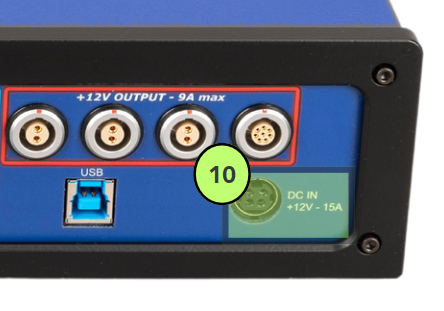
The DATAPixx3 is powered by a 12V input on the rear bottom right of the unit. Power supply and international adapter set are included with purchase.
When the DATAPixx3 is connected to power and powered OFF, the status LED on the front of the device will be illuminated in red. When the DATAPixx3 is connected and powered ON, the LED will be green.
Technical Specifications
-
Power consumption: 50 Watts (DATAPixx3 only)
-
Input voltage: 12 V DC
-
International AC adaptor input: 90 VAC – 264 VAC (47 Hz – 63 Hz)
System Requirements
The following section outlines the software and hardware requirements for the PC and displays connected to the DATAPixx3.
VPixx Software Tools
VPixx Software Tools is a package of APIs and high-level software tools for use with VPixx products. It contains everything you need to connect to, configure and operate our devices from your experiment PC. It includes the following:
-
LabMaestro, a program designed by VPixx Technologies for configuring VPixx hardware and designing/implementing experiments.
-
Datapixx.mex, a library of commands for use with MATLAB/Psychtoolbox and VPixx products
-
pypixxlib, a library of Python tools for VPixx products
The latest version of VPixx Software Tools can be downloaded directly from our website at any time. Support documentation, tutorials, and demos for all of our software tools can be found on our support site: https://docs.vpixx.com/
Supported operating systems
VPixx Software Tools are developed and supported under Windows, macOS and Linux (Ubuntu) operating systems. For an up-to-date list of supported OS versions visit Software Download & Information.
Recommendations for experiment PCs and graphics cards
We regularly receive questions about what experiment PC characteristics and graphics cards we recommend for use with our hardware. Generally speaking, most modern machines and GPUs (i.e., from the last 5 years) should be compatible with our devices. The following minimum video output must be supported:
-
PROPixx projector, VIEWPixx LCD Series: 1920 x 1080 resolution, 120 Hz refresh
-
VIEWPixx3 /OLED: 2560 × 1440 resolution, 120 Hz refresh
Unfortunately, we are not able to exhaustively test commercially available systems and make specific recommendations regarding makes/models.
Recommendations for stimulus and console displays for use with the DATAPixx3
The DATAPixx3 supports all VPixx-manufactured displays as a stimulus display.
In addition, third-party displays may be used, provided they support the following resolution/refresh:
|
Name |
Resolution |
Refresh |
|---|---|---|
|
Full HD |
1920 x 1080 |
60 Hz |
Please note we do not support displays with a native bit depth > 8 bits per colour. Adaptive refresh rate features, such as GSYNC and FREESYNC technologies, are not supported and should be disabled.
For custom resolution and refresh rate support with the DATAPixx3 and your specific third-party display, please contact support@vpixx.com for options.
Recommendations for video adapters
Please use one of the following video protocols from your PC:
-
DisplayPort
-
DisplayPort mini/Thunderbolt
-
USB-C to DisplayPort
We do not recommend converting from other video protocols (e.g., HDMI or VGA) as this can have unpredictable consequences for display behaviour.
If you are using the DATAPixx3 to drive a VPixx-manufactured display that uses Dual Link DVI input, we will supply you with a tested and vetted adapter for use with our displays.
Assembly and Installation
General recommendations
Ensure that the location where you place the device meets the following requirements:
-
The DATAPixx3 vent is not blocked
-
There is enough room behind the DATAPixx3 to allow for good airflow around the ports
-
Keep the DATAPixx3 in a well-ventilated area, away from excessive light, heat, or moisture
-
Use cables provided with your purchase rather than third-party cabling
-
For rack-mount installations, refer to the associated user manual and use the optional bracket
-
All DB25 cables (e.g.: analog or digital interface) should be screwed onto the DATAPixx3 during operation
-
The maximum recommended length of DisplayPort cables for optimal performance is 6 ft or 1.8 meters. Please contact VPixx Technical Support for assistance if you require a longer cable.
Product assembly - Connecting to your PC
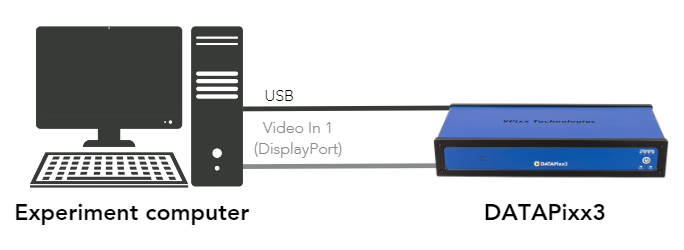
To connect your device to the experiment PC:
-
Connect your USB-B cable to the unit and an available port on your PC
-
Connect the DisplayPort cable to Video In 1 on the unit and your graphic card output on the PC
-
Connect the 12V power supply to the DATAPixx3 and an external power source
Product assembly - Connecting the stimulus and console display
Connect the stimulus display (main display used in the experiment) to Video Out 1 on the DATAPixx3. An optional secondary monitor can be connected to Video Out 2 (the console display) and will show a copy of the video to Video Out 1.
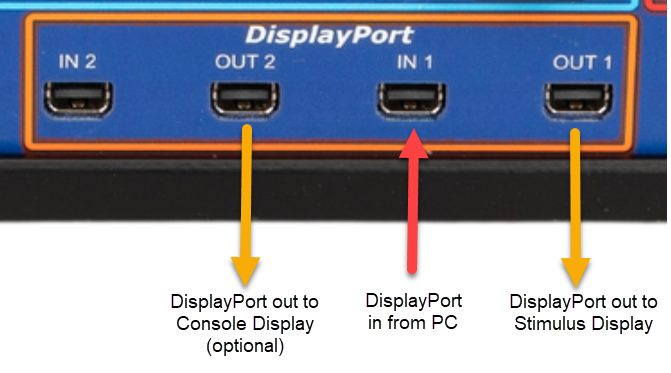
The console display is intended for the researcher to monitor the experiment's progress. Do not attempt to use it as part of your data collection apparatus; it shows a copy of the main video signal and thus may not preserve all the timing characteristics of the main stimulus display.
Product assembly - Connecting other systems
Connecting the DATAPixx3 to other systems is typically straightforward. Connect the designated cable to the relevant port on the rear of the unit. Depending on the connector type, you may need to screw the connector into place. For instructions for specific peripheral devices, see their respective hardware manuals.
Product Usage
The DATAPixx3 acts as an interface between your experiment PC and display, eye tracker and other peripherals. The exact layout of your system will depend on your research. Below is an example schematic of a DATAPixx3 research system:
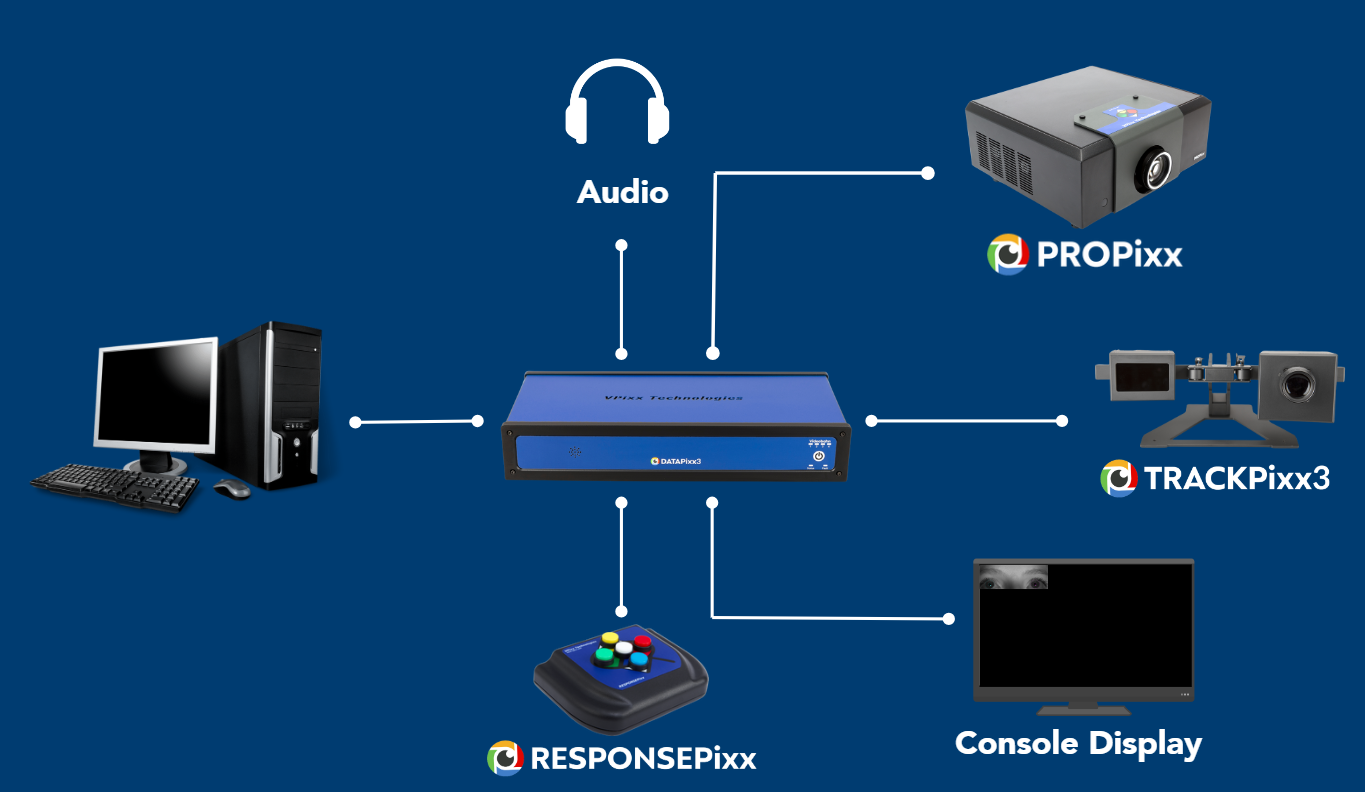
The DATAPixx3 connects to your PC via USB/video and acts as the main interface for connected devices. Except for the PROPixx projector, which has a dedicated USB connection to the PC, the DATAPixx3 manages all hardware/display configuration and peripheral system control.
To interact with the DATAPixx3, you can use our MATLAB and Python command libraries or our LabMaestro software. Our documentation has many examples of how to communicate with our hardware, including collecting video-accurate timestamps, configuring automated TTL triggering, setting up audio playback, and more. See the Relevant Links section below for recommended guides to get started. In particular, we recommend our guide The Logic of VPixx Hardware Control, which provides an overview of the framework for the DATAPixx3 as a peripheral signal management system.
Test patterns are simple demonstrations of VPixx products. They are preloaded onto VPixx hardware and do not rely on your graphics card or experiment code. They are used to quickly visualize product features and validate system performance, independent of your PC.
Some VPixx devices have test patterns that can be accessed by remote control. For access to all device test patterns, open the LabMaestro application, right-click on the device in the Environment section of the Project pane, and select Test Patterns from the menu. This will open the Test Pattern widget.
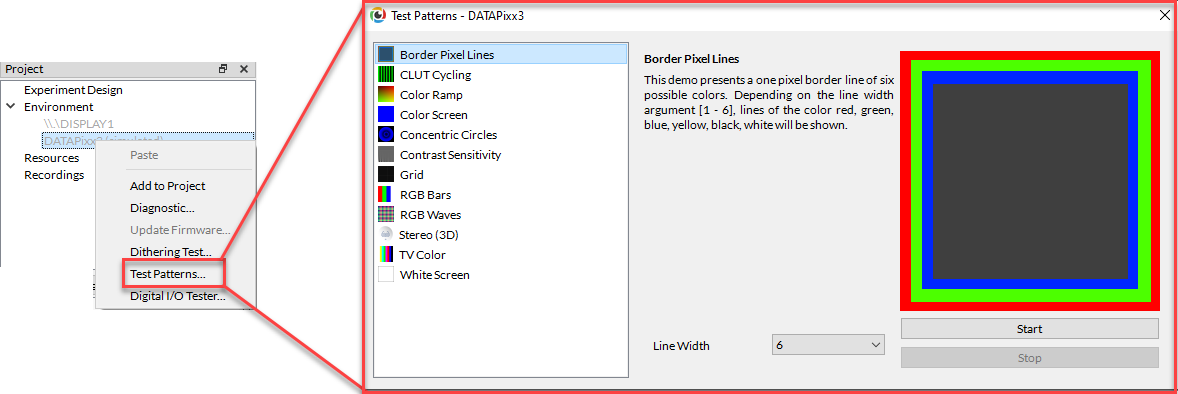
Only test patterns suitable for your selected device will appear in the widget. Each test pattern includes an explanation of the pattern and an example of expected behaviour. Some test patterns include options to adjust the pattern parameters. While a test pattern is enabled, your device will be unresponsive to typical user behaviour (e.g., mouse clicks). Stop the test pattern to return to regular operation.
LabMaestro 1.11 is currently supported under Windows and Linux. MacOS support will be implemented soon. To access test patterns in macOS, open the vputil application and type ‘tp’ to see options.
LED indicators and their meanings
The DATAPixx3 has several LED status indicators on the front right-hand side of the unit. See the table below for LED behaviours and their meanings.
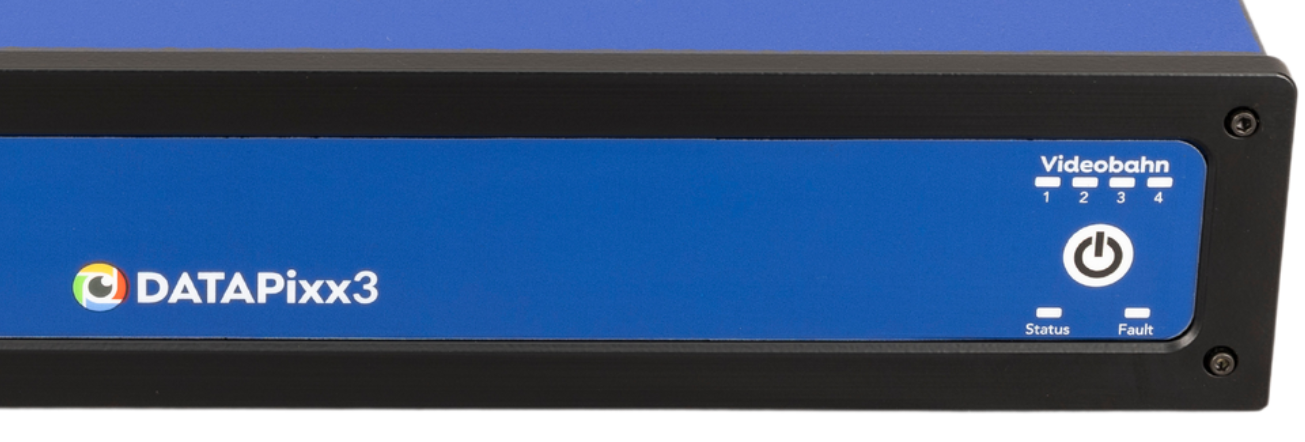
|
Indicator |
Status |
Meaning |
|---|---|---|
|
Power button |
Not illuminated |
The device is disconnected from a power source |
|
Illuminated red |
The device is connected to a power source and is powered off |
|
|
Illuminated green |
The device is connected to a power source and is powered on |
|
|
Videobahn LEDs |
Not illuminated |
Not in use |
|
Illuminated green |
VideoBahn channel connected and operational |
|
|
Fault LED |
Not illuminated |
The device is operating normally |
|
Flashing red |
Internal fault detected. This typically occurs in the following situations:
|
|
|
Status LED |
Not illuminated |
Not in use |
|
Flashing green |
Active communication with the device |
Product Specifications
General specifications
-
On-board memory: 2 GBytes for buffering I/O data
-
Enclosure: steel, with 19’’ rack-mount hardware available
-
Operating temperature: 0°C to 70°C
Pixel Mode
In Pixel Mode, your VPixx hardware sends automated digital TTL signals, aka ‘triggers,’ based on the colour of the top left pixel on the display. Triggers are locked to video frame onset with deterministic timing and microsecond precision. You can learn all about this feature in this guide: Sending Triggers with Pixel Mode. Use our Pixel Mode pixel value calculator to determine what pixel values you should use for your desired TTL output.
3D applications
This device has a VESA-standard 3D port, which can be used with the 3DPixx active shutter glasses kit (sold separately) to display 3D stimuli at a rate of 60 Hz/eye. There are several video modes available for formatting 3D stimuli with this system; for a comprehensive guide and demos, see this guide:
Analog subsystem
The analog subsystem of this device supports up to 16 concurrent analog inputs and 4 analog outputs. Analog cable are sold separately. For more details on how to use and configure analog channels on our hardware, see the following guides:
Digital subsystem
The digital subsystem comprises a 24-channel digital input and a 24-channel digital output. These can be configured for recording and playback of TTL signals, respectively. Common digital inputs include our RESPONSEPixx button boxes and MRI triggers. Common outputs include custom event-based triggers, Pixel Mode triggers, and forwarding of button box inputs to third-party systems. For details on how to use the digital subsystem, including examples, see these guides:
Audio subsystem
The audio subsystem includes a microphone in, an audio in, and an audio out. This device does not interact with your PC soundcard. Instead, you can configure the device hardware to record mic/audio inputs to the device’s onboard memory for later retrieval, load audio waveforms into device memory for playback with deterministic timing, or both. The advantage of this approach is that the device can operate independently of and in parallel with your experiment PC for improved timing and stimulus synchronization. For more details on how to use the audio system, see the following guides:
Cleaning and Maintenance
The DATAPixx3 video I/O hub has a metal chassis. It can be cleaned with regular cleaning products or disinfectants. If you are using a spray, spray the product into a soft cloth and wipe down the device—do not directly spray the product on the device, especially near the ports.
Cables, power bars and plugs can be wiped down in the same manner. Avoid bending or folding fragile cables, particularly fibre optic cables, during cleaning.
To clean the interior of the ports, spray compressed air into the sockets to remove dust and debris.
As a best practice, we recommend power cycling this device (e.g., turning it off and on again) occasionally to ensure optimal operation.
Troubleshooting your Device
Below are some possible issues you can encounter when using the DATAPixx3.
|
Issue |
Solution |
|---|---|
|
Device is not detected in software |
Ensure the unit is powered on and connected to your PC by USB. If it is, try a different USB port on the PC, or a different USB cable. We recommend USB cabling under 15ft (4.6 m) to ensure adequate signal transmission. For longer cabling, contact support@vpixx.com to ask about our extension cables for USB/DisplayPort |
|
Stimulus display shows a white grid on a black background |
This pattern indicates the DATAPixx3 is not receiving any video input. Investigate your video cabling and ensure you are using an appropriate cable length and direct DisplayPort connection. See our earlier section on System Requirements > Recommendations for video adapters. |
|
Stimulus display is black |
The display is not receiving video from the DATAPixx3. Verify your video connection. |
|
Unexpected refresh rate on stimulus display |
|
|
Unexpected resolution on console display |
|
|
Fault LED on the front of the device is flashing red |
Internal fault detected. Restart the device; if the fault persists, contact VPixx Technical Support. |
|
There is no audio output, or audio output comes from the onboard speaker |
Volume control is managed separately for the onboard speaker and jack output. See the following demos for examples of how to configure audio volume for the two systems:
|
Related Links
Compliance, Safety and Warranty Information
Click on the sections below to expand the relevant information.
Compliance Information
The VideoBahn interface on the DATAPixx3 uses a fibre optic module whose manufacturer provides a certificate of conformance for standard IEC 60825-1 Ed. 3 (2014)

For the United States of America
This device complies with part 15 subpart B of FCC rules. Its operation is subject to the following two conditions: (1) this device may not cause harmful interference, and (2) this device must accept any interference received, including interference that may cause undesired operation. This equipment has been tested and found to comply with the limits for a Class A digital device, pursuant to part 15 subpart B of the FCC rules.
For Canada
This Class A digital apparatus complies with Canadian ICES-003.
CISPR warning: This is a Class A product. In domestic environments this product may cause radio interference in which case the user may be required to take adequate measures.
For European Countries
DECLARATION OF CONFORMITY

|
Manufacturer’s Name:
Manufacturer’s Address:
|
|
Product Name: DATAPixx3 Full and DATAPixx3 Lite
|
|
|---|---|
|
2014/30/EEC
|
Electromagnetic Compatibility directive
|
|
The following harmonized standards have been used: |
|
|
EN 61326-1:2013
|
Electrical equipment for measurement, control and laboratory use.
|
|
|
SUPPLEMENTARY INFORMATION
To remain CE compliant, only CE compliant parts should be used with this product. Maintaining CE compliance also requires proper cable and cabling techniques. VPixx Technologies will not retest systems or components that have been modified by customers. Signature: 
|
The following information is only for EU member states:

|
The mark shown to the left is in compliance with the Waste Electrical and Electronic Equipment directive 2012/19/EU (WEEE). The mark indicates the requirement NOT to dispose of the equipment as unsorted municipal waste. For more information call VPixx Technologies Inc. or email us at support@vpixx.com |
Declaration of RoHS Compliance
|

|
This product has been designed and manufactured in compliance with Directive 2015/863/EU of the European Parliament and the Council on the restriction of the use of certain hazardous substances in electrical and electronic equipment (RoHS Directive). |